How to Automate Invoice Reminders (Without Sounding Like a Robot)
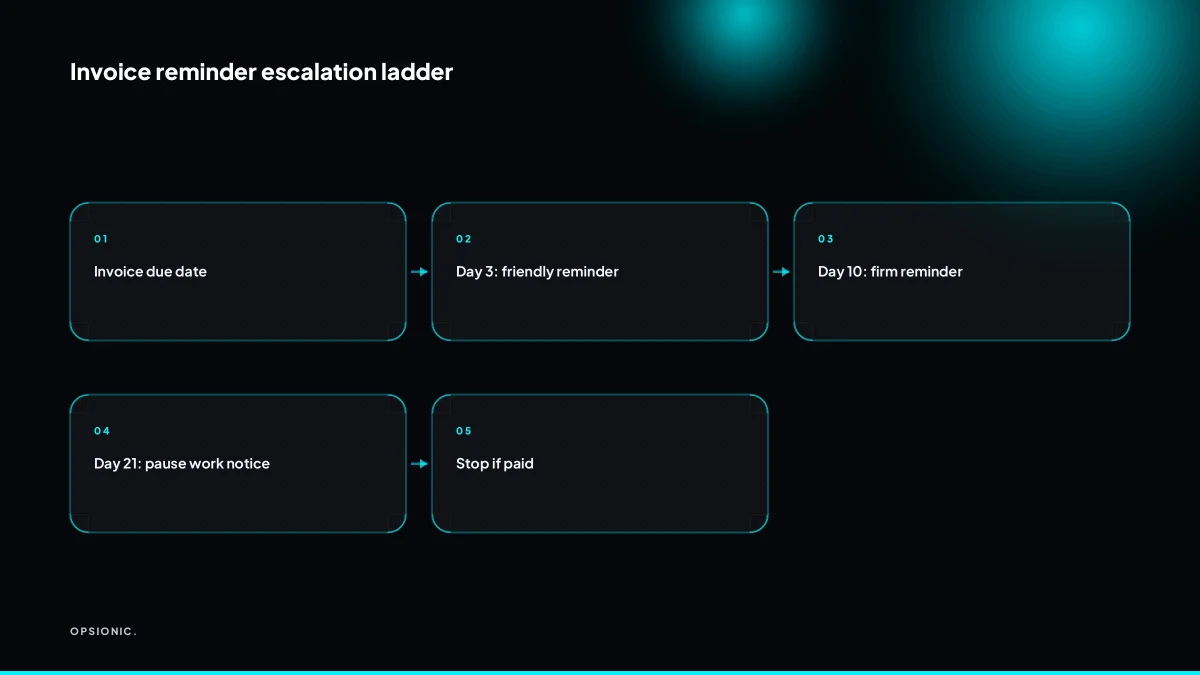
Automate invoice reminders with a three-step escalation: a friendly nudge three days after the due date, a firmer message at day ten, and a pause-work notice at day twenty-one. Use your invoicing tool's built-in rules or a tool like Zapier to check for payment before each message sends, so paid invoices never receive a reminder.
Which tools can automate invoice reminders without a developer?
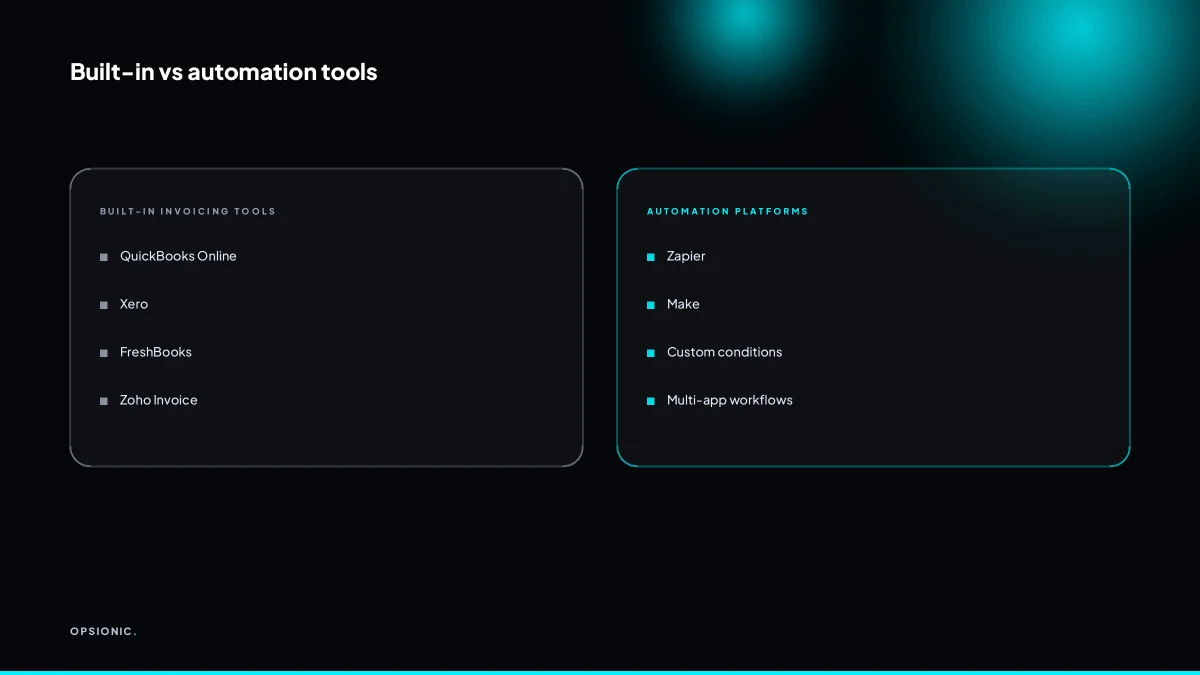
Most popular invoicing tools, including QuickBooks Online, Xero, FreshBooks, Zoho Invoice and Invoice Ninja, include built-in reminder rules with no coding. For more control, connect your invoicing app to Zapier or Make and add conditional logic. You need a tool that can check payment status before sending, not just a scheduled email.
Built-in reminders are the fastest start. QuickBooks Online lets you set a schedule per invoice, for example three days after the due date, then again at seven and fourteen, depending on your plan. Xero and FreshBooks offer similar options from their invoice settings. The catch is that many built-in tools send on a fixed schedule unless you manually mark the invoice paid. A client who pays on day two can still get a nudge on day three if the payment has not cleared or been reconciled.
Zapier or Make earns its place when you want the reminder to check a live payment status first. A typical Zap runs on a schedule, looks up the invoice in QuickBooks or Xero, and only sends the email if the status is still open. That single condition stops most accidental nudges. You can also branch the wording: friendly at day three, firmer at day ten, and a pause-work notice at day twenty-one.
| Approach | Best for | Paid-invoice check | Typical cost |
|---|---|---|---|
| Built-in reminders | Simple schedules, one tool | Manual only | Included in plan |
| Zapier or Make | Conditional logic, multi-step flows | Automatic | From about EUR 20 per month (check current pricing) |
| Custom automation | Escalation ladders, pause-work rules | Automatic | From EUR 399 per month |
If the escalation ladder matters more than the tool, a small automation service can build the full sequence once and host it for you, so the day-twenty-one pause-work email only fires when the invoice is genuinely unpaid.
What should the first reminder say, and when should it go out?
Send the first reminder three days after the due date. Keep it short, friendly, and assume the client missed it. Include the invoice number, amount, due date, and a payment link. Avoid words like “overdue” or “failure” at this stage; a simple “did this slip through?” works better.
- Write a subject line that names the invoice and keeps the tone light. Use something like “Invoice 1042 from Acme Design” or “Did invoice 1042 slip through?”. Do not write “Overdue invoice” or “Payment required”. The client should recognise the email in two seconds and not feel accused.
- Open with one sentence that assumes good faith. For example: “I know how easily invoices get buried, so I wanted to send a quick nudge.” This keeps the relationship intact and gives the client an easy way to reply without embarrassment.
- State the invoice number, amount, due date, and a payment link in the next two lines. Put each fact on its own line, not in a paragraph. The client should be able to pay without scrolling or searching their inbox.
- Close with a single, low-pressure question. “Could you let me know if this is already on your list?” works better than “Please pay immediately.” A question invites a reply, and a reply tells you whether the reminder worked or whether you need to escalate later.
Three days is the right interval because it is long enough to avoid looking impatient and short enough that the invoice is still in the client’s recent memory. If you wait a week, the client may have already forgotten the job. If you send it the next day, you look like you were watching the clock. Three days says you are organised, not anxious.
Not sure which of these applies to you?
Answer six questions and see what we would automate first in your business, and what it is worth.
How many reminders should I send, and at what intervals?
Send three reminders: day 3, day 10, and day 21 after the due date. Each message escalates in tone. After day 21, stop automated reminders and switch to a personal call or pause work. More than three automated messages rarely recovers money and often damages the relationship.
The schedule mirrors how a polite person would actually chase a debt. Day 3 is a nudge. Day 10 is a request. Day 21 is a boundary.
- Day 3: Friendly and helpful. Assume the invoice was missed. Offer the payment link again and ask if anything is unclear.
- Day 10: Direct and neutral. State the amount, the due date, and that the invoice is now overdue. No apologies.
- Day 21: Firm and final. Say the account is on hold and name the next action, such as pausing work or sending the file to a collections process.
Day 21 is the natural stopping point because after three weeks the client has either paid, disputed the invoice, or decided to ignore you. A fourth automated email will not change that. It will only make you look like software with no human behind it.
If a client replies to any reminder, pause the sequence immediately. A reply means the situation is now a conversation, not a chase. Log the reply, answer the question, and only restart the schedule if the invoice remains unpaid after a date you both agree on. The automation should never argue with a person.
How do I stop an automated reminder after the client has paid?
Use conditional logic in your automation tool. Before each reminder sends, check the invoice status in your accounting software. If it is marked paid, skip the reminder. Zapier and Make can do this with a lookup step, and many built-in reminder systems do it automatically.
Conditional logic means the automation asks a yes or no question before acting. The question here is simple: does the accounting system still show this invoice as unpaid? If yes, send the reminder. If no, stop and do nothing. Without this check, the sequence runs blind and sends a day 10 firm email to a client who settled on day 4. That one message can undo months of goodwill.
In Zapier, add a lookup step that searches your accounting tool by invoice number or client email. Pull back the invoice status field. Then add a filter that only continues when the status is “unpaid” or “open”. In Make, the same logic sits in a router or a filter between the trigger and the email step. Both tools let you test with a sample invoice before you switch the automation on.
Partial payments and credit notes need a decision too. If a client paid half and disputed the rest, the reminder should not fire with the original full amount. Add a rule that pauses the sequence when the balance is lower than the invoice total but not zero, and flags the invoice for a human to review. A credit note that cancels the invoice should stop all reminders immediately.
Here is a worked example, not a client case. A freelance designer invoices EUR 1,800 on 1 March. The automation checks the accounting system at 9am before each scheduled email. On 4 March the client pays EUR 900 and leaves a note questioning the remaining EUR 900. The check sees balance due of EUR 900, which is neither zero nor the full EUR 1,800. The rule pauses the sequence and sends the designer a task: review invoice, decide whether to adjust or chase the balance. No reminder goes out until the designer makes that call.
Test the logic with three fake invoices before going live: one fully paid, one unpaid, one partially paid. Confirm the paid invoice produces no email, the unpaid invoice produces the next reminder in the ladder, and the partial invoice produces the review task. Run the test on a Tuesday, not the day before you leave for a week.
What is this costing you now?
Based on removing half of that time.
How do I make the messages sound human, not like a collections agency?
Write as you would speak to a client in person. Use their name, refer to the specific project, and avoid legalistic phrases. Keep sentences short. A good test: read the reminder aloud. If you would feel awkward saying it on a call, rewrite it.
Three rules keep a reminder friendly. First, open with the person, not the debt. “Hi Tom, hope the shop fit went well” beats “This is a reminder regarding invoice 1042.” Second, ask a question instead of making a demand. “Could you check if this landed in the right inbox?” gives the client an easy way to reply without losing face. Third, assume a boring cause before a bad one: a missed email, a busy week, a finance person on holiday.
Here is a day 10 template that is firm without being rude:
Hi Tom, I still have invoice 1042 open from 12 March for EUR 900. I know things get buried, so I am checking once more before we pause any new work on Thursday. If it is already paid, ignore this and I will update my side. If not, could you let me know today when we can expect it?
To add a personal note without manual work, store one short line per client in your automation tool: the project name, the last thing you spoke about, or a detail like “new sign-off process.” The reminder pulls that line into the opening sentence. You write it once. The automation repeats it.
- Read the email aloud before saving the template. If you would not say it on a call, rewrite it.
- Check that the first sentence mentions the client or the project, not the invoice number.
- Confirm the message includes one specific, answerable question rather than a demand.
- Remove any phrase that sounds like a contract: “failure to remit,” “overdue balance,” “final notice,” “as per our terms.”
- Replace “payment is now overdue” with “I could not see this one come through yet.”
- Add a one-line personal note field to the automation and fill it for each client once.
- Test the day 10 template by sending it to yourself and reading it after ten minutes.
Common phrases to avoid: “we regret to inform you,” “your account is in arrears,” “immediate attention is required,” and any sentence containing “unless” before a threat. These sound like a collections agency because they copy one. A human reminder says what you need, when you need it, and leaves room for the client to save face.
What do I do if a client replies with a dispute or a question?
Stop the automated sequence for that invoice immediately. Reply personally within one business day. If the dispute is valid, issue a credit note or adjust the invoice. Never let an automated reminder go out while a dispute is open; it escalates tension and makes you look careless.
Mistake: leaving the sequence running. The symptom is a client who replies to your day 10 reminder with “I already told you the hours are wrong,” then receives your day 14 email an hour later. The fix is a pause rule, not a hope. In many invoice tools you switch that invoice to manual, or tag it “disputed,” and the reminder workflow skips it. If your tool cannot pause a single invoice, the workflow is too blunt.
Mistake: answering a line item question with a reminder. A client asks whether the third line was quoted or billed hourly. The wrong move is sending the next template. The right move is a one line reply with the answer, then a note on the invoice. If the answer takes you more than five minutes to find, your invoice detail is too thin.
Mistake: dragging out a credit note. If the disputed amount is small and the client is right, issue the credit note the same day. A delayed credit note reads as hoping they forget. Once the credit note is issued, adjust the balance and confirm the new amount in writing.
Restart reminders only after the client confirms the revised invoice is correct. Set the sequence back to day 3, not day 10. A client who just argued over a line item needs the friendly step first.
Want this running in your business next week?
A relaxed 20-minute video chat. Camera on or off. You leave with a plan whether or not you hire us.
- No call unless you ask for one
- From EUR 399 a month, no setup fee
- Built and run for you, not handed over as homework
Sources we checked
Questions people ask
Can I automate reminders for recurring invoices?
Yes. Most invoicing tools like QuickBooks, Xero, and FreshBooks let you set recurring invoices and attach reminder schedules. For more control, use Zapier or Make to trigger reminders based on the invoice status, ensuring only unpaid invoices get a nudge.
What if a client always pays late but never disputes?
If a client consistently pays late without disputing, adjust your sequence to send a gentle reminder earlier, perhaps at day 7, and consider offering a small discount for early payment. Automate a note to flag the client for a personal call if they exceed 30 days.
Should I charge a late fee, and how do I automate that?
Late fees are a business decision, not a technical one. If you choose to charge them, automate the calculation in your invoicing tool or via a custom script. Ensure your terms clearly state the fee, and have the automation add it to the invoice after a set number of days.
Can I send reminders by SMS instead of email?
Yes, many automation tools like Zapier integrate with SMS services such as Twilio or MessageBird. You can set up a reminder sequence that sends an SMS on day 3, but be mindful of character limits and compliance with messaging regulations.
How do I handle partial payments in the reminder sequence?
Set up a rule that pauses the sequence when the balance is greater than zero but less than the full invoice amount. Flag the invoice for human review, and send a tailored message acknowledging the partial payment and asking about the remaining balance.
Is it legal to pause work for non-payment in my country?
Laws vary by jurisdiction. In many places, you can pause work if your contract includes a clause allowing it for non-payment. Always review your contract and consult a legal professional to ensure compliance before automating a pause-work notice.
What if the client says they never received the invoice?
When a client claims non-receipt, pause the automated sequence and resend the invoice manually with a personal note. Check that the email address is correct and consider using a delivery tracking tool to confirm receipt in the future.