Automating Appointment Reminders in Acuity
Acuity Scheduling has built-in email and SMS reminders, so you can automate appointment reminders in Acuity without extra tools. Turn them on per appointment type, set the timing and message, and Acuity sends them automatically. Built-in reminders reduce no-shows, but they cannot handle replies, conditional second reminders, or rebooking after cancellation.
Does Acuity have built-in appointment reminders?
Yes. Acuity Scheduling includes automatic email and SMS reminders for every appointment type. You set when each reminder goes out, customise the message, and choose whether it goes to the client, the staff member, or both. No third-party tool is required for basic reminders.
Both email and SMS reminders are native features, not add-ons. You switch them on inside the settings for each appointment type, which means a haircut can remind clients 24 hours ahead while a physiotherapy session reminds them 48 hours ahead. Each reminder has its own timing, wording, and recipients.
Recipients are worth checking carefully. A reminder can go to the client, to the staff member running the appointment, or to both. Sending one to your own team catches late cancellations earlier, but it also adds noise to their inbox. Most small businesses start with client-only reminders and add staff copies only where no-shows actually hurt.
Some competitors, such as Calendly, also offer reminders but tie certain channels or timings to higher plans, so the exact limits vary. If you are already using Acuity, the built-in reminders cover the common case without any extra subscription. The gaps show up when you need something more than a one-way nudge, which is where a broader look at automated appointment reminders for small business becomes useful.
Which Acuity plan do I need for reminders?
Email reminders are available on all paid Acuity plans, but not on the free plan. SMS reminders require a paid plan with SMS credits or an add-on. Check Acuity’s current pricing page for exact tiers, because plans change. If you only need email, the lowest paid plan is enough.
The free plan does not send reminders at all. You can still book appointments, but nobody gets an automated nudge before they show up. A missed appointment costs you the slot, and the client often does not realise they missed anything until days later.
SMS reminders work differently from email. Acuity treats text messages as a consumable resource. You either get a monthly allowance of SMS credits on certain paid tiers, or you buy credits as an add-on. The cost per message depends on the country you are sending to. A reminder to a UK mobile costs less than one to a US mobile, for example.
Before you choose a plan, open Acuity’s pricing page and look at the current feature table. What you are checking is simple: does this tier include email reminders, and does it include any SMS credits. If you only want email reminders, the cheapest paid tier does the job. If you want SMS, expect to pay more either through a higher tier or a credit pack.
One practical note: SMS credits expire or roll over depending on your plan. If you send few reminders per month, buying a small credit pack may cost less than upgrading. If you send hundreds, a tier with a monthly allowance usually works out cheaper.
Not sure which of these applies to you?
Answer six questions and see what we would automate first in your business, and what it is worth.
How do I set up an automated reminder in Acuity step by step?
Open the appointment type you want to change, find the reminders section, and add an email or SMS reminder. Choose how long before the appointment it sends, edit the message, and save. Repeat for each appointment type. Acuity’s help docs describe the exact button names if your screen differs.
- Open the appointment type. Go to your Acuity calendar settings and select the specific service you want to add a reminder to. Each appointment type has its own settings, so you cannot set a global reminder for all of them at once.
- Find the reminders section. Look for a tab or link called something like “Reminders”, “Notifications”, or “Client email and SMS”. If you cannot see it, search Acuity’s help for “reminders” and follow the current instructions for your layout.
- Add a reminder. Choose whether you want an email reminder, an SMS reminder, or both. Acuity lets you add more than one reminder to the same appointment type, for example a 48-hour email and a 2-hour SMS.
- Set the timing. Pick how long before the appointment the reminder should send. Options typically range from a few hours to several days. Think about when your client actually needs the nudge, not just what the default suggests.
- Edit the message. Replace the default text with something specific. Include the appointment time, the location or video link, and one clear instruction, such as “Reply YES to confirm” or “Use the link below to reschedule”.
- Save the reminder. Acuity only applies the change after you save, and the reminder will not retroactively send for appointments already booked under the old settings.
Repeat these steps for every appointment type you offer. A reminder added to “Initial consultation” does nothing for “Follow-up call”. This is the step most people miss, and it is why some clients still show up without a reminder.
Exact menu names vary between Acuity versions, so if a button is not where you expect it, trust the search box over an old tutorial. The core sequence is the same: open the appointment type, find reminders, add one, set the timing, edit the message, save. If you would rather have someone handle this across all your appointment types and other repeat admin, that is the kind of work we automate for small businesses.
What can’t Acuity’s built-in reminders do?
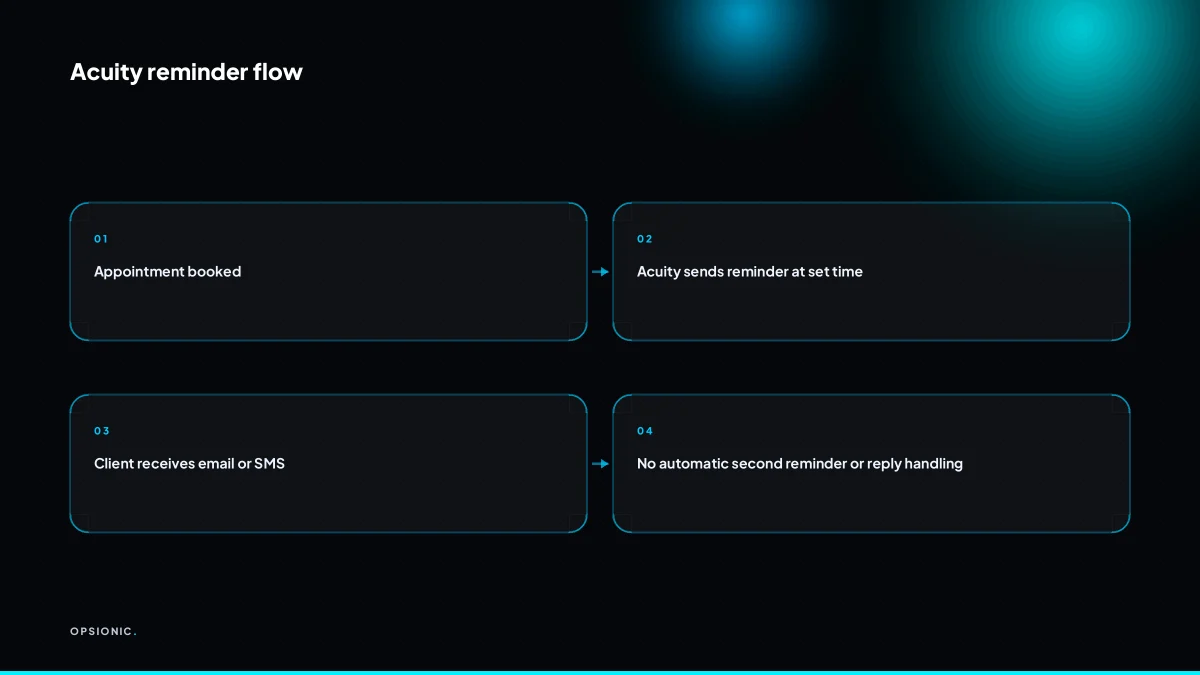
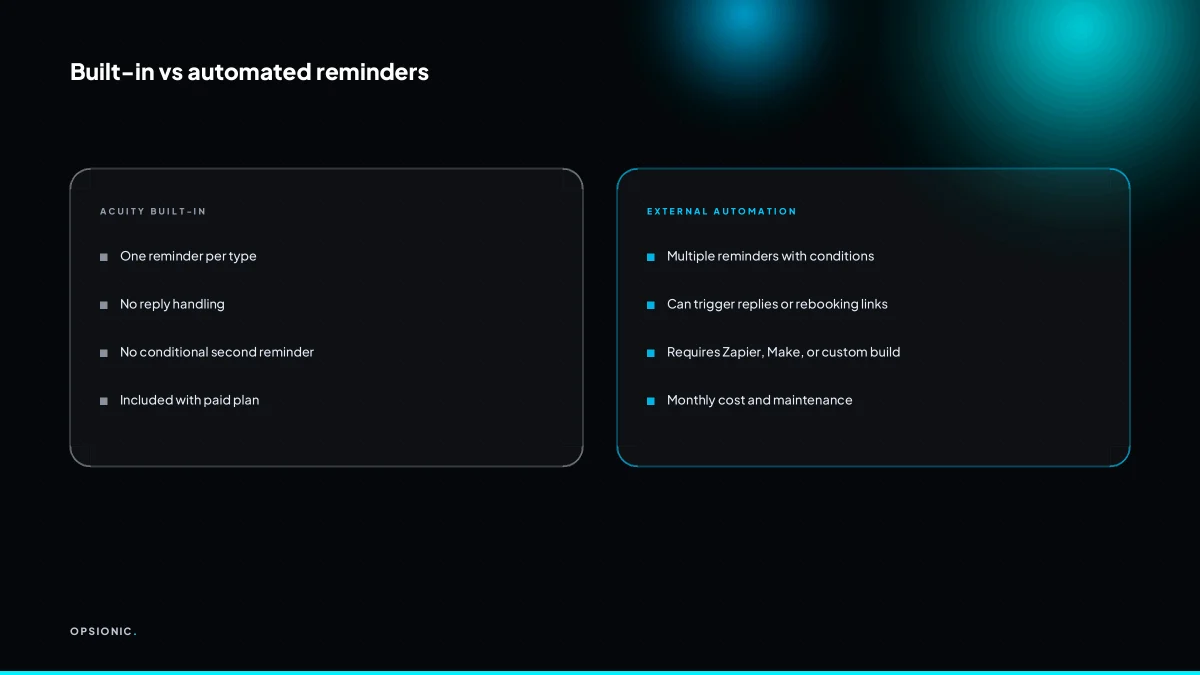
Built-in reminders cannot send a second reminder only to clients who have not confirmed, handle replies to the reminder, or automatically send a rebooking link when someone cancels. They also cannot branch based on client responses. You need Zapier, Make, or a custom automation for those conditional steps.
The first gap is the conditional second reminder. Acuity sends the same message to everyone at the same offset before the appointment. It does not check whether the client confirmed, and it does not skip people who already replied. The second gap is reply handling. When a client answers a reminder with “running late” or “need to reschedule”, that reply lands in an inbox. Nothing in Acuity reads it, updates the booking, or alerts a person. The third gap is rebooking after cancellation. Acuity can send a cancellation notice, but it cannot follow up with a fresh booking link or a suggestion to pick a new time.
These gaps sit exactly where no-shows happen. A client who has not confirmed is the one most likely to forget. A client who replies with a problem needs a human or a smart automation to act on it. A client who cancels is a lost slot unless someone invites them back.
Zapier and Make fill these gaps by watching for Acuity events and then doing something conditional. A workflow can check whether a confirmation exists, send a second message only to the unconfirmed, and route replies to a team inbox. You can read more about Zapier alternatives that make sense for a small business if Make or a simpler tool fits better.
At low volume, a person can do all of this manually. If you take eight bookings a week, checking confirmations and replying to two messages takes minutes. The automation earns its keep when the volume makes that manual check a daily chore.
What is this costing you now?
Based on removing half of that time.
What goes wrong with Acuity reminders in the real world?
Common failures include time zone drift, duplicate reminders after rescheduling, reminders sent to the wrong person, and silent disconnection of SMS credits. Email reminders can land in spam. Check your reminder logs regularly and test with your own booking to catch these before clients complain.
Time zone drift. The symptom: a client in Lisbon gets a reminder at 3 a.m. or misses one entirely. Acuity handles time zones per calendar and per client, but one wrong default setting quietly breaks every reminder that follows. The fix is to set the time zone on the calendar itself, then make a test booking with a client profile in a different zone and read the timestamp on the reminder you receive.
Duplicate reminders after a reschedule. A client moves a Tuesday appointment to Thursday. The Tuesday reminder still fires because the old trigger was not cancelled. The client sees two messages and assumes the booking is broken. The fix is to check whether your reminder rules are attached to the appointment record or to the schedule, and to test a reschedule yourself before relying on it.
SMS credits run out silently. The most dangerous failure. Acuity does not always email you when SMS credit is exhausted. Reminders simply stop sending while the dashboard looks normal. The fix is a calendar reminder of your own: check the SMS balance on a fixed day each week, or switch to email reminders where the cost is not metered the same way.
Email deliverability. Acuity sends from its own infrastructure, not your domain. Some inboxes file those messages as promotions or spam, especially if the client has never opened one before. The fix is to ask new clients to add the sender address to their contacts, and to check your own reminder log rather than assuming silence means delivery.
All of this is why a reminder automation is only as good as the checks around it. The real cost of business automation is not the setup fee. It is the month of missed reminders you never noticed.
When is it not worth automating appointment reminders?
If you have fewer than five appointments a week, sending a quick email or text by hand takes minutes and costs nothing. Automation pays off when you book dozens of appointments weekly, have multiple staff, or clients regularly miss reminders. Manual reminders also let you add a personal note.
Take a worked example, with invented but realistic figures. A solo dog groomer books five appointments a week. Each manual reminder takes two minutes: open the calendar, copy the client’s name and time, paste it into a text, press send. That is 10 minutes a week, or roughly 40 minutes a month. Acuity’s built-in reminders need a paid plan to unlock, and a managed automation on top starts at EUR 399 per month. Spending that to save 40 minutes makes no sense unless those 40 minutes sit at a moment of the day when you cannot touch your phone.
The break-even point is closer to 20 appointments a week. At two minutes each, that is 40 minutes of typing you could hand to a machine. Even then, a personal note has value at low volume. “See you Thursday, bring the vaccination card” does something a template cannot. If you already pay for an Acuity plan that includes basic email reminders, switch those on first and see how many no-shows actually drop before adding anything else. The question of what tasks should a small business automate first has a boring but reliable answer: the one you do often enough that the time saved pays for the tool.
Want this running in your business next week?
A relaxed 20-minute video chat. Camera on or off. You leave with a plan whether or not you hire us.
- No call unless you ask for one
- From EUR 399 a month, no setup fee
- Built and run for you, not handed over as homework
Sources we checked
Questions people ask
Can Acuity send SMS reminders to clients in different countries?
Yes, Acuity sends SMS to international mobile numbers, but the cost per message varies by destination. A reminder to a UK mobile costs less than one to a US mobile. Check the current per-country rates on Acuity's pricing page before you commit to SMS for a global client base.
Why did my client not receive the reminder email?
The most common causes are a missing or mistyped email address on the client record, the reminder not being enabled on that specific appointment type, or the message landing in spam or a promotions folder. Acuity sends from its own infrastructure rather than your domain, which some inboxes filter.
Can I send a reminder only if the client has not confirmed?
No. Acuity sends the same reminder to everyone at the same offset before the appointment. It does not check whether a client confirmed or skip people who already replied. Sending a conditional second reminder needs a tool such as Zapier or Make watching for Acuity events.
How do I stop duplicate reminders after a client reschedules?
Check whether your reminder rules attach to the appointment record or the schedule itself, then test a reschedule yourself. If the original trigger is not cancelled when the appointment moves, the old reminder still fires and the client receives two messages for one booking.
Does Acuity charge extra for SMS reminders?
SMS is treated as a consumable resource. Some paid tiers include a monthly allowance of SMS credits, and you can also buy credit packs as an add-on. Email reminders are included on paid plans. Check Acuity's current pricing page for exact tiers, because plans change.
Can I use my own phone number for SMS reminders?
Acuity sends SMS from its own sending numbers, not from your business line. Replies from clients therefore do not arrive in your normal inbox thread. If you need reminders that come from your own number and capture replies, that is a custom automation rather than an Acuity setting.
Can Acuity remind me, the business owner, instead of the client?
Yes. Each reminder has its own recipients, so you can send it to the client, the staff member running the appointment, or both. Staff copies catch late cancellations earlier, but they add inbox noise, so many small businesses start with client-only reminders.