Send WooCommerce Orders to Xero Automatically
To send WooCommerce orders to Xero automatically, connect the two systems with a plugin or middleware like Zapier or Make, map each order field to the right Xero account, and decide between one invoice per order or a daily summary. The mapping covers line items, shipping, gateway fees, tax, and refunds, and you must test and monitor the sync to avoid silent failures.
What are the ways to connect WooCommerce and Xero?
You can connect WooCommerce and Xero with a dedicated integration plugin, a no-code automation platform like Zapier or Make, or a custom build using the Xero API. Check the paid tier or plugin pricing before you start, because free tiers often lack the triggers or actions you need.
The right choice depends mainly on how your orders are structured and how much you are willing to maintain. A plugin is the fastest route for a standard shop. A middleware platform gives you more control over mapping without writing code. A custom API build gives you complete control but costs the most to build and keep running.
Do not assume a free tier will do the job. Most free tiers let you test a connection but stop short of multi-step mapping, refund handling, or scheduled syncs. The moment you need shipping lines posted to a separate account or a partial refund turned into a Xero credit note, you are usually on a paid plan.
| Method | Typical cost | Best for | Watch out for |
|---|---|---|---|
| Dedicated plugin | Paid subscription, often annual | Standard shops with simple mapping | Limited control over refunds and gateway fees |
| Zapier or Make | Paid tier once task volume rises | Shops that need custom field mapping | Free tiers cap multi-step workflows |
| Custom Xero API build | Developer time plus ongoing maintenance | High volume or unusual order flows | You own every bug and API change |
Start by checking the pricing page of whichever plugin or platform you shortlist. Look specifically for whether refunds, credit notes, and shipping line mapping are included or sold as an add-on. That one check saves more time than any tutorial.
How do you map WooCommerce order fields to Xero accounts?
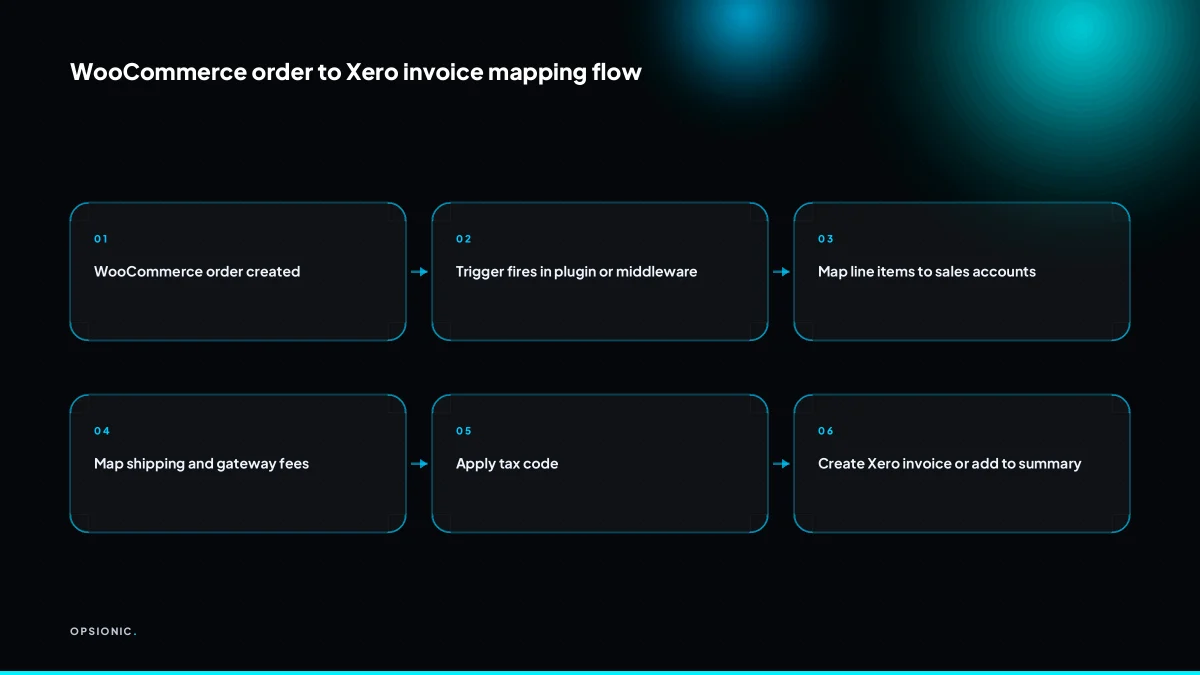
Mapping means telling the integration which WooCommerce field becomes which Xero field: order total to invoice total, each line item to a sales account, shipping to a freight or shipping account, discounts to a discount account, and payment gateway fees to a bank or expense account. Tax codes must match your jurisdiction, and you may need a separate mapping rule for refunds.
- Open the mapping or settings screen in your chosen plugin, then locate the section that lists WooCommerce fields on one side and Xero fields on the other.
- Map the WooCommerce product line total to the Xero sales account you use for goods, such as 200 Sales or a product-specific account.
- Map the WooCommerce shipping line to a Xero freight or shipping income account so carriage is not lumped into product revenue.
- Map the WooCommerce discount or coupon line to a Xero discount given account, keeping it separate from sales for cleaner reporting.
- Map the WooCommerce payment gateway fee to a Xero bank charges or payment processing expense account, not to a sales account.
- Set the tax code on each mapping line to the code your jurisdiction requires, such as a standard rated code for goods and a zero rated code for exports.
- Check the plugin help for how to handle VAT on shipping, because some integrations apply the order tax rate while others leave shipping untaxed unless you tell them otherwise.
- Look for a separate refunds or credit notes tab in the plugin settings, since refund mappings often sit apart from the main sales mappings.
Where you find these settings depends on the tool. In a dedicated WooCommerce to Xero plugin, the mapping screen is usually under WooCommerce settings, often in a tab named after the plugin. In middleware such as Zapier or Make, you build the mapping yourself inside each action step, selecting the Xero account from a dropdown for every line. If a field is missing, search the plugin’s own documentation for the exact field name before guessing. Getting the mapping right is the part of an automation that rewards patience, and it is exactly the kind of detail we work through on a free planning chat.
Not sure which of these applies to you?
Answer six questions and see what we would automate first in your business, and what it is worth.
Should you create one Xero invoice per order or a daily summary invoice?
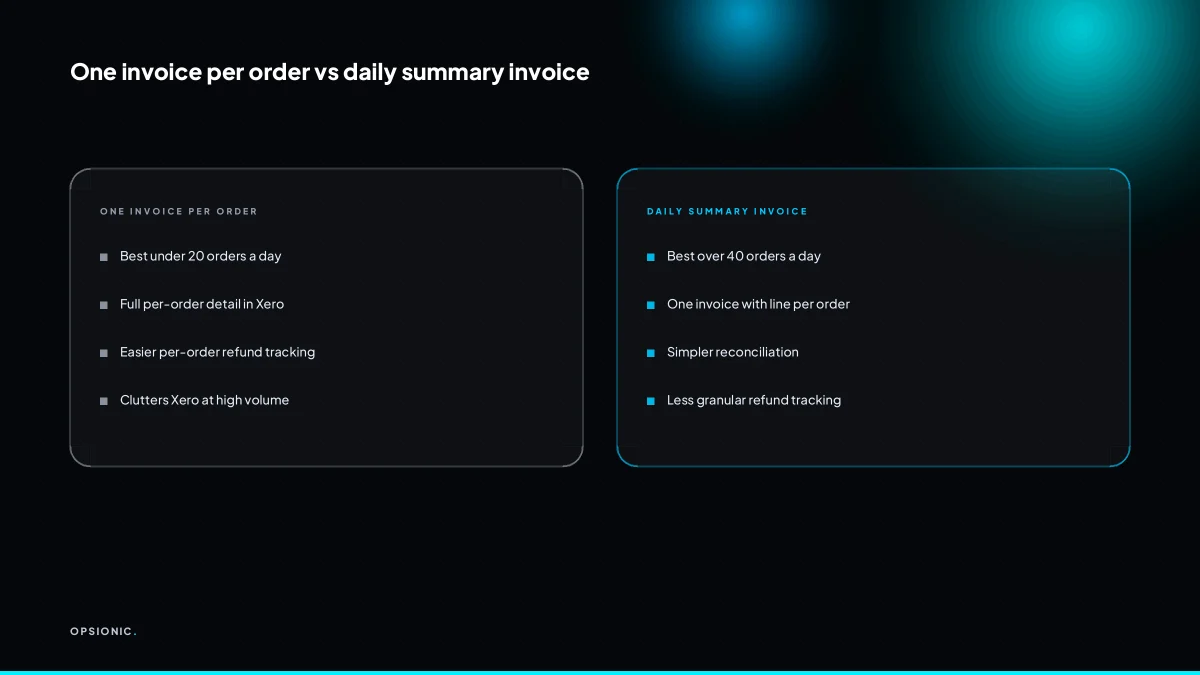
Create one Xero invoice per WooCommerce order if you have fewer than about twenty orders a day and need per-order tracking. Switch to a daily summary invoice when order volume makes individual invoices clutter Xero and slow reconciliation. A shop doing forty orders a day should not create forty Xero invoices; a single daily invoice with a line per order total is cleaner.
Use twenty orders per day as the rough threshold. Below that, one invoice per order keeps customer records, payment matching, and refund handling simple: each Xero invoice mirrors one WooCommerce order, so chasing a late payment or issuing a credit note means opening one document. Above twenty, the trade-off flips. Reconciliation becomes slow because you are matching forty bank deposits against forty invoices, and your Xero sales ledger fills with small entries that make month-end reporting harder to read. A daily summary invoice gives you one document per day, but you lose per-order detail inside Xero and must keep WooCommerce as the source of truth for individual orders.
Take a worked example. A shop takes forty orders in a day, averaging EUR 60 each, so total daily sales are EUR 2,400. Under the per-order method, Xero receives forty invoices, forty payment allocations against the day’s bank deposit, and forty records in the sales ledger. Under the daily summary method, Xero receives one invoice for EUR 2,400 with forty lines at EUR 60 each, one payment allocation, and one ledger entry. The first method gives you granular history; the second gives you a bank reconciliation you can finish in minutes.
How are partial refunds and credit notes handled in the sync?
Partial refunds need an explicit rule in your integration, because not all tools create Xero credit notes automatically. You may need to map the WooCommerce refund event to a Xero credit note or manually adjust the original invoice. Decide this before your first refund happens, and test it with a real order, because a missed credit note leaves your Xero balance wrong.
A full refund is the simple case. The order total goes back to the customer, and Xero receives a credit note for the full invoice amount. The original invoice stays in the ledger, the credit note offsets it, and the customer balance returns to zero.
A partial refund is where the mapping matters. If the customer returns one item from a three-item order, WooCommerce records a refund of that line only. Your integration then has a decision to make:
- Create a Xero credit note for the refunded amount. This keeps the original invoice intact and shows the reduction as a separate document.
- Adjust the original invoice lines. Some integrations edit the invoice itself, removing the returned item and reissuing the total.
Both approaches work, but you should pick one and stick to it. Mixing them across refunds makes the ledger harder to read at year end.
To set this up, find the refund or credit note section in your integration’s settings. Look for an option to map the WooCommerce refund status to a Xero credit note, or to send refunded line items as negative lines on a new document. If the integration offers no such option, you will handle refunds manually: create the credit note in Xero yourself and match it to the original invoice.
Watch for duplicate refund entries. If a sync retries after a timeout, a second credit note can appear for the same refund. Check the refund list in Xero after your first test and confirm only one document exists per WooCommerce refund ID.
What is this costing you now?
Based on removing half of that time.
What breaks in the real world after you set this up?
Real-world failures include duplicate records when a webhook retries, timezone drift that posts orders on the wrong date, deleted products that break line mapping, rate limits that pause the sync, and a connection that silently stops for weeks. You need a weekly check of the last synced order and a reconciliation of Xero totals against WooCommerce sales.
Duplicates on retry. The symptom is two invoices in Xero with the same WooCommerce order number. The fix is to make the sync idempotent: before creating an invoice, the automation checks whether that order ID already exists in Xero. If your tool cannot do this, add a manual step to search Xero by order number before investigating any sync failure.
Timezone drift. Orders placed after midnight in your store timezone can post to Xero with the previous day’s date. The symptom is a daily summary that never matches your bank. The fix is to set one timezone across WooCommerce, Xero and the automation, then test with an order placed just after midnight.
Deleted products. If you delete a product in WooCommerce, the line mapping has nothing to look up. The symptom is an invoice that fails with a “product not found” error, or a line posted to the wrong account. The fix is to archive products instead of deleting them, and to log mapping failures so you see them the same day.
Rate limits. Xero restricts how many API calls you can make per minute. A busy flash sale can hit the limit, and the sync pauses silently. The symptom is orders that appear in WooCommerce but never reach Xero. The fix is a queue that retries with backoff, and an alert when the queue length grows.
Silent disconnection. A token expires, a password changes, or the connector hits an error it does not report. The symptom is that everything looks fine until you reconcile a month later and find a gap. The fix is a weekly check: open Xero, find the most recent invoice, and confirm its order date matches the last order in WooCommerce.
Weekly reconciliation checklist. Compare WooCommerce sales for the week against Xero invoices for the same period. Check that the last synced order in Xero matches the most recent completed order in WooCommerce. Look for any invoice with a line posted to a default or catch-all account. Confirm refunds and credit notes match one for one. Ten minutes a week catches every failure above before it becomes a month of bookkeeping.
When is it cheaper to keep doing this by hand?
If you process fewer than about ten orders a week, manual entry into Xero may cost less than any plugin subscription or middleware plan once you count setup time and monthly checks. Ten orders takes roughly an hour a week, and your time is often cheaper than a EUR 20 monthly tool plus the hours to configure and monitor it.
Here is a worked example, not drawn from any client. A shop does eight orders a week. Manual entry takes eight minutes per order, so about 64 minutes a week. At an internal cost of EUR 25 per hour, that is roughly EUR 27 a week, or EUR 108 a month. A middleware plan at EUR 25 a month looks cheaper until you add setup, say four hours once, plus half an hour a week checking for failed syncs and fixing mapping mistakes. That is EUR 100 upfront and about EUR 50 a month in monitoring time at the same hourly rate. The first month costs EUR 175, and every month after costs EUR 75 before the tool price is even counted again. Manual entry wins until volume climbs.
The hidden costs of automation are easy to overlook. Setup includes mapping every WooCommerce line to the right Xero account, and that mapping is the part most guides skip. Monitoring means checking the connection has not silently stopped, which happens more often than vendors admit. Fixing failures means re-keying a missed order or correcting a credit note posted to the wrong account. Each of these eats the time you were trying to save. Before you commit, read what the real cost of business automation includes beyond the subscription price.
Automation clearly wins somewhere around twenty orders a week. At that volume manual entry takes over two and a half hours, and the cost of your time alone passes EUR 250 a month. The tool price stays fixed while your labour cost grows with every order.
How do you check that the sync actually worked?
After the first sync, open Xero and compare the invoice total, tax, and line items against the WooCommerce order. Then run a test refund and confirm the credit note appears. Finally, set a recurring weekly task to check the last synced order date and reconcile Xero sales against WooCommerce reports for the same period.
Verify the first synced order
Open the WooCommerce order and the Xero invoice side by side. Check the gross total, the VAT amount, and every line item. Look at the account code each product line posted to. Confirm the shipping line landed on your shipping income account and any gateway fee landed on your payment fees account. If a line is missing or posted to the wrong account, the mapping is wrong, not the order.
Test a refund
Refund one small order in WooCommerce exactly as you would for a real customer. Wait for the sync to run. Open Xero and confirm a credit note exists for that customer with the correct amount and tax. Check that the credit note is allocated against the original invoice. If the credit note sits unallocated, your month-end reports will overstate revenue.
Weekly checks
- Open WooCommerce and note the date and time of the most recent order.
- In Xero, find the invoice for that order and confirm it exists.
- Check the invoice total against the order total.
- Run a sales report in WooCommerce for the last seven days and compare the total against Xero sales for the same period.
- Look for any WooCommerce orders marked as processing or completed that have no matching Xero invoice.
- Check Xero for duplicate invoices for the same order. Duplicates usually mean a retry ran after a timeout.
- Confirm tax totals match between the two reports. A one-cent rounding difference is fine; a larger gap means a tax rate is misconfigured.
Want this running in your business next week?
A relaxed 20-minute video chat. Camera on or off. You leave with a plan whether or not you hire us.
- No call unless you ask for one
- EUR 399 a month, no setup fee, on a 6-month initial term
- Built and run for you, not handed over as homework
Sources we checked
Questions people ask
Can I send WooCommerce orders to Xero without Zapier?
Yes. You can use a dedicated WooCommerce to Xero plugin, another no-code platform like Make, or a custom integration via the Xero API. Each has different costs and control levels.
Does WooCommerce have a built-in Xero integration?
No, WooCommerce does not have a native Xero integration. You need a third-party plugin, a middleware platform, or a custom API build to connect them.
How do I handle VAT or sales tax when syncing to Xero?
Map the tax code for each line in your integration settings, matching your jurisdiction's requirements. For example, use a standard rated code for goods and a zero rated code for exports. Check how shipping is taxed and set it explicitly.
What happens if a customer is refunded after the invoice is in Xero?
A full refund creates a credit note for the full amount. A partial refund requires a rule: either create a credit note for the refunded amount or adjust the original invoice. Test with a real order to ensure the integration handles it correctly.
Can I sync historical WooCommerce orders to Xero?
Yes, most integrations allow you to sync past orders, but you may need to configure a date range and be mindful of rate limits. Check your tool's documentation for the exact steps.
Which Xero plan do I need for API access?
Xero API access is available on all paid plans, but some integrations require a paid Xero plan. Check the Xero pricing page and your integration's requirements to confirm.
How do I map payment gateway fees like Stripe or PayPal to Xero?
Map the gateway fee to a bank charges or payment processing expense account in Xero, separate from sales. In your integration's mapping settings, assign the WooCommerce fee field to that account.