Automate Contract Signing: Proposal to Signature
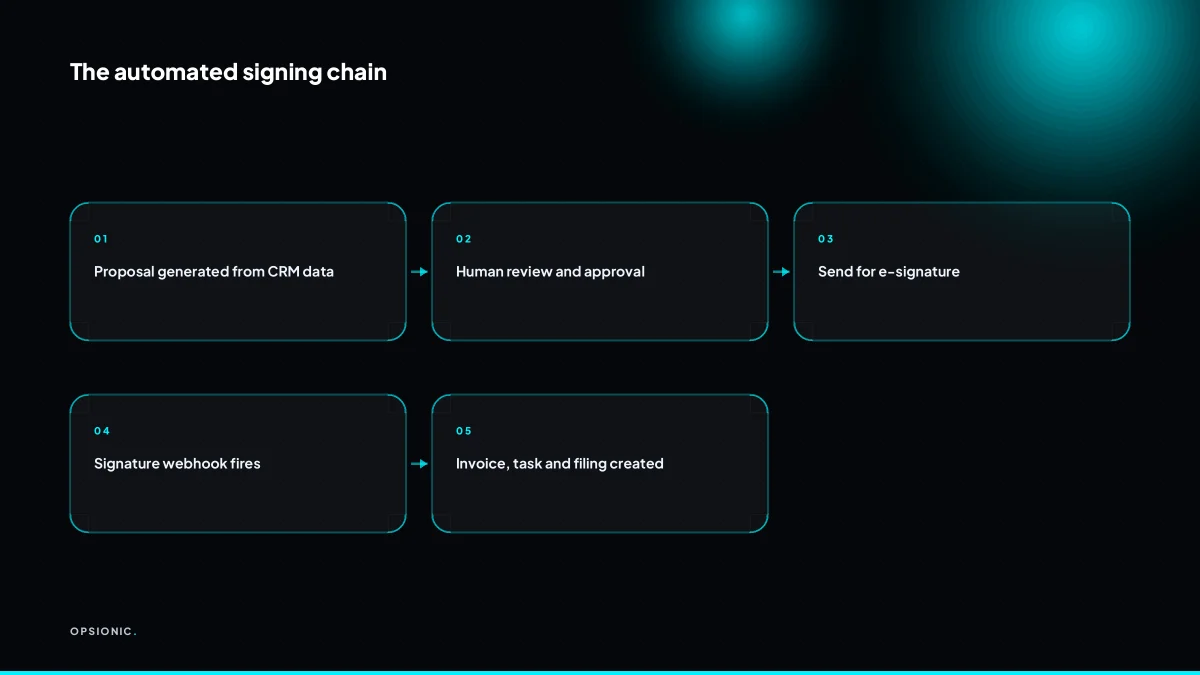
You automate the contract signing process by connecting your proposal, e-signature, invoicing and project tools so a signed document triggers the next step automatically. The chain runs from proposal to countersigned copy, deposit invoice and kickoff task, with a human review checkpoint before anything goes out.
What parts of the contract signing process can you automate?
You can automate proposal generation, sending for signature, reminders, countersigned copy filing, deposit invoice creation and kickoff task creation. The human step is final review before send. Everything after signature is a chain of triggers: a webhook from the e-signature tool to your CRM, invoicing and project tools.
The automatable steps break into two groups. Before signature: pulling client and scope data into a proposal template, attaching the right PDF, and sending the e-signature request. After signature: filing the signed copy in the client folder, creating the deposit invoice, and opening the kickoff task in your project tool.
One human checkpoint sits between them. You review the final proposal before it goes out. Everything else can run on triggers.
Typical tools for each step:
- Proposal generation: PandaDoc, Google Docs with a template, or your CRM’s quote builder.
- E-signature: DocuSign, PandaDoc, SignWell or HelloSign.
- Filing: Google Drive, Dropbox or SharePoint.
- Deposit invoice: Xero, QuickBooks or Stripe Invoicing.
- Kickoff task: ClickUp, Asana, Trello or your project tool.
The connection is a webhook from the e-signature tool. When the client signs, the tool fires one event. Your automation platform catches it, then creates the invoice, files the copy and opens the task in parallel. No retyping.
The signature is a middle event, not the end. It means money is due and work should start. If those next steps wait for a person to notice the signed email, the chain stops. Automation keeps it moving. That is the part we build for small businesses in our automation services for small businesses.
Which tools do you need for an automated signing chain?
You need a proposal or document source, an e-signature tool like DocuSign or PandaDoc, a CRM or job system, an invoicing tool and an automation platform like Zapier, Make or n8n. The platform listens for the signed event and pushes data to the other tools.
The e-signature tool is where the chain either holds or breaks. Some tools only email a signed PDF back to you. Others expose a webhook the moment a document is signed, which is what lets the automation platform act without a person checking an inbox. If you are comparing tools, look for that event trigger first, then check whether the fields you need in the CRM or invoice already exist in the signed document.
| Tool | Signed event trigger | Built-in CRM or invoice step | Best fit |
|---|---|---|---|
| DocuSign | Yes, via webhook | No, needs a connector | Teams already using it for legal or HR documents |
| PandaDoc | Yes, via webhook | Limited CRM sync, no invoicing | Proposal-heavy sales teams |
| SignNow | Yes, via API | No | Lower volume, simpler documents |
| Zoho Sign | Yes, via Zoho Flow | Yes, within Zoho CRM and Books | Businesses already inside Zoho |
The automation platform is the glue. Zapier and Make connect to most e-signature tools with prebuilt triggers. n8n gives you more control over where the data lands, especially if you want the countersigned copy saved to a private server rather than the vendor’s cloud. A common connector path is: signed event fires, the platform finds the matching deal in the CRM, marks it won, creates the deposit invoice, and posts a task in your project tool. One event, four records updated.
For a small service business, a workable stack is Google Docs for the proposal, PandaDoc for signature, HubSpot or Pipedrive for the deal, Xero for the deposit invoice, and Make or n8n in the middle. The human step is reading the signed copy once, before the invoice goes out. Everything after that is machine work. That is the kind of chain we set up under our automation services, with the checks placed where they belong.
Not sure which of these applies to you?
Answer six questions and see what we would automate first in your business, and what it is worth.
How does a signed contract trigger the next step automatically?
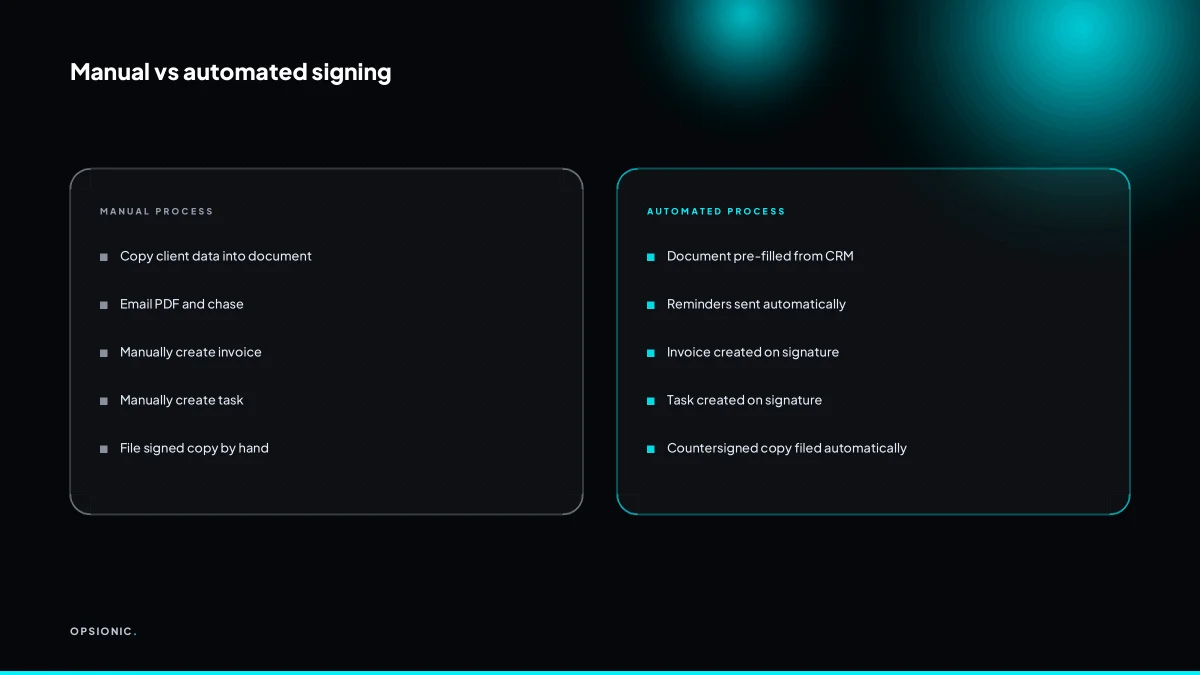
When all parties sign, the e-signature tool fires a webhook to your automation platform, which then creates the deposit invoice in Xero or QuickBooks, adds a task in Asana or ClickUp, and files the countersigned PDF in Google Drive. The trigger is the completed signature event, not a person forwarding an email.
Here is the chain running end to end:
- Detect the signature event in PandaDoc, DocuSign or whichever tool you use.
- Receive the webhook in Make or n8n with the signer’s name, email address and the completed document ID.
- Create the deposit invoice in Xero or QuickBooks, pulling the client name and amount from the proposal data.
- Attach the countersigned PDF to the invoice as a supporting file.
- Add a task in Asana or ClickUp named “Kickoff: [client name]” with a due date three working days out.
- Save the countersigned PDF to a Google Drive folder named after the client, using a fixed naming pattern like “Signed contract – [client name] – [date]”.
- Mark the deal as won in HubSpot or Pipedrive and move it to the “Signed” stage.
The webhook carries the signer’s data as a small packet of fields: full name, email address, the document ID and a timestamp of the completed signature. Your automation reads those fields and writes them into the invoice, the task title and the Drive filename. Nothing is retyped, and nothing waits for someone to remember to do it. If you want to understand how we build that, see how we build an automation.
Where should a human still review the document before it goes out?
A human should review the final merged document for correct names, dates, scope and price before it is sent for signature. Automation can assemble the document from CRM data, but the last look prevents errors from bad data. After signature, the chain runs without human touch, but the pre-send review is non-negotiable.
The approval step is a pause in the workflow, not a blockage. The automation creates the merged PDF, saves it to a review folder and then sends an email or Slack message to the person responsible. That message contains a link to the file and two buttons: approve or reject. If rejected, the workflow stops and asks for a corrected field value before rebuilding the document.
What you check before approving:
- Client and contact names spelled correctly
- Dates matching the proposal or quote
- Scope items matching what was actually discussed
- Price and currency correct
- Legal terms, payment terms and cancellation clauses present and unchanged
Each approval is logged with the reviewer’s name, timestamp and the document version. That record sits in the same folder as the signed copy, so you can later show who checked what and when. If a dispute ever arises over terms, the log answers the first question before anyone asks it. This is one of the questions to ask an automation agency before you sign: where does the human check live, and what does the audit trail capture.
What is this costing you now?
Based on removing half of that time.
What does a worked example look like for a small business?
A five-person design studio sends 20 proposals a month. Before automation, each took 45 minutes of admin: copying client data, emailing the PDF, chasing, then manually creating an invoice and task. After automation, the owner reviews for 5 minutes per proposal and the rest runs itself.
Here is the arithmetic, kept deliberately simple. The studio quotes a fixed price for a logo package, so the proposal template rarely changes. Before, 20 proposals at 45 minutes each meant 900 minutes, or 15 hours, of admin. After, 20 proposals at 5 minutes of review each means 100 minutes, just under 2 hours. The saving is 800 minutes a month, or a little over 13 hours. That is nearly two working days returned to the owner.
The chain starts in the CRM. When a deal moves to “proposal sent”, the automation pulls the client name, company, email and the agreed fee from the deal record. Those fields map into the e-signature template, so nobody retypes the address block. The same fields map into the invoice draft in the accounting tool and into the project kickoff task in the project board. One source of truth, three destinations.
Conditional logic handles the exceptions. If the proposal has two signers, the e-signature route waits for the second signature before sending the countersigned copy. If the client rejects, the automation stops the invoice and instead logs a “proposal rejected” note in the CRM, with the reason if the client gave one. The owner still sees the rejection, but the admin around it has already happened. This is the kind of saving worth working out before you build; how many hours can automation save your small business walks through the same calculation for other tasks.
What legal and compliance points matter for automated signing?
Your e-signature tool must provide an audit trail and comply with eIDAS in the EU or ESIGN in the US. Store the countersigned copy and audit log for the contract term. GDPR applies to personal data in the documents, so limit access and document the processing. Automation must not bypass these controls.
eIDAS defines three signature levels in the EU. A simple electronic signature, such as a typed name or a ticked box, is valid for most B2B contracts but easier to dispute. An advanced signature links the signatory to the document and detects later changes. A qualified signature carries the highest legal weight and usually requires an identity check. In the US, ESIGN gives electronic signatures the same legal standing as wet ink, provided the signer consents and the record is retained. Most automation tools sit at the simple or advanced level, which is fine for proposals and service agreements.
An audit trail matters more than the signature image. When a document is challenged, you need to show who signed, when, from which IP address, and what they saw. Some tools also record each field completion. Keep the signed PDF and the audit log together for the full contract term plus any statutory retention period. Do not rely on the e-signature vendor to be your archive.
GDPR applies because contracts contain names, addresses and sometimes ID numbers. Limit who in your business can open stored documents. Log access if the tool supports it. Document the legal basis for processing, which is usually contract performance. If you route signed documents into a CRM or file storage, make sure the automation does not copy them into a shared folder visible to more people than necessary. Automating without breaking GDPR means checking each step in the chain, not just the signature itself.
Compliance checklist for automated signing
- Confirm your e-signature tool states eIDAS or ESIGN compliance in its terms.
- Check which signature level the tool provides and whether your contract type needs more.
- Verify the audit trail records identity, timestamp, IP address and document version.
- Set a retention rule for signed copies and audit logs that matches your contract term.
- Restrict access to stored documents to the people who need it.
- Document the legal basis for processing personal data in signed contracts.
- Test that your automation does not move documents into a wider access group than the manual process did.
Want this running in your business next week?
A relaxed 20-minute video chat. Camera on or off. You leave with a plan whether or not you hire us.
- No call unless you ask for one
- From EUR 399 a month, no setup fee
- Built and run for you, not handed over as homework
Sources we checked
Questions people ask
Can I automate contract signing with DocuSign and Zapier?
Yes. DocuSign fires a webhook when a document is completed, and Zapier can catch that event to create an invoice, file the signed PDF or open a project task. You need a paid Zapier plan for webhooks and a DocuSign account with API access enabled.
How do I set up automated reminders for unsigned contracts?
Most e-signature tools have built-in reminder schedules you can switch on per document, for example a nudge every three days until signing. Use the tool's own reminders first, then add a platform-level reminder only if you need to chase through email or SMS as well.
What happens if a client rejects or requests changes to an automated contract?
Build a branch for the rejected event. The automation should stop the deposit invoice, log a rejection note against the deal in your CRM, and notify the owner with the client's reason. The document then goes back through the pre-send review before it is sent again.
Is an electronic signature legally binding in the EU?
Yes, under eIDAS, which recognises simple, advanced and qualified electronic signatures. A simple electronic signature is binding for most commercial contracts. Qualified signatures are required only for specific categories, so check the rules for your contract type before choosing a signature level.
How much does it cost to automate contract signing for a small business?
Costs come from three places: your e-signature subscription, your automation platform plan and the build itself. Opsionic managed automation starts at EUR 599 per month, or a single workflow from EUR 399 per month, with no setup fee and a six-month initial term. Larger projects get a fixed quote.
Can I automate contract creation from my CRM data?
Yes, if the fields you need already live in the CRM. Map the client name, company, email, scope and fee from the deal record into a proposal template, then send the merged document for signature. Keep a human review before send so bad CRM data does not reach the client.
How do I handle multiple signers in an automated workflow?
Set the workflow to wait for the completed event, not the first signature. With two signers, the automation should only create the invoice and kickoff task once all parties have signed. Conditional logic in Make, Zapier or n8n can check the signer count before it moves on.