Calendly to CRM Automatically: Stop Retyping Bookings
You can send Calendly bookings to your CRM automatically using a native integration, a tool like Zapier or Make, or a webhook. Each new invitee becomes a contact and activity in your CRM without retyping. The setup you choose depends on your CRM, your Calendly plan and how you handle duplicate records.
Which Calendly plan do I need to connect to a CRM?
Calendly’s free plan does not include CRM integrations or webhooks. To connect Calendly to a CRM, you will need a paid plan. The exact tier depends on the connection method you choose. Check Calendly’s current pricing page and help documentation before you commit, because plan features change.
The tiers break down like this.
- Free: no CRM integrations, no Zapier, no webhooks. You can export bookings to a CSV file and import that into your CRM by hand, which is exactly the retyping you are trying to stop.
- Paid entry tier: typically includes native integrations for the CRMs Calendly supports directly, plus Zapier. This covers most small businesses.
- Higher tiers: may add webhooks, which let a developer or an automation tool listen for booking events in near real time without going through Zapier. Check Calendly’s pricing page for the current tier names and features.
To check your current plan, open Calendly in a browser and look in the account or billing area. The exact label varies, but any page that shows your subscription will name the tier. If you cannot find it, search Calendly’s help for “view my plan” or “billing”.
If you are on the free plan and want to test before paying, you have two honest options. Start a Calendly trial of a paid plan if one is available, or run a manual test with one booked meeting and a CSV export. The CSV test proves your CRM fields are correct before you commit to a monthly cost.
What are my options for connecting Calendly to my CRM?
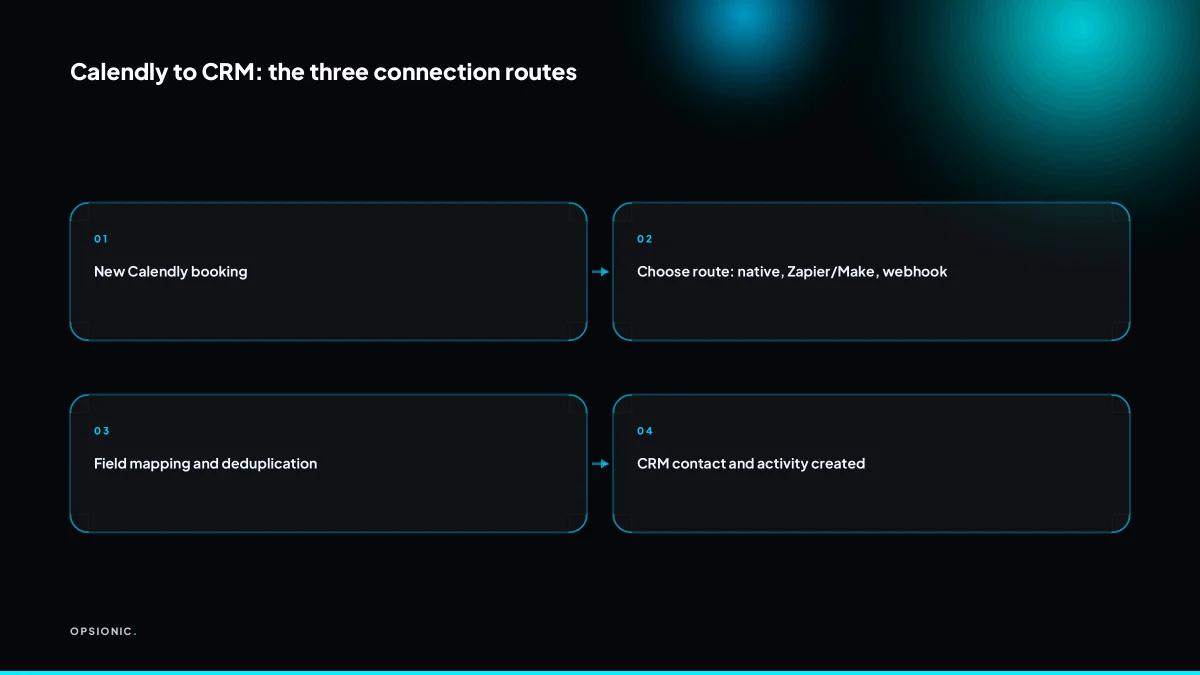
You have three main routes. First, a native integration built by Calendly or your CRM vendor, if one exists for your combination. Second, an automation platform like Zapier, Make or n8n, which gives you more control over field mapping. Third, a webhook from Calendly to your own script or middleware. Native is simplest, automation platforms are the most flexible, and webhooks are the most technical.
Native integrations
Calendly offers direct integrations for a short list of CRMs. What syncs depends on the pairing. Most native integrations create or update a contact when someone books, and attach the meeting details to that record. Some also log the activity or create a deal. The field mapping is fixed by the vendors, so you get speed at the cost of control. Check Calendly’s integrations directory to see if your CRM is listed.
Zapier, Make and n8n
These platforms sit between Calendly and your CRM. They watch for a new booking, then run a workflow that maps each answer to the field you choose. You can add steps the native integration cannot: send a Slack alert, tag the contact by event type, or create a follow-up task. Zapier is the easiest to start with, Make handles branching better, and n8n gives you the most control if you are comfortable with nodes and logic.
Webhooks
You would choose a webhook when your CRM is not supported natively and you do not want a monthly automation subscription, or when you need logic no platform handles well. Calendly sends a JSON payload to a URL you control. You need somewhere to receive it, a script to parse it, and a way to call your CRM’s API. That means development time and ongoing maintenance.
| Approach | Setup effort | Field control | Ongoing cost | Best for |
|---|---|---|---|---|
| Native integration | Low | Fixed | Included in plan | Supported CRM, standard fields |
| Zapier, Make or n8n | Medium | Full | Platform subscription | Custom mapping, extra steps |
| Webhook | High | Full | Your server | Unsupported CRM, specific logic |
Not sure which of these applies to you?
Answer six questions and see what we would automate first in your business, and what it is worth.
How do I set up the native Calendly to CRM integration?
Install the integration from Calendly’s integrations directory, or from your CRM’s marketplace. Authorise the connection with your CRM login, then map Calendly fields like invitee name, email and event type to your CRM contact and activity fields. Test with a real booking, not a made-up one, and check the record appears with all fields populated.
- Open Calendly and go to the integrations area. Look for a section named Integrations or Apps in the left menu or account settings, then search for your CRM by name.
- Select your CRM and start the connection. Calendly redirects you to your CRM’s login screen. Sign in with an account that has permission to create contacts and activities, not a read-only or reporting-only user.
- Review the permissions the CRM asks for. You will usually see requests to read and write contacts, leads and activities. Grant only what the mapping needs. If your CRM offers scoped access, avoid granting delete rights.
- Map the Calendly fields to CRM fields. Match invitee name to contact name, invitee email to email, invitee phone to phone, event type to a field or activity type, and event start time to the activity date. Leave unmapped anything your CRM does not have a clear home for.
- Book a real test meeting through your own Calendly link. Use a work email address you can check, not a dummy address that will bounce or confuse your CRM’s duplicate rules.
- Open the CRM and find the new record. Confirm the contact exists, the activity is attached to it, and every mapped field contains the value you expect.
How do I stop the same person from becoming two records?
Match on email first. Use the invitee’s email address as the unique identifier in your CRM, and set your automation to search for an existing contact with that email before creating a new one. If email is missing or different, fall back to phone number. If neither matches, create a new record but log the mismatch for manual review.
Email is the strongest match key because it is usually unique to one person and it does not change when someone moves house or switches mobile provider. In your automation, add a step that searches the CRM for a contact where the email field equals the Calendly invitee email. If the search returns one record, update that record and attach the new activity to it. If it returns zero, only then create a new contact.
Phone number is a useful fallback but a weaker key. People share landlines, give a reception desk number, or change mobile numbers more often than they change email addresses. Use phone matching only when email is absent from the booking, and treat a phone match as provisional. A human should confirm it before merging anything.
When neither email nor phone matches, create the new record but do not pretend it is clean. Add a tag or a note such as “possible duplicate, review manually”, and put the raw Calendly fields somewhere visible. That makes the weekly tidy-up a five-minute job instead of a data rescue.
The work and personal email problem is the same issue in disguise. Sarah books with [email protected], then books again with [email protected]. Your automation sees two different people. The practical fix is a scheduled duplicate check: once a week, search for contacts who share a phone number or a last name plus company, and merge the obvious ones. You can also ask repeat bookers to use the same email, but people forget. Plan for the mismatch rather than hoping it stops.
What is this costing you now?
Based on removing half of that time.
What happens to rescheduled and cancelled bookings?
Your automation must act on Calendly’s cancel and reschedule events, not just new bookings. When a booking is cancelled, update the CRM activity to cancelled and remove it from any active pipeline stage. When it is rescheduled, update the date and time on the existing activity. If you ignore these events, your CRM fills with stale appointments.
Calendly sends webhook events for new, cancelled, and rescheduled bookings. A reschedule often arrives as a cancellation of the old slot followed by a new booking, so your automation should treat the cancellation as a date change rather than a lost lead when a new booking for the same email arrives within a few minutes.
Update the CRM activity status instead of deleting it. Mark the old appointment as cancelled or rescheduled, then create or update the new one. Keeping the history means you can see that a prospect moved a call twice before going quiet, which is useful context that a hard delete destroys.
If you only listen for new bookings, three things break. Cancelled meetings still show as upcoming, so your team chases people who are not coming. Rescheduled meetings create duplicate activities, one for the old time and one for the new. And your pipeline numbers lie, because dead appointments still count as open.
Set up the extra triggers in Zapier or Make by adding a second and third trigger step for the cancel and reschedule events, then routing each to an update action in your CRM. If you use a raw webhook, check the event field in the payload and branch your logic on its value.
What silently breaks after the integration is live?
Several things go wrong without an error message. Duplicate records appear when an automation retries after a timeout. Timezone drift puts meetings in the wrong slot if your CRM and Calendly disagree. A connection can stop silently when a password changes or a token expires, and nobody notices for a month. Check for new duplicates and failed syncs every week.
Duplicate records from retries. Calendly sends the booking, your CRM is slow to respond, and Zapier or Make retries the step. The second attempt creates a second contact because the first one actually landed but the acknowledgement was lost. You spot this when the same person appears twice with identical booking times a few seconds apart. The fix is a lookup step before the create step: search by email first, and only create if nothing comes back.
Timezone drift. Calendly and your CRM may store times in different timezones. If the two settings differ, a 10:00 booking becomes an 11:00 meeting for the team. You notice when a client says they were told one time and the calendar shows another. The fix is to set the timezone explicitly in the automation rather than letting either tool guess, then test with a booking made from a different timezone than your own.
Silent disconnections. A password change, a security update, or an expired OAuth token kills the connection. Nothing alerts you. Bookings keep coming into Calendly and simply stop appearing in the CRM. You notice when a customer asks about an appointment you never saw. The fix is to reauthorise the connection and add a weekly check rather than waiting for the failure to surface.
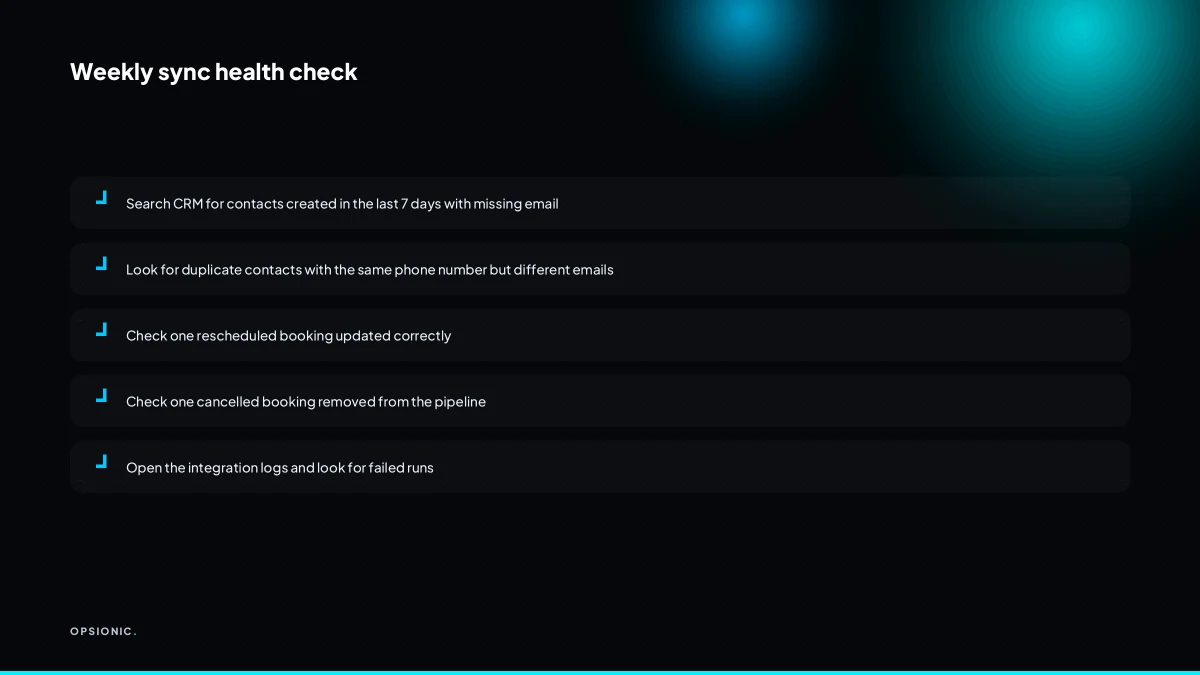
The weekly check. Spend ten minutes every Monday searching your CRM for contacts created twice in the last seven days, and open your automation platform to look for failed runs. Catching three duplicates and one dead token on a Monday is cheaper than unpicking a month of missing bookings.
When is doing this by hand genuinely cheaper?
Below about 30 bookings a month, manual entry takes less than an hour a week and costs nothing but your time. Building and maintaining an integration means paying for Calendly’s paid plan, possibly a Zapier plan, and spending time troubleshooting. If you handle 20 bookings a month, copying each one into your CRM by hand is almost certainly the cheaper option.
Here is a worked example with invented but realistic figures. Suppose you get 20 bookings a month. Each one takes two minutes to copy into your CRM: name, email, phone, the service booked, and the date. That is 40 minutes a month, or roughly ten minutes a week. At a cost of EUR 30 per hour for your own time, manual entry costs you about EUR 20 a month.
Now price the automation. Check Calendly’s and Zapier’s current pricing pages for the monthly cost of the plans you would need. Add the time to build the integration, test it with real bookings, and fix the first thing that breaks. Two hours of setup and one hour a month of checking is realistic. At EUR 30 per hour, setup costs EUR 60 once, and maintenance costs EUR 30 a month.
Month one, the automation costs the subscription fees plus EUR 90 in time, against EUR 20 for doing it by hand. Month two onwards, it costs the subscription fees plus EUR 30 in time, against EUR 20. You are paying more to save ten minutes a week. The automation only starts to pay for itself when your booking volume is high enough that manual entry takes more time than the subscription and maintenance cost. For many small businesses, that threshold is well above 20 bookings a month.
Want this running in your business next week?
A relaxed 20-minute video chat. Camera on or off. You leave with a plan whether or not you hire us.
- No call unless you ask for one
- From EUR 399 a month, no setup fee
- Built and run for you, not handed over as homework
Sources we checked
Questions people ask
Can I connect Calendly to my CRM without Zapier?
Yes. If Calendly lists a native integration for your CRM, you can connect the two directly from Calendly's integrations area and skip Zapier entirely. You can also use a webhook, where Calendly sends booking data to a URL you control, though that needs development work and ongoing maintenance.
Does Calendly's free plan include any CRM integration?
No. The free plan has no CRM integrations, no Zapier connection and no webhooks. You can export bookings to a CSV file and import them into your CRM by hand. To connect automatically you need a paid Calendly plan, and the tier depends on whether you use a native integration, Zapier or webhooks.
What is the difference between a native integration and a Zapier integration?
A native integration is built by Calendly or your CRM vendor, sets up in minutes and has fixed field mapping you cannot change. A Zapier, Make or n8n connection sits between the two tools and lets you map any field, add extra steps like Slack alerts or tags, and branch on event type, at the cost of a monthly platform subscription.
How do I map custom questions from Calendly to my CRM fields?
Custom questions arrive as extra fields in the booking payload, so your automation can read them like any other answer. In Zapier, Make or n8n, pull the question field into the matching CRM property. If your CRM has no field for it, write the answer into the contact notes rather than dropping it.
Can I sync Calendly bookings to two different CRMs at once?
You can, but decide which CRM is the source of truth first. Run one automation that creates the contact and activity in your main CRM, then a second that copies the same booking elsewhere. Two-way syncing between two CRMs creates conflicts, so keep the second copy read-only or one-directional.
What happens if a booking has no email address, only a phone number?
Fall back to phone matching. Search your CRM for a contact with that number before creating a new record, and treat the match as provisional because people share landlines and change mobiles often. If nothing matches, create the record and tag it for manual review rather than assuming it is clean.
How do I delete test bookings from my CRM after testing the integration?
Find the contact created by your test booking, delete the attached activity first, then the contact, so you do not leave orphaned records behind. If your CRM keeps a recycle bin, empty it for those records. Also cancel the test meeting in Calendly so no cancellation event fires later.