Automate Google Review Requests: Ask Everyone, Stay Compliant
You can automate Google review requests, but you must ask every customer neutrally. Review gating, filtering who gets asked, violates Google policy and can remove reviews. A compliant system sends the same review link to everyone at the right moment, then routes unhappy replies to a person before they post publicly.
Is it allowed to automate Google review requests?
Yes, you can automate Google review requests as long as you follow Google’s policy. The key rule is no review gating: you cannot selectively ask only customers you think are happy. You must ask everyone, and you cannot incentivise reviews. Automation itself is fine; filtering is not.
Google’s policy on review solicitation is stricter than most business owners realise. You may ask for reviews, and you may use software to send those requests. What you may not do is decide, in advance, which customers deserve the request. That decision belongs to the customer, not to you.
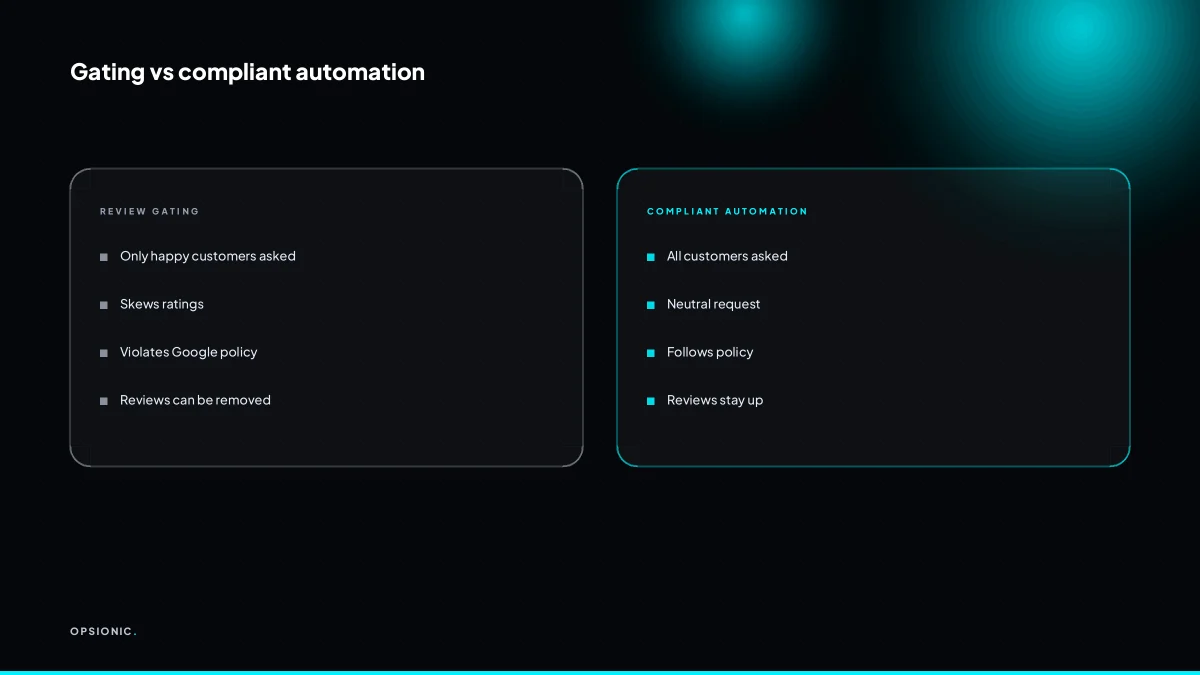
Review gating is the practice of filtering customers before you ask. A common example is a two-step email or SMS. The first message asks, “How did we do?” If the customer says they are happy, the second message sends the Google review link. If they say they are unhappy, the link never arrives. Another example is asking your staff to send review requests only after a job they personally thought went well.
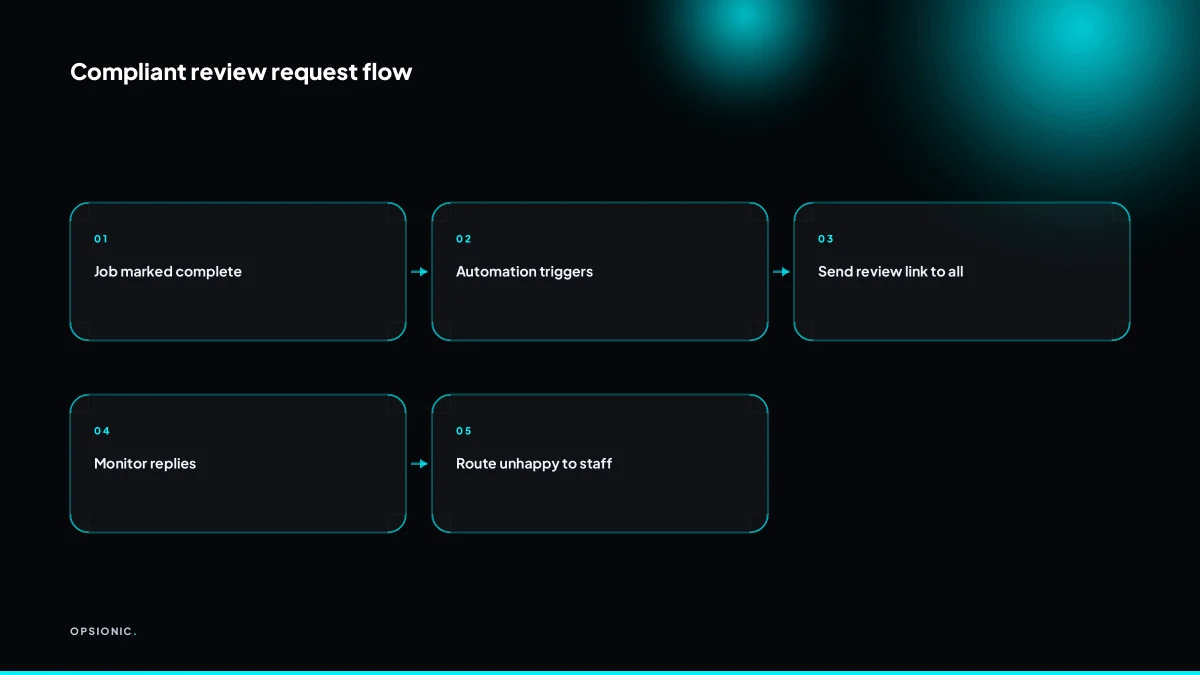
Automated asking is different. A compliant automation sends the same request to every customer after the same trigger, such as an invoice being marked paid or a job being closed. There is no survey in between, no branch that hides the link, and no human picking winners.
The consequences of gating are concrete. Google can remove reviews it believes were solicited through gating, and it can suspend a business profile’s ability to receive new reviews. A review you spent months collecting can disappear because the process that earned it was filtered. The safer route is to build the request into your normal workflow, the same way you would automate a repetitive admin task, and let every customer decide for themselves.
What is review gating and why does it violate Google policy?
Review gating is the practice of asking customers for feedback first, then only sending the Google review link to those who respond positively. Google prohibits this because it biases the review pool. Even a neutral satisfaction survey that filters who gets the link is considered gating and can lead to review removal.
In practice, the flow looks like this: a customer finishes a job, you send a short survey asking “How did we do?” If they answer four or five stars, the next screen shows the Google review link. If they answer lower, the link never appears. Some tools build this natively. Some businesses do it manually with a spreadsheet.
Google’s policy is direct. You may not solicit reviews from a preselected group, and you may not ask customers to answer a survey before writing a review. A neutral question such as “Would you recommend us?” is still gating if the answer determines whether the Google link appears. Google treats the survey itself as the filter.
The problem is not just policy. Gating skews the average rating upward because unhappy customers never reach the public review form. A 4.9 rating built this way reflects only the customers you allowed through, not the ones you served. When a prospective customer compares you against a competitor who asks everyone, the gated profile looks artificially clean. That gap is visible and it erodes trust.
Compliant feedback routing is different. You may send the review link to every customer in the same way, at the same time. What you do with the response is separate. If someone replies to your follow-up with a complaint, you route that reply to a manager instead of posting it publicly. That is fine. The request itself stays unfiltered.
Not sure which of these applies to you?
Answer six questions and see what we would automate first in your business, and what it is worth.
What is the compliant way to ask every customer for a review?
Send every customer the same direct link to your Google review form. Do not ask a satisfaction question first, and do not offer anything in return. The request can be automated via email or SMS, but the message must be neutral and the link must go to everyone, regardless of their likely rating.
Start with the review link from your Business Profile. Open your profile in Google Search or Maps, find the “Ask for reviews” option, and copy the short URL. That link opens the review box directly, so the customer does not have to search for your business.
Keep the wording neutral. A plain line like “If you have a moment, here is the link to leave a review” works. Do not say “if you enjoyed the service” and do not add a smiley face or a five-star hint. The request should sound the same whether the job went well or badly.
Never offer a discount, a freebie, or a prize draw entry in exchange for a review. Do not send the link only to customers you think are happy, and do not hold it back from anyone who complained. Selective sending is the fastest way to fall foul of Google’s policy.
Automation tools can send the link to every customer without you thinking about it. A workflow can trigger an email or SMS after a job is marked complete, pull the review link from a single field, and send the same message to the whole list. That is the kind of routine work we set up under managed automation for small businesses, so the request goes out on time and to everyone.
When should a review request be sent after a job or purchase?
Send the request within 24 hours of the job being marked complete or the purchase delivered. At that point the experience is fresh but not rushed. For services, trigger the automation when the job status changes to complete in your CRM. For products, trigger on delivery confirmation.
The first 24 hours matter because the customer still remembers the details: the technician’s name, the invoice amount, the small thing that went well. Wait a week and the memory softens into a general impression. That general impression rarely turns into a written review. The same logic applies to timing the request alongside other automated follow-ups, like the automated appointment reminders you already send, so the customer hears from you while the appointment is still recent.
- Set the trigger in your CRM to fire when a job status changes to complete, not when the invoice is sent.
- For ecommerce, connect the trigger to the courier’s delivery confirmation webhook or your fulfilment platform’s shipped status.
- Add a two-hour delay before sending so the customer has time to unpack or inspect the work.
- Schedule the send between 10:00 and 14:00 in the customer’s local time zone, not yours.
- Store the customer’s time zone in a field at booking and use it in the automation to avoid 3 a.m. messages.
- Stop the sequence silently if the customer replies to the job thread with a complaint, and route that reply to a person.
Every day you wait after the 24-hour window costs you responses. A customer who felt positive on Tuesday may not feel strongly enough to write on Friday. The automation removes the delay you would otherwise introduce by being busy.
What is this costing you now?
Based on removing half of that time.
Which tools can send review requests automatically without manual work?
Tools like Zapier, Make, or native integrations in CRMs such as HubSpot or Jobber can automate review requests. They watch for a trigger, like a completed job, and send an email or SMS with your review link. The choice depends on your existing stack and whether you want a simple or complex workflow.
Zapier and Make act as connectors between the tool where the job closes and the channel where the customer receives the request. A trigger in your booking system or invoicing app starts a sequence that waits your chosen delay, then sends the message from your own email or SMS provider. You pay for the connector plus the messages you send. Make often costs less for higher volumes, while Zapier is simpler to set up if you have never built a flow before. If you are weighing Zapier alternatives that make sense for a small business, the main question is whether your trigger app has a native integration already.
CRM native automation skips the connector entirely. HubSpot can send a review email when a deal moves to closed. Jobber and ServiceTitan do the same for completed visits, which suits trades businesses because the trigger and the customer record live in one place. The trade-off is less control over timing and message design than a dedicated automation platform gives you.
Email costs almost nothing per send and lets you include the review link cleanly. SMS gets opened faster but costs more per message and needs the customer’s consent. A small firm sending 40 requests a month might pay around EUR 10 for email via a connector, while the same volume by SMS could reach EUR 25 or more depending on the provider. The table below assumes a business sending 50 requests per month.
| Tool type | Example | Monthly cost at 50 sends | Best for |
|---|---|---|---|
| Connector plus email | Zapier or Make | from EUR 10 to EUR 30 | Flexible timing, multiple source apps |
| Connector plus SMS | Zapier or Make | from EUR 25 to EUR 60 | High open rate, mobile first customers |
| CRM native email | HubSpot, Jobber | often included in plan | Simple setup, one source of truth |
| CRM native SMS | ServiceTitan | varies by plan | Trades with completed job triggers |
How do you route unhappy customers to a person instead of Google?
You can route unhappy customers without gating by including a feedback option alongside the review link. For example, the email can say: “If you had a less than perfect experience, reply to this email and we will make it right.” Those replies go to a human, while everyone still gets the Google link.
The design is a dual path. One button, clearly labelled, opens your Google review form. A second line, just as visible, invites a direct reply. Nothing is hidden, so Google has no grounds to flag the request. The automation that supports this is simple: when a reply arrives, a rule tags it as feedback and alerts a named person by email or Slack. If the reply contains words like “unhappy”, “refund” or “damage”, the alert can be marked urgent. The review link stays in every message regardless of the customer’s mood, because you cannot know their mood before they click.
Worked example, invented figures: a dental practice sends 120 review requests a month. 18 customers open the email and click the review link. 3 reply to the feedback line instead. Without the dual path, those 3 might have posted publicly or said nothing. A staff member spends 5 minutes on each reply, so 15 minutes a month. At EUR 25 per hour, that is EUR 6.25 a month. The practice keeps 3 complaints private and still gets 18 chances at a public review. That is the trade worth making. If you want the tagging and alerting built once rather than maintained by hand, see how we build an automation around your existing email tool.
Want this running in your business next week?
A relaxed 20-minute video chat. Camera on or off. You leave with a plan whether or not you hire us.
- No call unless you ask for one
- From EUR 399 a month, no setup fee
- Built and run for you, not handed over as homework
Sources we checked
Questions people ask
Can I offer a discount for a Google review?
No. Google prohibits offering money, discounts, freebies or prize draw entries in exchange for reviews, and it can remove the reviews and restrict your profile if it finds out. Ask plainly, with nothing in return, and let the customer decide whether to leave one.
Does Google penalise automated review requests?
Not for automation itself. Google allows you to use software to ask for reviews. What it penalises is gating: filtering customers before the request so only likely happy ones get the link. Send the same unfiltered request to every customer and automation is fine.
How do I get my Google review link?
Open your Business Profile in Google Search or Maps, find the Ask for reviews option, and copy the short URL it gives you. That link opens the review box directly, so customers do not have to search for your business or hunt for the right listing.
What is the best email subject line for a review request?
Keep it plain and specific, such as How did we do on your boiler service? or A quick favour after your visit. Avoid hype, emojis and anything that hints at the rating you want. A neutral subject line matches the neutral wording of the request itself.
Can I send review requests by text message?
Yes, if you have the customer's consent to message them and you include an opt-out. SMS gets opened faster than email but costs more per message, and the wording rules are the same: no satisfaction survey first, no incentive, and the link goes to everyone.
How many review requests is too many?
One request per job or purchase, plus at most one polite reminder after about five days. More than that reads as pressure and can push a customer to report the messages as spam. If they have not reviewed after the reminder, leave it alone.
What if a customer leaves a fake negative review?
Flag it through your Business Profile and explain why it does not reflect a real experience, such as no matching customer record. Google decides whether to remove it. Reply publicly and factually in the meantime, without arguing, so other readers see your side.