Automation for Accountants: Stop Chasing Client Records
Automation for accountants small firm means building workflows that chase missing client records, move data into Xero or QuickBooks, and remind you of deadlines without manual emails. You start with one painful loop, like chasing bank statements, and connect tools like Dext, Zapier, and your practice software. It saves hours weekly and reduces the risk of missed filings.
What actually eats your week in a small accounting firm?
The biggest time sink is not bookkeeping; it is chasing clients for bank statements, receipts, and signed documents, then manually entering data before deadlines. This loop repeats every month, often with the same clients, and compounds during VAT or tax season.
Chasing records follows a predictable sequence. You send a request. You wait. You send a reminder, then a firmer one. The client replies with half the documents, or sends a photo of a receipt you cannot read. You log what arrived, flag what is missing, and start again. By the time the file is complete, you have spent more time on correspondence than on the actual accounts.
The deadline calendar makes it worse. A quiet second week of the month becomes a crisis by the twentieth, because three clients have gone silent and the VAT return is due. You either work late or file with numbers you will have to correct later.
Generic advice about being more organised fails here. The problem is not your discipline. It is that the workflow depends on other people replying on time, and no amount of colour-coded folders changes that. What changes it is removing the manual follow-up from your week, which is where automation for small businesses starts to earn its keep.
How do you automate chasing clients for missing records?
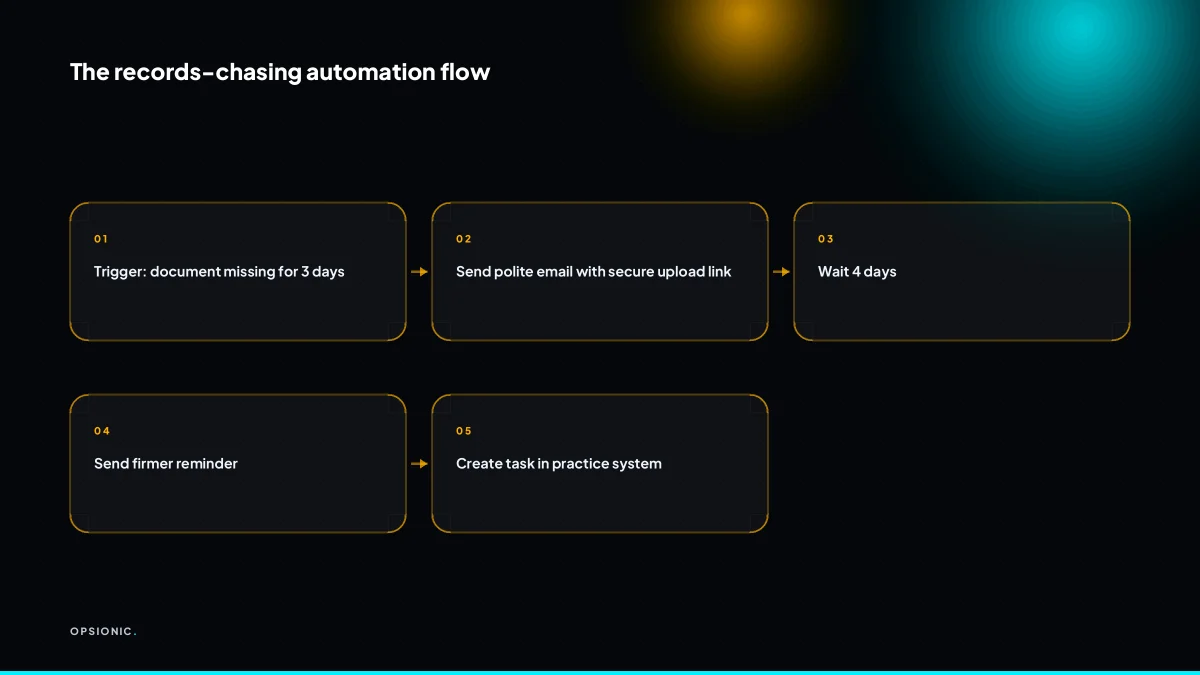
Set up a sequence in a tool like Zapier or Make that sends a polite email or SMS on a schedule, escalates the tone, and then creates a task in your practice management system. Use a client portal with a secure upload link so documents land in the right folder automatically.
- Trigger the sequence from a missing document status. When a client is marked as “awaiting bank statements” in your practice system, the automation starts the first message that same day.
- Send a friendly nudge on day three. “Hi Sarah, just a quick reminder that we still need your March bank statements. You can upload them here: [secure link].”
- Send a firmer reminder on day seven. Reference the deadline: “We can’t file your VAT return until we have these records. Please upload them by Thursday or let us know if something has changed.”
- Escalate to a final notice on day ten. State the consequence: “If we don’t receive the records by Friday, your filing will move to the next cycle and may incur a late penalty.”
- Create a task for yourself on day twelve. If the client still hasn’t responded, the automation drops a task into your practice management system so you can call them. This mirrors the logic in the sequence that recovers dead leads, where a human step only happens after automated follow-ups run their course.
Keep the tone professional by writing each template once, then letting the tool send it. The wording stays consistent because you approved it, not because you typed it at 9pm. Avoid exclamation marks and apologies in later messages. A client who ignores three reminders does not need a fourth polite email. They need a phone call, which is exactly what the task step gives you.
Not sure which of these applies to you?
Answer six questions and see what we would automate first in your business, and what it is worth.
Which tools connect to Xero, QuickBooks, or Sage for document collection?
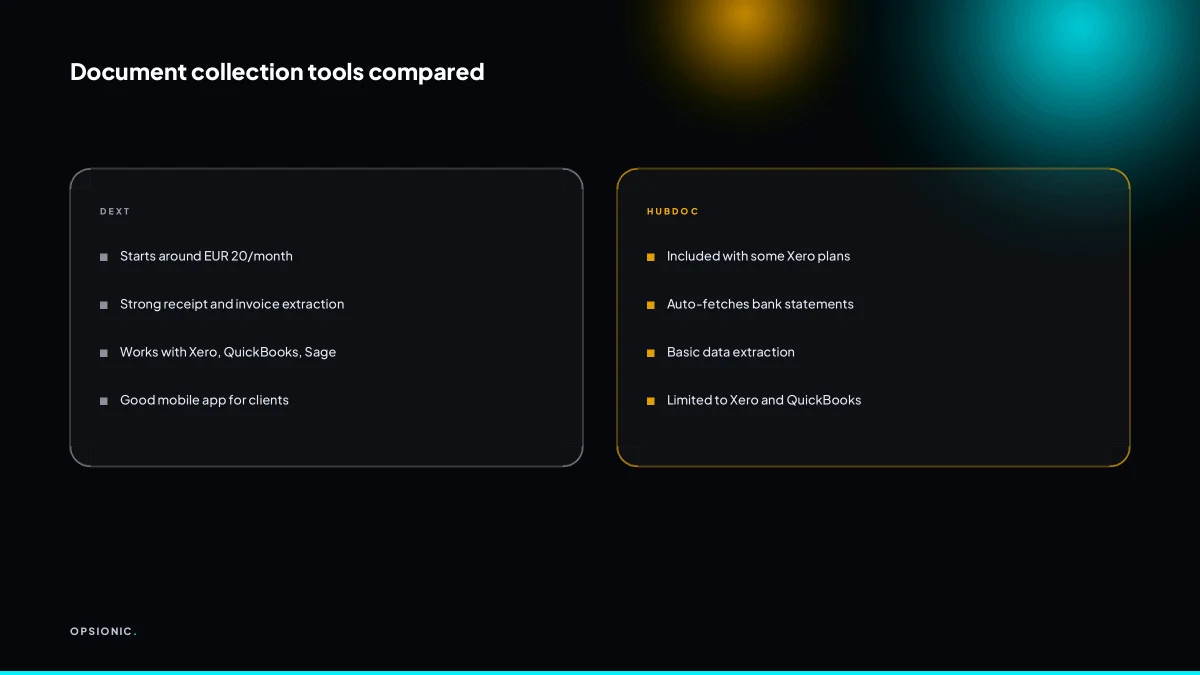
Dext, Hubdoc, and AutoEntry pull bank statements and receipts from client sources and push coded data into Xero, QuickBooks, or Sage. You can connect them with Zapier or Make to trigger chasing when a document is still missing after a set number of days.
Dext is the most aggressive at turning receipts into coded line items. It learns your client’s supplier list, so a monthly invoice from the same courier gets the same account code without you touching it. Hubdoc is simpler and cheaper for firms that mostly need bank statements and a handful of receipts per client. AutoEntry sits between them, with stronger bulk processing for firms that get shoeboxes of paper after the deadline.
All three handle bank feeds, but Hubdoc pulls statements through the accounting platform itself, which can mean fewer connection headaches. Dext and AutoEntry run their own feeds. None of them chase the client for you. That part sits outside the tool, which is why the missing-document trigger matters. A firm that already syncs Jobber work orders into QuickBooks can use the same approach to flag a job with no matching receipt after seven days. See how Jobber to QuickBooks syncs and where the gaps remain before you add a third tool to the stack.
| Tool | Best for | Bank feeds | Receipt coding | Typical starting cost |
|---|---|---|---|---|
| Dext | High receipt volume | Own feed | Learns supplier rules | Around EUR 20 per client monthly |
| Hubdoc | Bank statements first | Via accounting platform | Basic, manual review | Often bundled with Xero |
| AutoEntry | Paper and bulk entry | Own feed | Strong bulk matching | Starts around EUR 12 per client monthly |
Check each vendor’s current pricing page before you commit. The per-client model means a firm with 40 monthly bookkeeping clients pays 40 times the headline rate, which changes the decision quickly.
What does it actually cost to automate these workflows?
DIY with Zapier, a portal, and Dext starts at around EUR 50 to EUR 100 per month in software, plus your time to build and maintain. Hiring an agency like Opsionic for a managed automation costs from EUR 599 per month, with no setup fee, which includes design, hosting, and upkeep.
Here is a worked example. A small firm automates records chasing, invoice reminders, and portal uploads. DIY software costs EUR 80 per month. The owner spends six hours building the first workflow, then two hours a month fixing failed runs and adjusting steps. At an internal rate of EUR 60 per hour, that is EUR 360 of build time and EUR 120 per month of upkeep.
Over six months, DIY totals EUR 480 in software plus EUR 1,080 in time: EUR 1,560. The managed option at EUR 599 per month totals EUR 3,594. DIY looks cheaper on paper. But the hidden costs are real: a failed Zap on a Friday evening, a portal that stops syncing, a Dext rule that misfiles twenty receipts. Each failure eats billable time and delays client work.
A fixed monthly fee makes sense when your firm already runs lean. If chasing records costs you six hours a week, the agency fee buys those hours back without you learning another tool. What one automation actually costs depends on whose time you are spending, and a small firm’s owner time is rarely free.
What is this costing you now?
Based on removing half of that time.
How do you keep client documents safe under GDPR?
Use tools that are GDPR compliant, sign data processing agreements, minimise what you store, and encrypt documents in transit and at rest. Automate deletion after retention periods and never send sensitive data through unencrypted email.
Key GDPR principles for automation
Every automated step that touches client data must rest on three principles. Lawfulness means you have a stated purpose for collecting and processing each document. Minimisation means you collect only what the workflow needs, nothing extra for convenience. Security means the tool, the connection, and the storage all meet a standard you can defend if asked.
A records-chasing automation is a good test case. The workflow needs the client’s name, email address, and the files they upload. It does not need their tax history, their home address, or last year’s bank statements. If the tool asks for those, it fails the minimisation test before you have built anything. For a practical checklist on this, see automating without breaking GDPR.
A checklist you can actually run
- Confirm the tool’s data centre location and whether data leaves the EU.
- Request and sign a data processing agreement before connecting any client data.
- List every field the automation collects, then delete the ones the workflow does not use.
- Check that uploads and storage are encrypted in transit and at rest.
- Set an automatic deletion rule for documents once the retention period ends.
- Turn off email notifications that include document contents; send links instead.
- Review access permissions so only the people working the queue can see the files.
Mistakes that cause breaches
The most common failure is convenience. A firm connects a free file-collection form, ticks the default settings, and starts receiving passports and bank statements through a tool nobody vetted. The second is retention: files sit in a shared drive for years because nobody set a deletion date. The third is email. Sending a tax return as an unencrypted attachment breaks the security principle in one click, even if the automation itself is sound.
What is the first workflow to automate if you only do one?
Automate the client document request and reminder sequence. It is the highest-frequency, lowest-risk task, and it immediately frees up hours each month. Start with a simple three-email chase tied to a secure upload link, then add escalation and task creation.
This workflow gives the fastest payback because it runs on every engagement, not just the messy ones. A firm with thirty monthly clients sends at least thirty first requests, thirty reminders, and thirty “still waiting” notes. Each manual round takes five minutes of finding the right template, checking the deadline, and pasting a link. That is around seven and a half hours a month spent on follow-up alone. The automation does the same job while you work on the return itself.
A minimal build needs four pieces. First, a trigger: the client’s deadline date in your practice software or a spreadsheet. Second, a document request email with a secure upload link. Third, two reminders spaced a few days apart. Fourth, a task that lands on your list only when the third email goes unanswered. You can build this in an afternoon with tools you likely already have. If you want a walkthrough of starting with one process, start with one process and resist the urge to automate everything at once.
Measure success by hours recovered, not emails sent. Count how many manual chase rounds disappear from your week. Track the average time between the first request and the final document, and watch whether clients respond faster when reminders arrive on schedule. Those are the numbers that show up in your own workload.
Want this running in your business next week?
A relaxed 20-minute video chat. Camera on or off. You leave with a plan whether or not you hire us.
- No call unless you ask for one
- From EUR 399 a month, no setup fee
- Built and run for you, not handed over as homework
Sources we checked
Questions people ask
Can I automate VAT return preparation in a small firm?
You can automate the data gathering, not the judgement. Bank feeds, receipt coding in Dext or Hubdoc, and the chase for missing documents can all run on a schedule. The review, adjustments and filing decision still need a qualified person, and that person should be checking figures rather than sending reminders.
How do I get clients to actually use a portal?
Send the upload link in every request from the first message, and stop accepting documents by other channels. A client who emails a photo gets a short reply pointing back to the link. Keep the portal to one click, no password reset maze, and it becomes the path of least resistance.
What if a client refuses to send documents electronically?
Keep a paper route for that client and automate the rest. The workflow can still send reminders, log what arrived, and create a task for you to collect or scan the documents. One awkward client does not justify running the whole practice on paper.
Is Zapier safe for client financial data?
Zapier itself is a connector, so the risk sits with the apps on either end and what you pass between them. Send links rather than attachments, check each connected tool's data processing agreement and data centre location, and keep sensitive fields out of the automation where the workflow does not need them.
How much time does automation really save an accountant?
It depends on how many clients you chase and how often. Count the requests, reminders and status updates you send in one month, multiply by the minutes each takes, and that is your ceiling. The saving is real but it is bounded by the task you remove, not by the tool.
Do I need to be technical to set up these automations?
No, but you need patience for the first build. A three-email chase tied to a missing-document status is a reasonable starting point in Zapier or Make. If you would rather not maintain it, a managed service runs the build, hosting and fixes for a fixed monthly fee.
What happens when an automation fails and I miss a deadline?
Build a fallback before you need it. Set failure alerts to a mailbox you actually read, and keep a weekly check of which clients are still marked as missing documents. The automation handles the routine follow-up, but the deadline calendar stays your responsibility.