Automate Data Entry Between Your Apps
To automate data entry between apps, connect them with an integration tool that watches for new or changed records in one system and creates or updates matching records in another. You map fields once, set rules for duplicates and conflicts, then the tool handles the copying while you monitor that it keeps working.
What does automating data entry between apps actually involve?
Automating data entry means setting up a connector that watches a trigger app for new or updated records, transforms the data according to your field map, and pushes it into a destination app. You define the trigger, map the fields, add filters or rules, and turn it on. After that, the automation runs without manual copying.
The trigger is the event that starts the process. A new form submission, a saved invoice, a closed sale. The action is what happens next: the automation creates or updates a record in a second app.
Field mapping is the translation layer. You tell the automation that “Client name” in app one should land in “Customer” in app two, and that “Total” should become “Amount”. The apps do not need to use the same labels.
Filters narrow the trigger. You might only send orders above EUR 50, or skip records with a blank email field. Scheduling options cover cases with no real trigger, such as a nightly pull of yesterday’s rows. This is the same logic we apply when we build an automation for a client.
One-way sync copies records from A to B. Two-way sync keeps both sides matching, so a change in either app updates the other. Two-way is harder to set up because you must decide which field wins when both change.
Which tools can connect two apps without coding, and how do they compare?
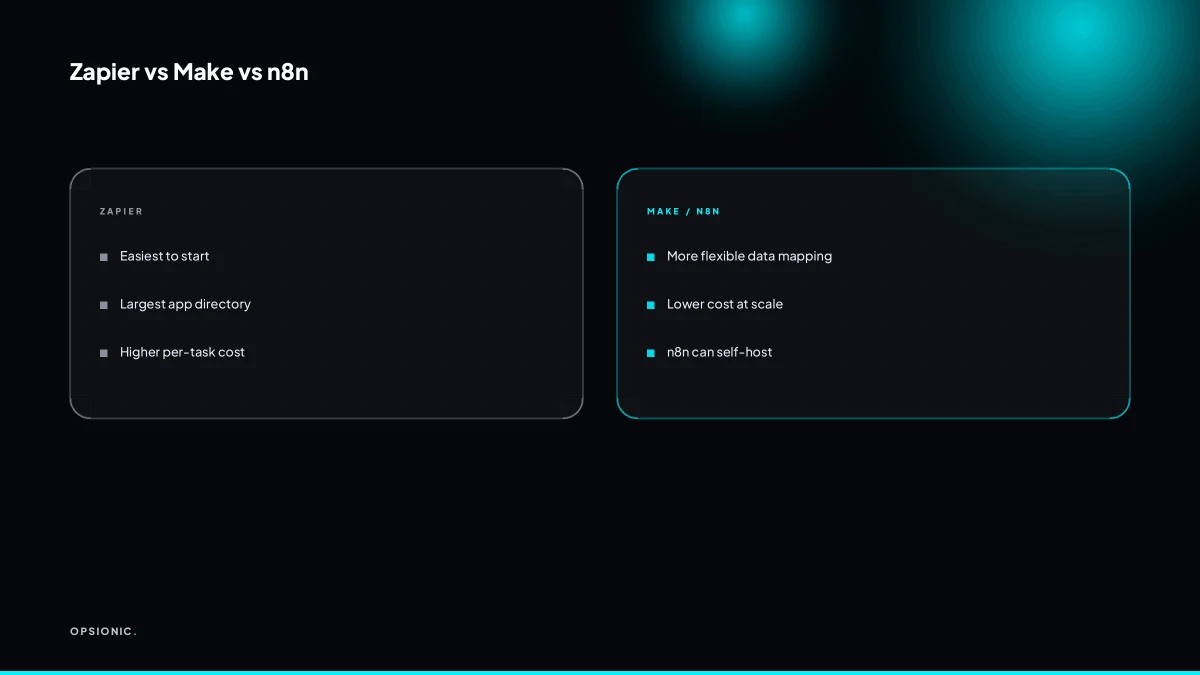
Zapier, Make, and n8n are the main no-code platforms for connecting apps. Zapier has one of the largest app directories and is easiest to start with. Make gives more visual control over data flow. n8n is self-hostable and cheaper at scale. All three use a trigger-action model and support field mapping without programming.
Zapier wins on speed. You pick a trigger, pick an action, map a few fields, and the automation runs. Its pricing climbs quickly once you pass a few hundred tasks a month, and multi-step paths cost extra on lower tiers. Make suits people who think in branches and filters. The visual canvas shows exactly where data splits, merges, or gets reformatted. It often costs less per operation than Zapier but has a steeper first hour. n8n is the most flexible of the three. You can host it yourself, run unlimited workflows, and write custom code inside a node when a native action does not exist. That flexibility assumes you are comfortable with a more technical interface. If you are weighing the two most popular options, our n8n vs Zapier for small business comparison goes into the trade-offs in more detail.
Native integrations are the limited alternative. Some apps offer a built-in “send to Google Sheets” or “export to accounting” button. These are fine when the vendor built exactly the connection you need, but they rarely let you change field mapping or add conditions. The moment two records disagree about a customer name, you are back to manual fixes.
Webhooks cover the gaps. A webhook is a URL that one app calls when something happens, and the automation platform listens for it. If your booking system has no Zapier or Make integration, a webhook can still push new bookings into your workflow. It requires a little more setup because you configure the sending app yourself, but it opens connections that no directory listing offers.
| Platform | Ease of start | Cost pattern | Flexibility |
|---|---|---|---|
| Zapier | Easiest | Higher per task | Good for standard flows |
| Make | Moderate | Lower per operation | Strong visual branching |
| n8n | Most technical | Cheapest at scale, self-host option | Highest, custom code possible |
| Native integrations | Easiest if built in | Usually free | Low, fixed field mapping |
| Webhooks | Requires setup | Platform cost only | High, works where no integration exists |
Pick based on volume and complexity. A single two-step flow that runs fifty times a month is fine on Zapier. A branching flow with error handling and a private server preference points to n8n. Make sits between them for most small businesses.
Not sure which of these applies to you?
Answer six questions and see what we would automate first in your business, and what it is worth.
How do I map fields when the two apps use different names or formats?
You select source fields and assign them to destination fields, converting formats as needed: dates, numbers, text, or dropdown options. Most tools let you transform values with simple formulas during mapping.
- List the destination fields first. Open the app receiving the data and write down every field it requires. Required fields decide what the mapping must produce, so start from that side rather than from the source.
- Match each source field to one destination field. Go through the source app field by field. If a source field has no destination equivalent, leave it unmapped. If a destination field has no source equivalent, set a default value or leave it empty.
- Convert dates with an explicit format. If the source sends “2026-03-14” and the destination expects “14/03/2026”, add a date format step. Do not rely on the destination app to guess, because a US-style date parser will read “03/04/2026” as 3 April when you meant 4 March.
- Normalise numbers before they arrive. Strip currency symbols, commas and spaces from the source value, then cast it as a number. A source field containing “EUR 1.250,00” becomes 1250.00 in the destination only if you remove the symbol and swap the comma for a full stop first.
- Build a lookup table for dropdown mismatches. When the source sends “Paid” but the destination expects “Completed”, create a small table that maps each source option to its destination option. Put the table inside the automation step, not in a spreadsheet someone must update by hand.
- Map text fields with a trim step. Remove leading and trailing spaces and collapse double spaces. A name entered as ” Jane Smith ” will otherwise create a duplicate record that differs only by whitespace.
- Test with one real record before enabling the sync. Run the automation once with a record you can afford to inspect. Open the destination app and check every mapped field, then correct the mapping before the flow runs unattended.
Getting the mapping right is the part that determines whether the automation saves time or just moves errors from one app to another. This is the kind of detail work we handle as part of the automation services we run for small businesses, because a mapping that looks correct in the builder still needs checking against real data.
What causes duplicate records, and how can I prevent them?
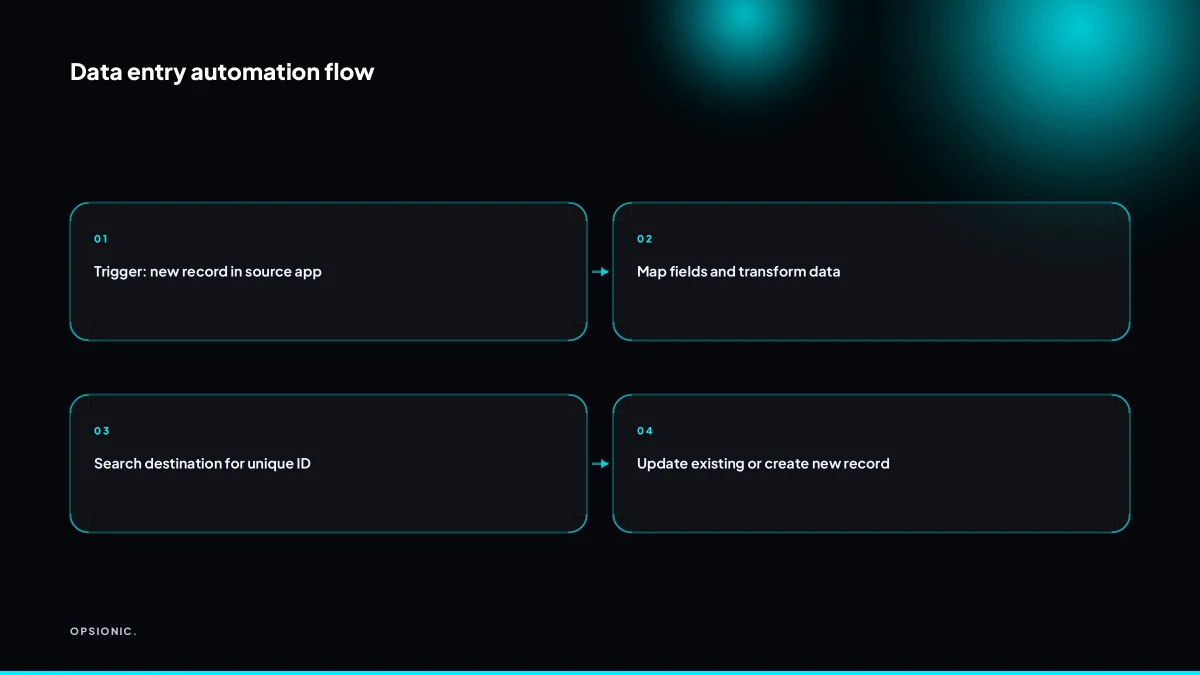
Duplicates happen when the automation cannot tell that a record already exists in the destination, so it creates a new one instead of updating. You prevent this by choosing a unique identifier, such as email or invoice number, and telling the automation to search for an existing record with that ID before creating a new one.
A unique identifier is a field that stays the same for one customer or one transaction no matter which app holds it. An email address works for people. An invoice number works for bills. A product SKU works for stock. The identifier must be unique in both systems, and it must never change. A phone number is a poor identifier because customers change numbers. A full name is worse: two people can share it, and one person can spell it differently across forms.
Deduplication logic is the step in the automation that checks before it writes. The flow receives a new record from the source app, then searches the destination app for a record with the same identifier. If the search returns a match, the automation updates that record. If it returns nothing, the automation creates a new one. The search must happen every time. Skipping it, even once, is how duplicates start.
Here is a worked example, with invented but realistic figures. A small business runs a customer sync between its CRM and its accounting software. The CRM holds 1,200 customer records. The accounting software holds 1,180. The difference is 20 records that exist in one system but not the other, plus 15 customers who appear twice in the accounting software because a previous manual import matched on name instead of email. The automation runs on email as the identifier. On the first full sync, it finds 1,165 matching emails, updates those records, creates 35 new ones, and flags the 15 duplicates for a person to merge by hand. From then on, each new CRM contact triggers a lookup in the accounting software before any write happens. The result: one customer, one record, in both places.
The most common mistake is using a name as the identifier. “Jane Smith” in the CRM can be “J Smith” in the accounting software, and the automation treats them as two people. Another mistake is relying on a field that the source app fills automatically but the destination app does not, such as an internal CRM ID. The fix is to pick one identifier that both systems can store, then enforce it. This is the same logic behind a proper Shopify to QuickBooks sync, where the order number is the only reliable way to stop a sale from appearing twice.
What is this costing you now?
Based on removing half of that time.
What should I do when two systems disagree about the same record?
When two systems disagree, you need a conflict rule that decides which system is authoritative for each field. For example, your CRM may be the source of truth for customer contact details, while your accounting system owns invoice statuses. The automation should only update fields from the authoritative system and skip or flag conflicts.
Start by listing every field that moves between the two apps. Next to each field, write the name of the system that is allowed to change it. This is your source of truth per field. It rarely makes sense for one app to own every field, because each tool has its own job. Your booking system knows when an appointment was rescheduled. Your invoicing tool knows when a payment cleared. Let each tool own the data it actually creates.
One-way sync is simpler because conflicts can only happen when a human edits the destination directly. If a staff member changes a phone number in the accounting system while the CRM still holds the old one, the next sync will overwrite that edit unless you tell the automation to skip fields that were changed manually. Two-way sync is harder. Both systems can edit the same field, so you need a rule for every possible disagreement. The cleanest approach is still per-field ownership: the automation reads from the authoritative system and ignores edits made in the other one for that field.
A simple conflict rule table might look like this:
| Field | Authoritative system | Action on conflict |
|---|---|---|
| Customer name | CRM | Overwrite destination |
| Email address | CRM | Overwrite destination |
| Invoice status | Accounting system | Overwrite destination |
| Payment date | Accounting system | Overwrite destination |
| Internal notes | No owner | Never sync |
When a conflict cannot be resolved by a rule, do not let the automation guess. Send the record to a review queue. A short daily list of unresolved conflicts is far cheaper than a silent overwrite that destroys a customer’s corrected address or a manually applied discount.
Which process should I automate first, and how do I test it?
Start with a process that is high volume, low variability, and has clear unique identifiers. A simple example is sending new orders from your ecommerce platform to a Google Sheet. To test, run the automation on a small sample of real records, check every field in the destination, then expand to full volume once it passes.
High volume means you feel the repetition daily. Low variability means the data arrives in roughly the same shape every time. Clear unique identifiers mean you can match a record in system A to its counterpart in system B without guessing. An order number, an invoice reference, a customer email: these are your anchors. If a process lacks any one of these three, it is a poor first candidate.
Before you touch a tool, print this checklist and work through it:
- Write down the exact trigger: what event starts the transfer, and where does it happen.
- List every field you want moved, and name its matching field in the destination.
- Decide what happens when a field is empty in the source. Leave blank, or write a default.
- Pick the unique identifier both systems will share, and confirm it is unique in the destination.
- Define the duplicate rule: update the existing record, skip it, or flag it for review.
- Run the automation on five real records, not test data you typed by hand.
- Open each record in the destination and check every field, including ones you did not expect to change.
- Check one record that should fail on purpose, such as a missing identifier, and confirm it lands in the review queue or stops cleanly.
- Run the same five records a second time to confirm the duplicate rule behaves as written.
- Turn on the automation for one full day at normal volume before you call it done.
The failure points are rarely the transfer itself. They are the edge cases: a customer who places two orders in one minute, a product name that changes between systems, a payment that arrives after the order was already synced. Watch the review queue for the first week. Every item in it is a rule you have not yet written.
If the checklist takes longer than an afternoon, or the mapping table keeps growing past twenty fields, that is a sign the process is more variable than it first looked. At that point it is cheaper to have someone map it properly than to debug a half-built flow. Start with one process, and only one, until it runs for a full week without manual correction.
Want this running in your business next week?
A relaxed 20-minute video chat. Camera on or off. You leave with a plan whether or not you hire us.
- No call unless you ask for one
- From EUR 399 a month, no setup fee
- Built and run for you, not handed over as homework
Sources we checked
Questions people ask
Can I automate data entry between apps without any coding?
Yes. Zapier, Make and n8n all use a trigger and action model where you pick fields from dropdowns rather than writing code. You choose the event that starts the flow, map source fields to destination fields, add filters, and switch it on. Coding only becomes useful for unusual formats or apps with no built-in connector.
How much does it cost to set up a data entry automation?
It depends on how many fields and rules are involved. A single workflow with Opsionic starts at EUR 399 per month, and managed automation covering several flows is EUR 599 per month, with no setup fee and a six-month initial term. Larger projects get a fixed quote after a free planning chat.
What if the apps don't have a pre-built integration?
Use a webhook. A webhook is a URL that one app calls when something happens, and your automation platform listens for it. If your booking or invoicing tool has no listing in Zapier or Make, a webhook can still push new records into your workflow. It needs a little more setup but opens connections no directory offers.
How often does the automation run?
Most flows run the moment the trigger fires, so a new form submission or saved invoice pushes across within seconds. Some tools batch on a schedule instead, checking every five, fifteen or sixty minutes depending on your plan. Where there is no real trigger event, a nightly pull of the previous day's rows works well.
Can I automate data entry from spreadsheets to apps?
Yes, and it is one of the most common setups. A new row in Google Sheets can create a contact, an invoice or a task in another app. The same field mapping rules apply: list the destination fields, match each source column, convert dates and numbers explicitly, and deduplicate on a stable identifier such as email.
What happens if the automation fails while I'm not watching?
Most platforms log failed runs and can email you when a step errors. Turn on error notifications, and add a retry step for temporary failures such as a timeout. For anything critical, have the flow write a row to a log sheet so you can see what was processed and what was skipped.