Sync Shopify Orders to QuickBooks Without Double Entries
To sync Shopify orders to QuickBooks reliably, create a unique reference for every order and map it to a QuickBooks invoice or sales receipt. Use a connector that retries safely and record Shopify Payments payouts separately. Check the first sync for duplicates and missing fees before trusting the connection.
What does the native Shopify to QuickBooks integration actually do?
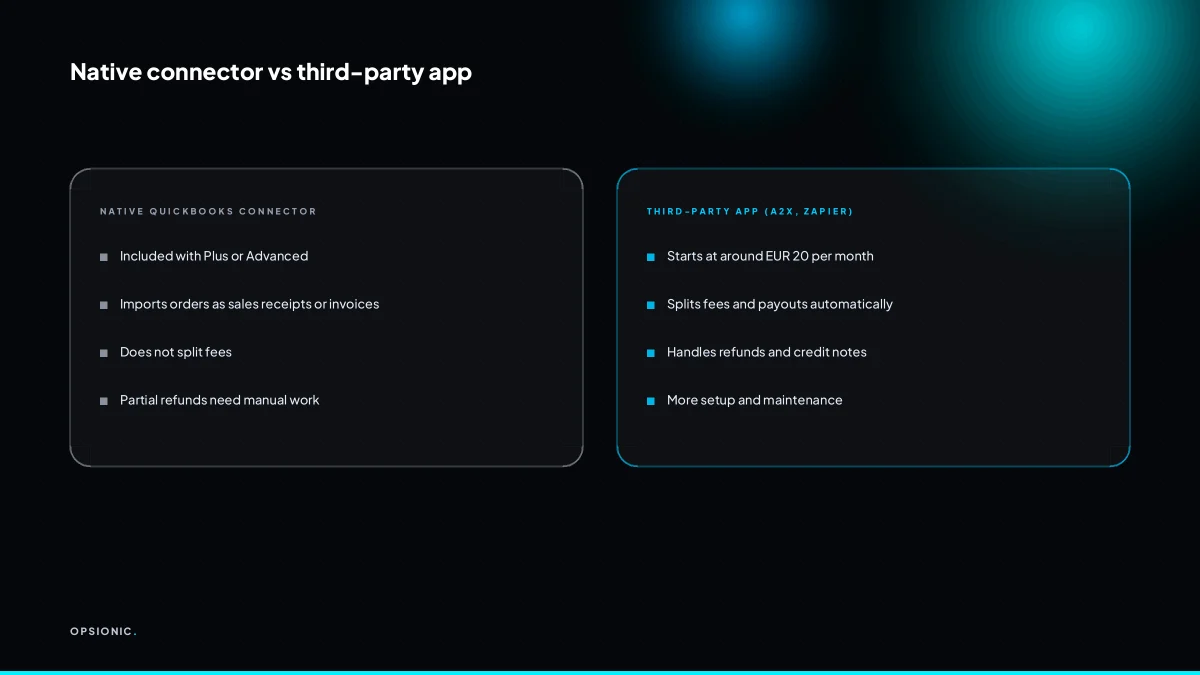
QuickBooks Online has a built-in connector for Shopify, but it only works on certain plans. It imports orders as sales receipts or invoices, but it does not handle Shopify Payments fees or partial refunds well. Check your QuickBooks plan tier before you start, because the native link may not exist on your subscription.
The connector is available on QuickBooks Online Plus and Advanced. On those tiers the monthly cost starts at around EUR 60 and EUR 115 respectively at the time of writing, but check Intuit’s own pricing page because plans change and regional pricing varies. Simple Start and Essentials do not include the Shopify link, so anyone on those tiers needs a third-party tool or a manual export.
What the native connector does import:
- Order totals as sales receipts or invoices
- Customer names and email addresses
- Line items and quantities
What it skips matters more. Shopify Payments fees arrive as a separate payout, not as a cost against each order, so you need a manual journal or a second import step. Partial refunds often fail to update the original record, leaving an invoice that no longer matches what the customer actually paid. Tax lines can also flatten into a single figure, which is a problem if you file VAT returns that need a breakdown by rate.
The sales receipt versus invoice choice depends on when you recognise revenue. A sales receipt records the sale and the payment in one step, which suits orders paid immediately. An invoice records the sale first and the payment separately, which suits customers on terms. If you sell physical goods and ship later, an invoice usually fits better. If you sell digital goods paid at checkout, a sales receipt is cleaner.
Which paid tier do you actually need on both sides?
On the QuickBooks side, the Shopify connector requires QuickBooks Online Plus or Advanced, which starts at around EUR 60 per month at the time of writing. Shopify itself does not charge extra for the integration, but third-party connectors like A2X or Zapier have their own monthly fees. Always check the vendor’s current pricing page before committing.
Shopify plans all include API access, so the basic plan is enough to connect. The real cost sits on the accounting and connector side. QuickBooks Online Plus is the entry point for the native Shopify connector. Simpler plans do not offer it, which forces many small shops onto a third-party tool instead.
| Option | Monthly cost at time of writing | What you get |
|---|---|---|
| QuickBooks Online Plus | from around EUR 60 | Native Shopify connector, multi-currency, inventory |
| QuickBooks Online Advanced | from around EUR 115 | Everything in Plus, plus custom fields and more users |
| Shopify Basic | from around EUR 36 | API access, no extra fee for the sync itself |
| A2X or similar connector | from around EUR 20 to EUR 70 | Handles payouts and fees when native sync is not enough |
| Zapier as the bridge | from around EUR 20 to EUR 60 | Flexible but you build and maintain the logic yourself |
The decision comes down to volume and how you handle Shopify Payments fees. If you sell a handful of orders a day and record them weekly, QuickBooks Online Plus with the native connector is usually the cheapest complete path. If you process payouts in batches and need fee splitting, a dedicated connector earns its fee quickly. Before you commit to any monthly cost, run the payback sum on the real cost of business automation so the subscription does not quietly eat the margin it is meant to protect.
Not sure which of these applies to you?
Answer six questions and see what we would automate first in your business, and what it is worth.
How do you set up the sync step by step?
Start by enabling the Shopify connection inside QuickBooks Online and authorising your Shopify store. Then choose whether orders import as sales receipts or invoices, and map the fields: customer name, order number, total, tax, and shipping. Run a test import with a single order before turning on automatic sync.
- Open the apps or connections area in QuickBooks Online. Search for Shopify in the list of available integrations and follow the prompt to connect your store. QuickBooks will ask you to log in to Shopify and approve the link.
- Pick how imported orders should be recorded. Sales receipts suit orders already paid at checkout, which is most Shopify traffic. Invoices suit orders you collect payment on later, such as wholesale or net terms. Getting this wrong means reclassifying transactions later.
- Map the Shopify fields to QuickBooks fields. Set the customer name to come from the billing name, the order number to become the transaction reference, and the total, tax, and shipping to land in their matching QuickBooks lines.
- Set the start date for the import. Choose the earliest order date you want brought across. If you have been selling for years, start with a recent date and import older history in batches.
- Run a single test order. Import one real order and check the customer, totals, and tax before switching on automatic sync. The same logic applies to other store setups, such as when you send WooCommerce orders to Xero automatically, so a clean test run is worth the time.
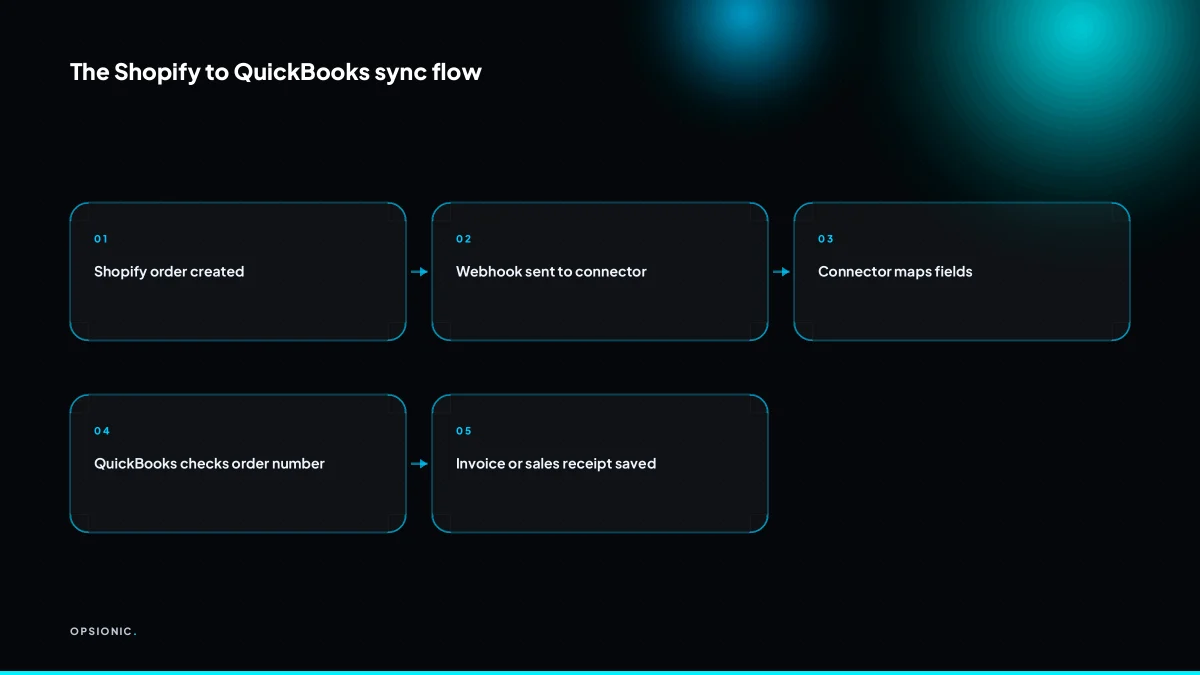
Why do duplicate invoices appear when a sync retries?
A retry happens when a webhook fails or times out, and the connector sends the same order again. If the connector does not use the Shopify order number as a unique key, QuickBooks creates a second invoice. Fix this by setting the order number as the invoice reference and turning on duplicate detection in your connector.
Webhook redelivery. Shopify fires the order webhook, your connector is briefly down, and Shopify sends the same event again minutes later. Symptom: two invoices for the same order number, often minutes apart. Fix: map the Shopify order number to the QuickBooks invoice number or reference field, and switch on the connector’s “prevent duplicates” option if it has one.
Timeout, then manual re-sync. The connector waits too long, shows an error, and you click “sync again” yourself. Symptom: the first attempt actually landed, so now you have a pair. Fix: before re-running, search QuickBooks for the order number. Treat a found invoice as success even if the connector reported failure.
No idempotency key. The connector builds a new internal ID each run instead of reusing the Shopify order number. Symptom: duplicates appear on every retry, not just occasional ones. Fix: set the Shopify order number as the unique reference on the QuickBooks side. QuickBooks can then reject or flag a second invoice with the same reference, depending on your settings.
To clean up, open the customer in QuickBooks and list their invoices by date. Void the newer duplicate rather than deleting it, so the audit trail stays intact. If the connector supports merging, merge the two invoices into the original. Then test one more order to confirm the duplicate prevention is actually on. This is the same failure you would hit when you automate invoice reminders without a stable reference, so get the key right before you build anything on top.
What is this costing you now?
Based on removing half of that time.
How do Shopify Payments fees and payouts show up in QuickBooks?
Shopify Payments sends you a net payout: the order total minus the processing fee. QuickBooks sees only the net deposit, not the gross sale or the fee. You must record the gross sale as income and the fee as an expense, then match the net deposit to both. Do this monthly or per payout to keep fees accurate.
In the bank feed, a Shopify Payments payout arrives as a single deposit from Shopify. It rarely shows the order numbers or the fee split. If you accept that deposit as income, your revenue is understated by the fee amount every time, and your fee expense never exists. Over a year, that misstates both your profit and your cost of taking cards.
Record the gross sale first. Create an invoice or a sales receipt for the full order value, including any shipping the customer paid. Then record the processing fee as a separate expense, usually to a payment processing fees account. When the net payout lands in the bank feed, match it to both the sale and the fee. QuickBooks lets you match one bank transaction to multiple records, so the deposit clears against the gross sale minus the fee.
Here is a worked example with invented but realistic figures, not a client. A customer places an order for EUR 120.00 including shipping. Shopify Payments charges a fee of EUR 3.48, so the payout that reaches the bank is EUR 116.52. In QuickBooks you record a sale of EUR 120.00 and a processing fee expense of EUR 3.48. Match the EUR 116.52 deposit to both lines, and the numbers reconcile exactly. If you record only the deposit, you have lost EUR 3.48 of visible fee cost on that one order. Multiply that across every payout in a month, and the fee total becomes a guess. The same logic applies when you weigh up what one automation actually costs, because a sync that ignores fees is not doing the accounting job.
When is manual entry cheaper than setting up a sync?
If you get fewer than 30 orders a month, manual entry takes roughly one hour per week and costs nothing. A paid connector starts at around EUR 20 per month, plus the time to set it up and fix errors. Below that volume, the connector costs more than your time is worth, and you are less likely to hit duplicate or fee problems.
The payback sum is simple. At 30 orders a month, a EUR 20 connector works out to about EUR 0.67 per order before setup time. At 10 orders, that rises to EUR 2 per order. If you value your time at anything above minimum wage, the connector only starts earning its keep once order volume climbs past roughly 30 to 40 per month.
Manual entry still requires discipline either way. You copy the order total, the customer name, the date, and the fee line into QuickBooks. You check the Shopify payout against the bank deposit. You chase the odd missing order.
Revisit the decision when volume passes 30 orders a month, when you start selling in multiple currencies, or when fee reconciliation stops matching. That is the point where the payback sum flips in favour of automation, and the hour per week becomes a real cost.
Want this running in your business next week?
A relaxed 20-minute video chat. Camera on or off. You leave with a plan whether or not you hire us.
- No call unless you ask for one
- From EUR 399 a month, no setup fee
- Built and run for you, not handed over as homework
Sources we checked
Questions people ask
Can I sync Shopify orders to QuickBooks for free?
Not on the native route. The built-in Shopify connector needs QuickBooks Online Plus or Advanced, which starts at around EUR 60 a month at the time of writing. Shopify itself charges nothing extra for the link. Third-party connectors carry their own monthly fee, so check each vendor's pricing page before committing.
How do I stop duplicate invoices from Shopify in QuickBooks?
Give every order one stable reference the accounting side can recognise again. Map the Shopify order number to the QuickBooks invoice number or reference field, and switch on duplicate prevention in your connector if it offers one. Before re-running a failed sync, search QuickBooks for that order number first.
Does QuickBooks import Shopify refunds automatically?
Partially, and unreliably. Full refunds usually come through, but partial refunds often fail to update the original record, leaving an invoice that no longer matches what the customer paid. Check refunded orders by hand each month and raise a credit note where the original invoice was not adjusted.
How do I record Shopify Payments fees in QuickBooks Online?
Record the gross sale first, then the processing fee as a separate expense, usually to a payment processing fees account. When the net payout lands in the bank feed, match that single deposit to both records. QuickBooks lets one bank transaction clear against multiple records.
What is the difference between a sales receipt and an invoice in QuickBooks for Shopify?
A sales receipt records the sale and the payment in one step, which suits orders paid at checkout. An invoice records the sale first and the payment separately, which suits wholesale or net terms customers. Choosing the wrong one means reclassifying transactions later.
Can I sync historical Shopify orders to QuickBooks?
Yes, but import in batches rather than all at once. Set the start date to a recent order and work backwards. Large single imports are more likely to hit rate limits or time out midway, which is exactly the situation that produces duplicate records.
Why is my Shopify payout different from my QuickBooks sales total?
Because Shopify Payments sends a net payout, the order total minus the processing fee. QuickBooks sees only the net deposit. If you record the deposit as income, your revenue is understated by the fee amount on every single order, and your fee expense never appears at all.