Jobber to QuickBooks: What Syncs and What You Still Do by Hand
Jobber to QuickBooks automation means connecting the two so invoices, payments and customers move between them without retyping. The native sync covers basic invoice and payment data, but deposits, part-payments and tax rounding often still need manual fixes or a helper tool.
What does the native Jobber to QuickBooks sync actually cover?
The native integration syncs customers, invoices, payments and some product or service lines from Jobber to QuickBooks Online. It may not sync estimates, purchase orders, or most partial payment details. You still need to check deposits and tax lines by hand.
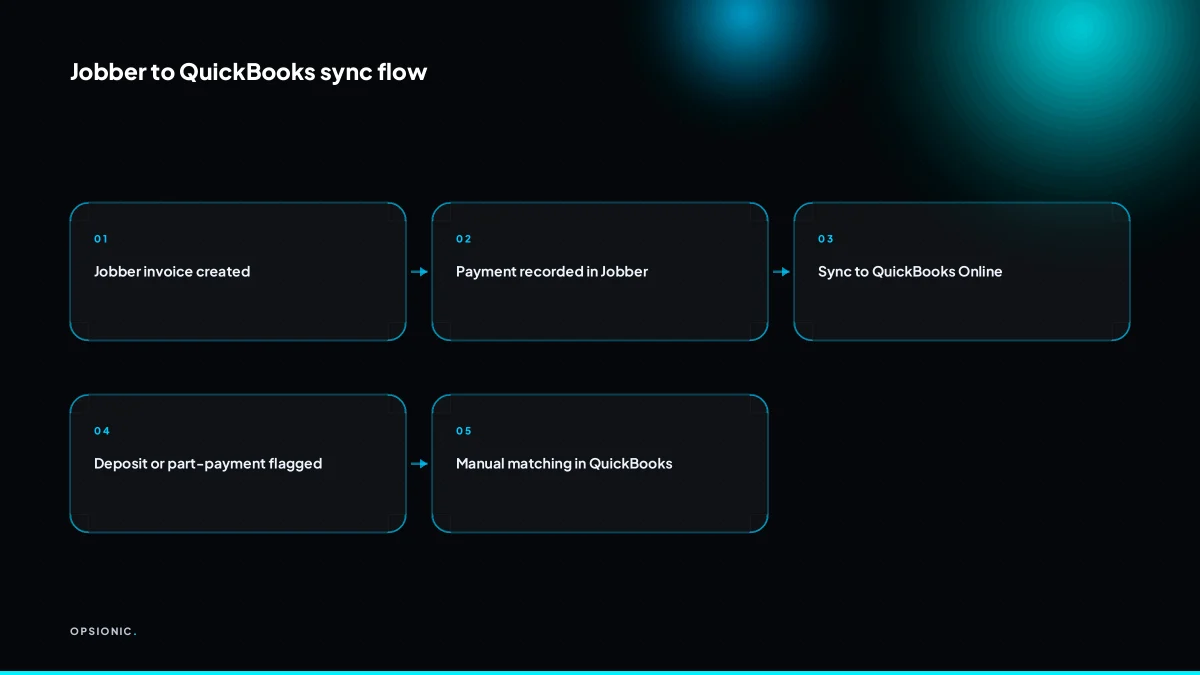
The sync runs one way: Jobber pushes data into QuickBooks Online. It does not pull anything back. When you create an invoice in Jobber and mark it as sent, the matching customer and invoice appear in QuickBooks. When a payment is recorded against that invoice in Jobber, the payment follows. Jobber stays the place where you run the day, while QuickBooks becomes the record keeper.
These records move across:
- Customers, including name, email, billing address and phone number
- Invoices, with line items, totals and tax amounts
- Payments recorded against those invoices
- Products and services you have set up in Jobber, where QuickBooks needs a matching item
What stays behind matters just as much. Estimates and quotes may never leave Jobber, so a job you quoted but did not win never clutters QuickBooks. Purchase orders may not sync either. Partial payments are the biggest gap: Jobber may send a payment record, but the allocation across multiple invoices or the remaining balance often needs manual checking in QuickBooks.
On the Jobber side, the integration may sit behind a paid plan. Check your current subscription before starting. On the QuickBooks side, you need QuickBooks Online. QuickBooks Desktop may not be supported by the native connection.
How do I set up Jobber to QuickBooks without breaking what I already have?
Start by backing up both accounts and mapping your chart of accounts. Connect Jobber to QuickBooks Online from Jobber’s settings, then choose how invoices and payments map. Test with one customer and one invoice before turning on automatic sync for everything.
- Export a backup from both systems. Download your customer list, invoices and chart of accounts from QuickBooks, and your client and job records from Jobber. Store them somewhere you can reach if the sync misbehaves.
- Check your chart of accounts in QuickBooks. Confirm you have an income account for services, an account for sales tax or VAT if you charge it, and a clearing account for payments you need to review before they hit the bank ledger.
- Match existing customers before you connect. Jobber and QuickBooks link records by name and email. If the same client exists as “A. Smith” in one system and “Aaron Smith” in the other, you will get duplicates. Fix the obvious mismatches now.
- Open the integrations area in Jobber’s settings. Search Jobber’s help for “QuickBooks Online” if the option is not where you expect it. Follow the authorisation prompt to sign in to QuickBooks.
- Choose how invoices map. Decide whether a Jobber invoice becomes a QuickBooks invoice as soon as it is created, or only when it is paid. Pick the product or service item each Jobber line should map to in QuickBooks.
- Choose how payments map. Point Jobber payments at a clearing account rather than your main bank account if you want a human to check part-payments and deposits before they touch the books.
- Turn off automatic sync and run one test. Create a test customer in Jobber, raise one invoice, record one payment, then check exactly what appears in QuickBooks and where.
Existing records do not sync backwards. Jobs and invoices already in Jobber before the connection stay there unless you export and import them manually, so set your expectations before you start. If the mapping is wrong, fix it now. Once automatic sync is on, mistakes multiply without asking permission. This is the kind of setup work we handle for trade businesses that would rather spend the afternoon quoting jobs, and our automation services cover the full build and the checking that follows.
Not sure which of these applies to you?
Answer six questions and see what we would automate first in your business, and what it is worth.
Why do deposits and part-payments cause reconciliation problems?
QuickBooks expects a payment to match an invoice in full. When Jobber sends a deposit or part-payment, QuickBooks often records it as a separate transaction, leaving the invoice open and reconciliation mismatched. You must manually apply the payment or use a helper tool.
Deposits are the usual culprit. A customer accepts a quote for EUR 1,800 and pays 30 percent up front. Jobber records EUR 540 against the job. QuickBooks receives that EUR 540 as a standalone payment with no invoice to attach it to, because the invoice was either not created yet or not matched by the sync. The invoice stays open for the full EUR 1,800 until you intervene.
Part-payments do the same thing later in the job. Say a customer pays EUR 600 of an EUR 1,200 invoice. The sync passes the payment across, but the invoice status in QuickBooks does not change to partially paid unless the payment is applied to it. You end up with a bank feed showing money received and an aged receivables report still showing the customer owing the full amount.
That gap shows up most clearly at month end. Your bank statement says EUR 600 came in, but reconciliation asks which open transaction it clears. If the payment sits unapplied, the bank line has nowhere to go. You either force a match to the wrong thing or leave the reconciliation unfinished.
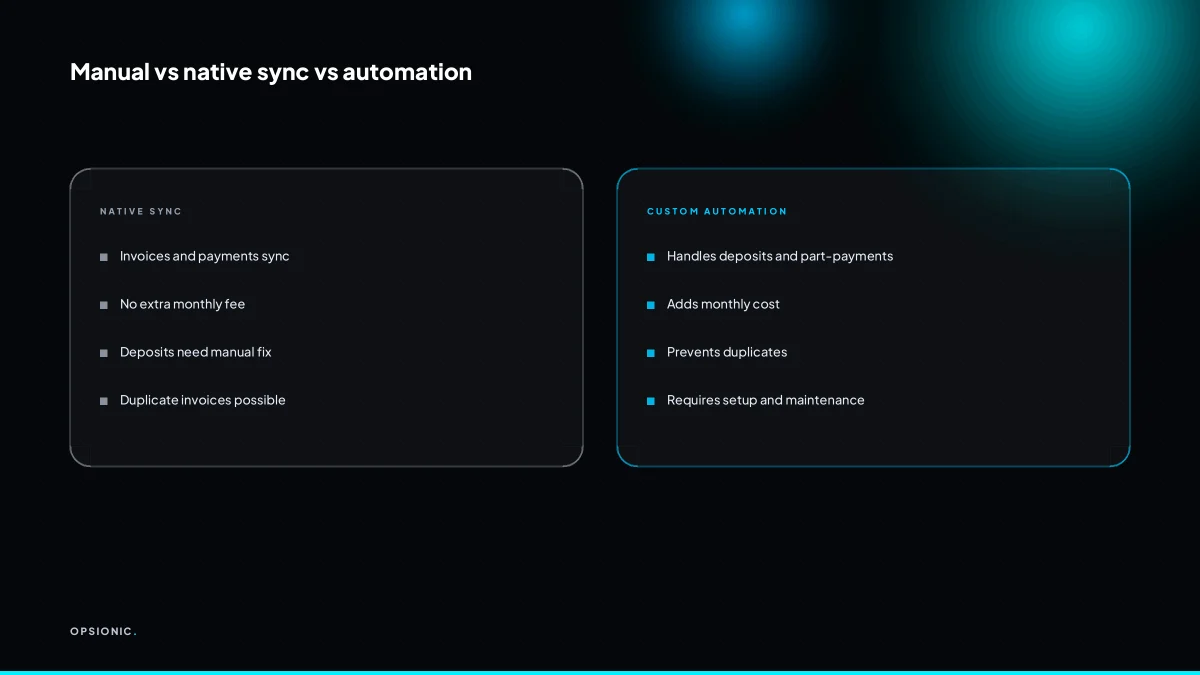
One workaround is a clearing account. Jobber payments land there first, and you apply them to invoices in QuickBooks as a separate weekly task. It keeps the bank feed clean but still costs you the manual step. The other route is a sync that understands partial payments and applies them properly, which is the same logic we use when we sync Shopify orders to QuickBooks without double entries.
Here is the arithmetic on a typical deposit example. A customer books a job for EUR 2,000 plus VAT at 20 percent, so the invoice total is EUR 2,400. They pay a 25 percent deposit: EUR 600. Jobber sends EUR 600 to QuickBooks. The invoice remains open for EUR 2,400. Your receivables are overstated by EUR 600, your bank balance is correct, and reconciliation shows a EUR 600 payment with no matching invoice line until you apply it by hand.
What breaks in the real world after the first week?
The most common failures are duplicate invoices when a job is quoted twice, timezone drift on payment dates, tax rounding differences, and silent disconnects that stop syncing for weeks. You need a weekly check to catch these before month-end.
Duplicate invoices from re-quoted jobs. A customer asks for a revised quote, you create a second Jobber quote for the same job, and both sync to QuickBooks as separate invoices. The customer pays one, the other sits open, and your aged receivables show a debt that does not exist. The fix is to void or delete the superseded quote in Jobber before it syncs, and to search QuickBooks for duplicate invoice numbers every Friday.
Timezone drift on payment dates. A customer pays at 11pm on the 31st. Jobber records the payment in its own timezone, QuickBooks records it in yours, and the payment lands on the wrong accounting period. Your VAT return shows the payment a month late. The fix is to set both products to the same timezone, then check any payment made after 6pm against the invoice date in QuickBooks.
Tax and VAT rounding differences. Jobber rounds line items one way, QuickBooks rounds them another. A EUR 19.99 item at 20 percent VAT produces a one-cent difference that blocks reconciliation. The fix is to compare the tax total on the Jobber invoice with the tax total in QuickBooks before you reconcile, and adjust the rounding line rather than forcing the match.
Silent disconnects. The connection drops, no error appears, and invoices stop flowing. You notice three weeks later when a customer asks why they have not been billed. The fix is a standing calendar reminder to confirm the last sync date in both products every Monday. If the gap is more than two days, reconnect before you do anything else. This is the kind of recurring check that makes a managed automation cheaper than a DIY one over a year.
What is this costing you now?
Based on removing half of that time.
When is it not worth automating Jobber to QuickBooks?
If you send fewer than 10 invoices a month, manual entry may be genuinely cheaper than any automation, including Zapier or a custom build. The setup and monthly fees may outweigh the time saved. At that volume, a weekly 30-minute batch entry is the honest choice.
Think about what those 10 invoices cost you by hand. Two hours a month, perhaps EUR 60 of owner time if you value an hour at EUR 30. A managed automation at EUR 599 per month only pays for itself once the time saved is worth more than that, which means roughly 20 hours of admin a month. You are nowhere near that.
The same applies to a DIY build. Zapier starts at around EUR 20 a month at the time of writing, but you still need to configure the trigger, map the fields and test it. That is a weekend you could spend quoting jobs.
Hidden costs make low volume worse:
- Maintenance when Jobber or QuickBooks changes an API or a field name.
- Error fixing when a duplicate invoice appears and you have to unpick it.
- Monitoring time, because a silent failure costs more than no automation at all.
Revisit the decision when you pass 20 invoices a month, or when you start taking deposits and part-payments that the native sync handles poorly. That is the point where hiring an automation agency stops being an overhead and starts being cheaper than your own evenings.
How do I test the sync and catch a silent failure?
After connecting, run a test with one customer and one invoice. Check that the invoice, payment and tax all land correctly in QuickBooks. Then set a recurring weekly task to compare the last synced invoice in Jobber against QuickBooks, and watch for error emails from either tool.
A test you can run in ten minutes
- Create a test customer in Jobber with a clearly fake name, like “Sync Test March”.
- Raise one invoice for that customer with a round amount, say EUR 100, and one tax line.
- Record a payment against that invoice in Jobber.
- Wait for the sync interval, or trigger a manual sync if the integration offers one.
- Open QuickBooks and find the same customer and invoice.
- Check the invoice total, the tax amount and the payment all match Jobber exactly.
- Check the invoice date has not shifted by a day.
- Delete the test records from both systems once you are done.
The weekly habit that catches what you cannot see
Set a recurring calendar task for the same day each week. Open Jobber and note the last invoice number and total. Open QuickBooks and confirm that same invoice exists with the same total and payment status. If the numbers differ, or the invoice is missing, the sync has stopped working and nobody told you. That is the failure mode that costs real money: a month of invoices sitting in one system only.
Error emails from either tool are the other early warning. Do not file them unread. If you see repeated errors about a specific record, that record is probably stuck and blocking everything behind it. Fix it the same day, or book a slot with someone who can, because a stuck record does not usually clear itself. If you would rather have someone else run this check for you, book a free plan and we will map what to monitor first.
Want this running in your business next week?
A relaxed 20-minute video chat. Camera on or off. You leave with a plan whether or not you hire us.
- No call unless you ask for one
- From EUR 399 a month, no setup fee
- Built and run for you, not handed over as homework
Sources we checked
Questions people ask
Does Jobber sync with QuickBooks Desktop?
The native connection is built for QuickBooks Online, and QuickBooks Desktop may not be supported. If you run Desktop, check Jobber's help pages for current compatibility before you plan anything. Otherwise you are looking at a third-party connector or exporting and importing files by hand.
Can I sync historical invoices from before I connected the tools?
No. The connection only moves records created or changed after it is switched on. Jobs and invoices that already existed in Jobber stay there. To bring old records across you export from Jobber and import into QuickBooks manually, checking for duplicates as you go.
What happens if I delete an invoice in QuickBooks after it synced?
The two systems then disagree. Jobber still holds the invoice, QuickBooks no longer does, and the next sync may recreate it or leave a payment with nothing to attach to. Void or delete the record in Jobber first, then tidy QuickBooks, rather than deleting on one side only.
How do I handle tips or gratuities in the sync?
Treat tips as a separate line or a separate payment rather than folding them into the invoice total. Map them to their own income account in QuickBooks so your service revenue stays clean. If the sync cannot carry the tip separately, record it in QuickBooks by hand and reconcile it against the bank.
Does the sync support multi-currency invoices?
It depends on your QuickBooks Online subscription and whether multi-currency is switched on in both products. Check that the customer's currency matches on both sides before the invoice syncs. A mismatch creates an invoice in the wrong currency, which is painful to unpick once payments are applied.
Can I map Jobber services to specific QuickBooks products?
Yes, mapping is part of setup. Each Jobber product or service needs a matching item in QuickBooks, and you choose which one during the connection. Do this before you switch on automatic sync. Unmapped lines either fail or land in a default account you did not intend.
Is there a way to sync only paid invoices and not drafts?
Yes. During setup you choose whether an invoice crosses to QuickBooks when it is created or only when it is paid. Choosing the paid option keeps drafts and unpaid quotes out of your books, though it delays when revenue appears. Pick based on how you report, not on convenience.