Send SMS Reminders From a Google Calendar Event
Google Calendar cannot text customers on its own, but you can send SMS reminders from Google Calendar events by connecting it to an SMS provider through a no-code tool like Zapier, Make, or n8n. The phone number must be stored consistently in the event, and time zones must be handled deliberately or reminders fire at the wrong hour.
Can Google Calendar send SMS reminders by itself?
No. Google Calendar can send email or push notifications to the calendar owner, but it has no feature to text a customer’s phone number from an event. To send an actual SMS, you must connect Google Calendar to an SMS provider using an automation tool or custom code.
The built-in notifications cover two channels: email and push. Both go to the Google account that owns the calendar, not to the person attached to the event. You can set a reminder ten minutes or a day before an appointment. You can add multiple reminders. Every one of them lands in your own inbox or on your own phone.
That gap matters. A reminder that only you receive does not stop a customer from forgetting. It tells you the job is coming up. It does nothing to tell the customer to be home, to confirm attendance, or to bring the right documents. For a plumber with four jobs booked on a shared calendar, the built-in reminder is a nudge to the plumber. The customer still hears nothing.
Texting a customer requires a different route. Google Calendar has no SMS gateway, no phone number field it can dial, and no consent handling. A third-party connection sits between the calendar and a messaging service. That connection watches for new or changed events, reads the phone number from the event, and sends the text. Without it, the calendar simply has no way to reach a phone that is not yours.
Where should I put the customer’s phone number in the event?
Put the customer’s phone number in the event description, on its own line, in E.164 format like +447700900123. This format includes the country code and no leading zero, so any SMS provider can read it without guessing. Avoid placing it in the title or location, which often get truncated or edited.
The description field is the most reliable home for the number because it is plain text, rarely altered by calendar clients, and large enough to hold one short line without wrapping or cutting. The title is shown in narrow sidebar views and gets shortened on mobile. The location field is often auto-completed or replaced by a map link, which destroys the number.
E.164 means the number starts with a plus sign, then the country code, then the subscriber number with no leading zero and no spaces or dashes. A UK mobile like 07700 900123 becomes +447700900123. The plus sign tells the SMS provider which country the number belongs to. Without it, the provider may assume a local number and send the text to the wrong place.
Keep the number consistent by deciding on one source of truth. If bookings come through a form, store the number in E.164 there and copy it into the event automatically. If you type events by hand, paste the same formatted number every time. One rule, applied everywhere, stops the automation from failing on a number that looks right but is not.
Not sure which of these applies to you?
Answer six questions and see what we would automate first in your business, and what it is worth.
Which tools can connect Google Calendar to an SMS provider?
Zapier, Make, and n8n can all watch for new or updated Google Calendar events and send an SMS via Twilio, ClickSend, or SMS.to. You need a paid Google Calendar account with API access, and each SMS provider has its own per-message cost and free tier.
The right pairing depends on how much you want to configure yourself. Zapier is quick to set up, but its pricing scales with the number of tasks you use. Make offers a visual builder with a different pricing model based on operations. n8n is the most flexible and can run on your own server, which matters if you want to keep message data off a third-party cloud.
On the SMS side, Twilio is widely used for automated sending, but it is a developer tool with no friendly dashboard for casual users. ClickSend and SMS.to are simpler for small businesses and may be cheaper per message in the regions they serve, but you should compare current rates.
| Tool | Google Calendar side | SMS side | Best for |
|---|---|---|---|
| Zapier | Paid plan for multi-step zaps | Twilio, ClickSend, SMS.to | Fast setup, low volume |
| Make | Paid plan for enough operations | Twilio, ClickSend, SMS.to | Visual builder, mid volume |
| n8n | Self-hosted or paid cloud | Twilio, ClickSend, SMS.to | Control, data privacy, higher volume |
| Twilio | Needs a platform to trigger it | Pay per message, no useful free tier | Reliability, international delivery |
| ClickSend | Needs a platform to trigger it | Free trial credits, then per message | Simple dashboard, small teams |
| SMS.to | Needs a platform to trigger it | Small free allowance, then per message | Low cost in supported countries |
Exact prices change often. Check each vendor’s pricing page at the time you build, and count how many reminders you will actually send in a month before choosing. A free tier that covers fifty messages is of little use if you send two hundred.
How do I set this up step by step?
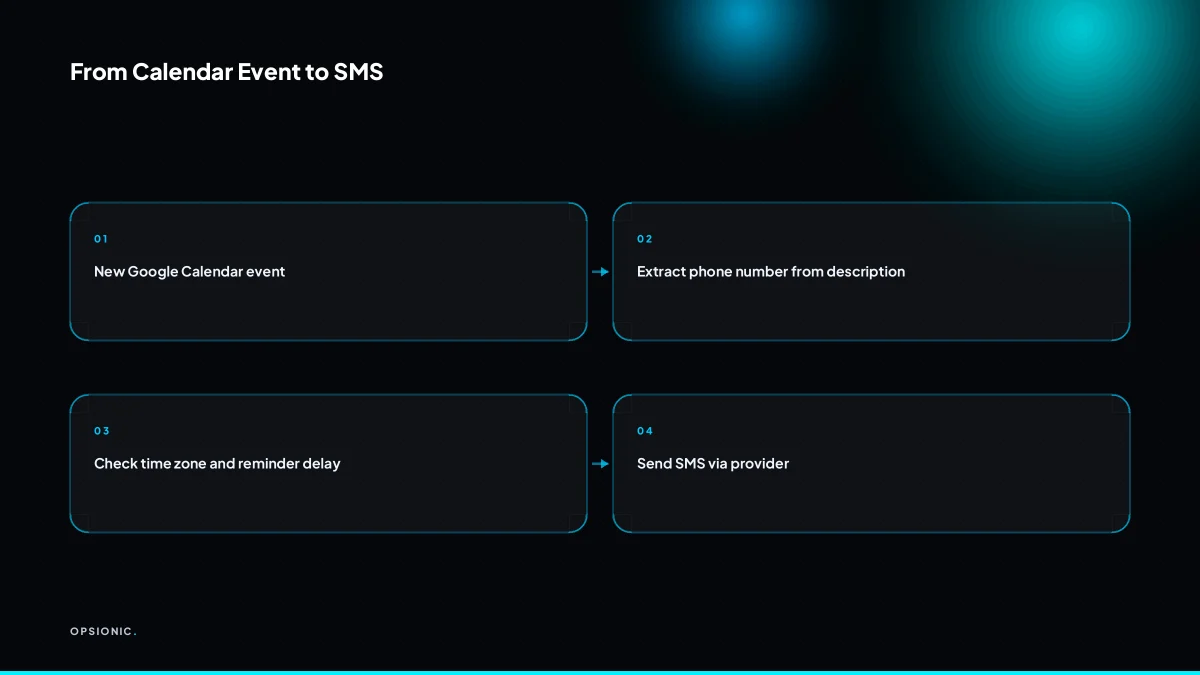
Create a new automation in Zapier, Make, or n8n. Set the trigger to watch for new events in your Google Calendar. Add a step to extract the phone number from the event description. Then add an SMS action using your provider’s app, mapping the phone number and a message template.
- Create the automation and choose the trigger. In Zapier, Make, or n8n, start a new workflow and select Google Calendar as the trigger app. Pick the event that fires when a new event is created, or when an event starts soon. Zapier calls this “Event Start” or “New Event”; n8n calls it a trigger node. Search the help for “Google Calendar trigger” in whichever tool you use if the wording differs.
- Connect the calendar you actually book into. The trigger asks which calendar to watch. Pick the one your team uses for appointments. If you run several calendars, build one automation per calendar or use a single calendar as the booking source.
- Add a step to pull the phone number out of the event. The phone number lives in the event description or a custom field, not in the attendee list. Use a text formatter step. In Zapier, search for “Formatter” and choose “Extract Pattern” with a simple regex like +?[0-9s]{8,15}. In Make, use the “Text parser” module and “Match pattern”. In n8n, use a “Set” node with an expression that extracts the number. Test this step with a real event before going further.
- Add the SMS action and map the phone number. Choose your SMS provider’s app, such as Twilio, MessageBird, or SMS.to. The action asks for the “To” number. Map the extracted phone number into that field. Do not type a number by hand.
- Build the message template. Use fields from the Google Calendar event, such as the event title, start time, and location. A template like “Reminder: {{event title}} at {{start time}}. Reply STOP to opt out.” works. Check your provider’s rules on opt-out wording.
- Set the timing. If your trigger fires when an event is created, add a delay step before the SMS so the message lands at the right moment, such as 24 hours before. If your trigger fires on “Event Start”, skip the delay.
Menu names drift between versions. If you cannot find a step, search the product’s own help for “extract text from event description” in Zapier, “text parser match pattern” in Make, or “extract phone number from string” in n8n.
What is this costing you now?
Based on removing half of that time.
How do I avoid reminders firing at the wrong time?
Set the automation to send the SMS at a fixed offset before the event start time, and make sure both your Google Calendar and the automation tool use the same time zone. If your customers are in different zones, store the time zone in the event and use a tool that respects it.
The time zone trap is simple and brutal. Your Google Calendar sits in your time zone, say Berlin. The automation tool’s clock sits in UTC because that is its default. A 9 a.m. appointment in Berlin is 7 a.m. UTC on a winter morning. If the tool reads the event start time as UTC and you ask for a reminder 24 hours before, it sends the text at 7 a.m. the previous day. Fine. But if the event was created by a colleague whose calendar is set to Pacific time, or the tool treats the time as its own default, the offset lands somewhere else entirely.
Here is a worked example. A physio in Dublin books a patient for Tuesday at 09:00 Irish time. The automation is set to remind the patient 2 hours before, so the SMS should go at 07:00 Tuesday. But the tool’s default time zone is Los Angeles. It reads the event start as 09:00 Pacific, which is 17:00 in Dublin. Two hours before that is 15:00 Dublin time on Monday. The patient gets a reminder at 3 p.m. on Monday for an appointment the next morning. If the offset had been 24 hours and the tool’s default were Tokyo, the sum moves again: 09:00 Dublin is 18:00 Tokyo, so a 24-hour reminder fires at 18:00 the previous day in Tokyo, which is 09:00 in Dublin. The message lands exactly when the appointment starts, which is useless.
Set the delay correctly by choosing the offset in the automation step itself, never by fudging the event time. If you want a reminder 24 hours before, add a delay step of 24 hours before the SMS action and let the trigger pass the event start time through unchanged. If you want 3 hours, set 3 hours. The offset should be a single number in one place, not a correction you apply by editing every calendar event.
When customers sit in multiple time zones, stop guessing. Store the customer’s time zone in the event itself, either in the event’s own time zone field or in the description as a short code like “TZ:Europe/Paris”. Then use an automation tool that can read that field and convert the send time against it. If your tool cannot do that, send the reminder based on your own business time zone and accept that a customer in Perth gets a text at a slightly odd hour. That is better than a tool that silently assumes everyone lives where you do.
What breaks in the real world, and when should I not build this?
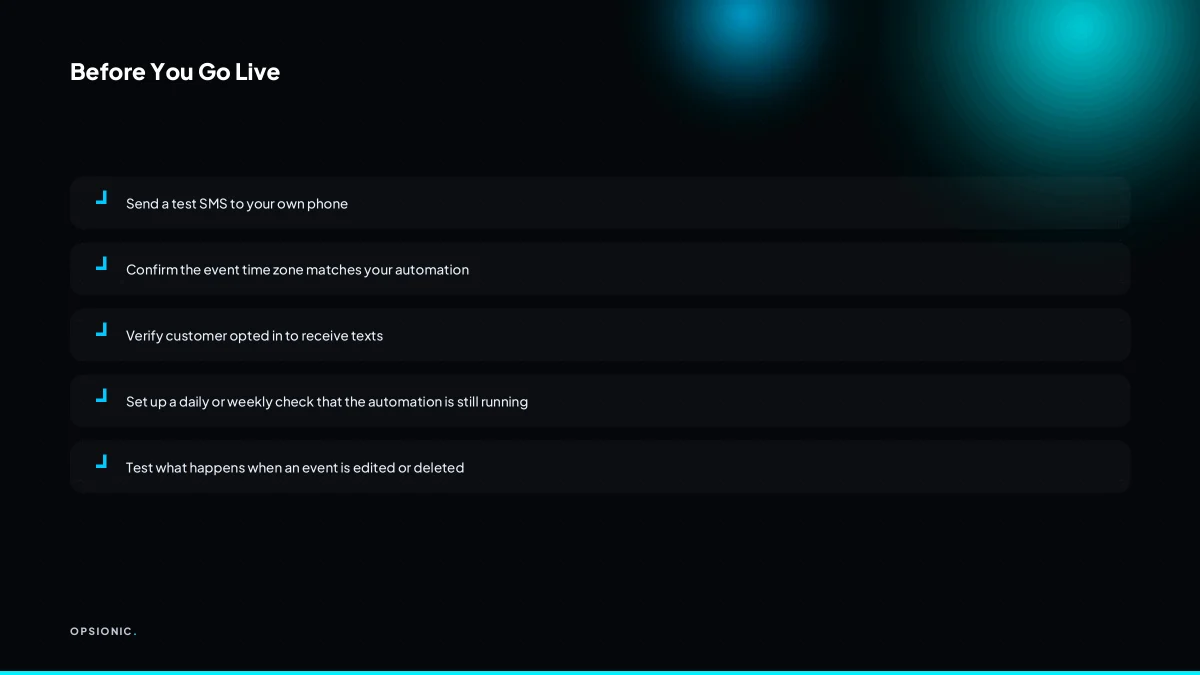
Duplicate reminders, edited events that don’t update, deleted events that still text, and connections that silently stop are common failures. If you send fewer than 30 reminders a month, manual texting is cheaper. Above that volume, automation pays for itself in saved time and fewer no-shows.
These are not edge cases. They happen on the first week if the setup is loose.
Duplicate reminders
Symptom: a customer receives the same text twice, three minutes apart. Or once at 9am and again at 9:04am. They reply “stop texting me” and you lose the booking.
Fix: the trigger fires twice because the calendar event was saved twice, or because two automations both watch the same calendar. Check that only one workflow is active per calendar. In the workflow settings, look for a deduplication or “don’t run twice for the same event” option. If the tool has none, add a filter step that checks whether a reminder was already sent for that event ID in the last 24 hours.
Edited events that don’t update
Symptom: you move an appointment from Tuesday to Thursday. The customer still gets the reminder on Tuesday, or gets it for the old time.
Fix: most calendar triggers only fire on creation, not on update. Test this by creating an event, waiting for the reminder to queue, then editing the time. If the queued message still shows the old time, your tool does not watch updates. Either rebuild the workflow to trigger on update events, or make it a rule that rescheduled appointments get a manual text.
Deleted events that still text
Symptom: you cancel an appointment. The customer still gets a reminder and shows up to an empty office.
Fix: many automation tools cannot detect deletions because the webhook never fires. Add a second check shortly before send time: does the event still exist in the calendar? If your tool cannot query the calendar at send time, add a manual step: whoever cancels an appointment must also cancel the queued message in the automation tool.
The connection silently stops
Symptom: everything worked for three weeks. Then nobody gets texts and nobody notices for a month. You only find out when a customer complains about a missed appointment.
Fix: OAuth tokens expire. The calendar or SMS provider revokes access. The card on file expires. Build a weekly check: one test event on a private calendar that should trigger one test text to your own number. If it doesn’t arrive, the automation is down. Put that check in your calendar as a recurring task, not in your head.
The volume threshold
Below 30 reminders a month, you are spending more time maintaining the automation than you would spend sending texts by hand. Thirty reminders is roughly one a day. At that volume, a copied template and a thumb tap is faster than debugging a webhook. Above 30, the arithmetic flips: every no-show prevented is revenue kept, and the setup cost is amortised over a short period.
GDPR consent
If you text customers in Europe, you need a lawful basis. For appointment reminders, legitimate interest can work, but only if the customer gave you their number for that purpose and you tell them you will text. Do not drop a number from an old spreadsheet into an SMS workflow. Add a line to your booking form: “We’ll text a reminder to this number.” Keep a record of when consent was given. If a customer replies STOP, remove them from every list, not just the one workflow.
Want this running in your business next week?
A relaxed 20-minute video chat. Camera on or off. You leave with a plan whether or not you hire us.
- No call unless you ask for one
- From EUR 399 a month, no setup fee
- Built and run for you, not handed over as homework
Sources we checked
Questions people ask
Can I use Google Calendar's built-in SMS notifications for my own phone?
Google Calendar's built-in reminders go to the calendar owner by email or push notification, not by SMS to a customer. If you want a text on your own phone, that is a personal notification setting rather than a customer reminder, and it will not reach the person attached to the event.
Does Zapier have a free plan that can send SMS reminders?
Zapier offers a free tier, but multi-step automations that watch a calendar, extract a phone number and send a message generally need a paid plan. Check Zapier's own pricing page at the time you build, because plan limits change and the free tier restricts steps per automation.
What is the cheapest SMS provider for low volume?
For very low volume, providers with a small free allowance or trial credits are usually cheapest to start with, and SMS.to and ClickSend both offer entry options. Rates vary by destination country, so compare each vendor's current pricing page for the countries you actually text.
How do I get customer consent for SMS reminders under GDPR?
Collect explicit consent at the point of booking, record when and how it was given, and include an opt-out line in every message. Keep the consent record alongside the booking so you can show it if asked. A separate guide covers broader data rules for automated workflows.
Can I send reminders for events created by someone else in a shared calendar?
Yes, if the automation has read access to that shared calendar. The trigger watches the calendar rather than the person who created the event, so any event added to it can fire a reminder. Check that the connected account can see the whole calendar, not just its own events.
What happens if the customer's phone number is in a different format?
A number without a country code may be sent to the wrong country or rejected outright. Store every number in E.164 format, with a plus sign and country code and no leading zero, so the SMS provider can route it without guessing.
Is there a way to send SMS from Google Calendar without any coding?
Yes. Zapier, Make and n8n all offer visual builders that connect Google Calendar to an SMS provider without writing code. You still need to format the phone number correctly and set the timing, but the workflow itself is assembled by clicking rather than programming.