Typeform to HubSpot: Send Answers to the Right Fields
You can connect Typeform to HubSpot automatically using the native integration, a tool like Zapier or Make, or a webhook. For most small businesses, the native integration is enough: it creates or updates a contact in HubSpot when someone submits a Typeform. The real work is mapping fields so dropdown answers land in the correct HubSpot properties.
Does Typeform have a built-in HubSpot integration?
Yes. Typeform offers a native HubSpot integration that creates or updates a contact when a form is submitted. You connect it through Typeform’s Connect panel, authenticate with HubSpot, and map your questions to HubSpot contact properties. It runs on Typeform’s servers, so no separate automation tool is needed.
That native integration handles the simple case well: a new form response becomes a new contact, with answers copied into the fields you chose. It will not create a deal, attach the response to an existing company record, or update a contact based on a matching email address unless you set that up deliberately. It is a one-way pipe from Typeform to HubSpot.
Which plan you need depends on what you want to map. The integration itself is available on Typeform’s paid plans, but the number of HubSpot properties you can map, and whether you can use hidden fields or custom logic, varies by tier. Check Typeform’s pricing page for your plan’s limits before you build anything around it.
To set it up, open the form you want to connect and look for the Connect panel, which is where Typeform lists all its integrations. Search for HubSpot, click Connect, and sign in to your HubSpot account. Then choose which Typeform questions map to which HubSpot contact properties. Save that mapping and publish the form. From that point, every submission runs through Typeform’s servers and lands in HubSpot without you doing anything.
Which paid tier do you need on each side?
Typeform’s HubSpot integration is available on paid plans, starting at around EUR 25 per month at the time of writing. HubSpot’s free CRM can receive the data, but some properties and workflows require a paid HubSpot seat. Check each vendor’s pricing page before you start, because the paywall is often discovered halfway through setup.
On the Typeform side, the paid plan is the entry point. The free plan may not include native integrations, so you would need a third-party connector such as Zapier or Make, which adds its own monthly cost and a second point of failure. If you already pay for Typeform, you are fine.
On the HubSpot side, the free CRM is genuinely useful for receiving contacts. You can create custom contact properties and store values against them without paying. The limitation appears when you want that data to trigger something: a workflow that sends an internal email, a task assignment, or a lead score update. Those automation features sit behind a paid Sales or Operations Hub seat.
The table below sets out the decision plainly.
| What you need | Typeform | HubSpot |
|---|---|---|
| Send answers into contact fields | Paid plan, from around EUR 25 per month | Free CRM |
| Custom properties for dropdown answers | Paid plan | Free CRM |
| Trigger a workflow after a submission | Paid plan | Paid seat required |
| Assign a task or send an internal email | Paid plan | Paid seat required |
| Update an existing contact record | Paid plan | Free CRM, but check field permissions |
To verify current pricing without guessing, go to each vendor’s own pricing page and look for the integration feature list, not the marketing headline. Typeform lists which integrations sit on which plan. HubSpot separates the free CRM from paid hubs, so check whether the word “workflows” appears under the free column before you commit.
Not sure which of these applies to you?
Answer six questions and see what we would automate first in your business, and what it is worth.
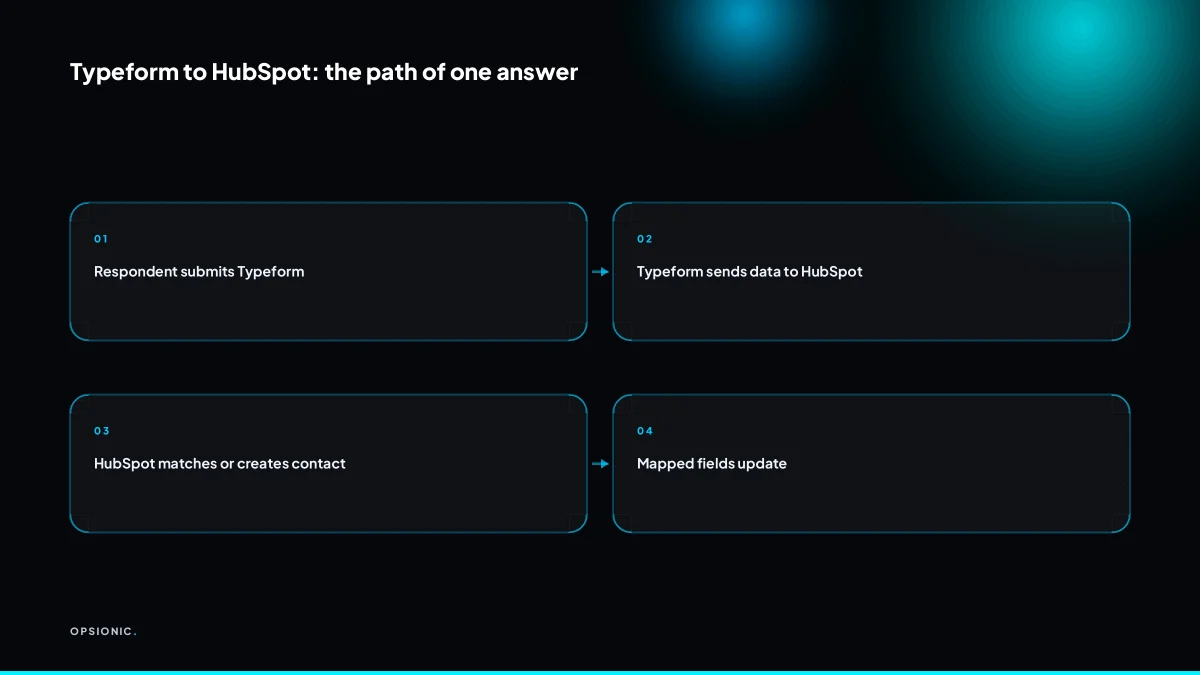
How do you connect Typeform to HubSpot step by step?
- Open the Connect panel in your Typeform. Look for the integrations area, usually reached from the top menu of the form builder. Search for HubSpot and select it.
- Click Connect and authenticate. Typeform redirects you to HubSpot to sign in. Approve the requested permissions. You come back to Typeform once the accounts are linked.
- Pick the object you are writing to. For most forms you want contacts. Choose whether Typeform should create a new contact every time or update an existing one when the email address already exists in HubSpot. The update option is the one that prevents duplicate records.
- Map each question to a HubSpot property. Work down the list of Typeform fields. For each one, select the matching HubSpot contact property, such as first name, email, phone number, or a custom property you have already created in HubSpot.
- Check dropdown and multiple choice mappings carefully. If the HubSpot property has fixed values, the Typeform answer text must match one of those values exactly. We cover that in the next section.
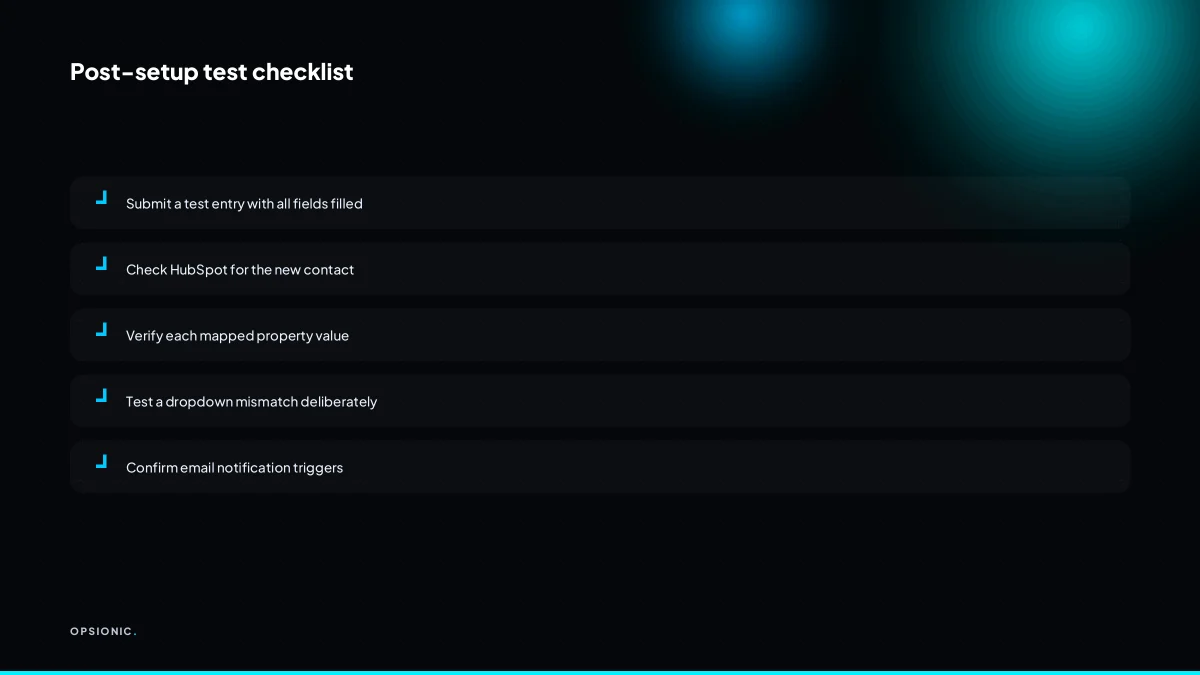
- Save the connection. Then open your form’s live URL, submit a test entry, and confirm the fields arrive in the right place.
How do you map dropdown answers to HubSpot picklist values?
In the field mapping step, choose the HubSpot property that matches your question. If that property is a dropdown or picklist, HubSpot expects exact values. A Typeform answer like “United Kingdom” will not match a HubSpot picklist value of “UK”. You must edit either the Typeform options or the HubSpot property values so they are identical.
Picklist properties do not guess. HubSpot stores the raw text and compares it character for character. A trailing space, a capital letter, or an ampersand instead of the word “and” is enough to make the value fail. The record still arrives, but the picklist field stays empty. You only notice weeks later when you filter by that field and the contacts are missing.
Common mismatches are easy to spot once you look. “United Kingdom” against “UK”. “United States” against “USA”. “Not sure” against “Unsure”. “Prefer to self-manage” against “Self-managed”. The fix is to pick one side as the source of truth and edit the other.
On the Typeform side, open the question and edit each option label so it matches the HubSpot value exactly. This is usually faster if you have few forms. On the HubSpot side, open the property settings, find the picklist values, and edit them to match Typeform. This is faster if many forms feed one property.
Worked example. A small firm gets 40 Typeform leads a month. Ten of them answer a dropdown that fails silently. Each failed record takes a staff member four minutes to find, open, and fix by hand. That is 40 minutes a month, or eight hours a year. If the same firm pays someone EUR 25 an hour, the silent mismatch costs EUR 200 a year. Checking the picklist values once takes under an hour. If you would rather someone else own that, our automation services for small businesses cover exactly this kind of mapping.
What is this costing you now?
Based on removing half of that time.
What breaks in the real world and how do you catch it?
Duplicate records from retries. The symptom is the same person appearing twice or three times in HubSpot with identical email addresses. This happens when a submission fails on the HubSpot side, the automation retries, and the first attempt actually succeeded but reported a failure. The fix is to make email address the unique identifier in your matching logic. Before creating a contact, the automation checks whether that email already exists. If it does, it updates the existing record instead of creating a new one. If your tool does not support lookups natively, you need a middleware step or a different approach.
Timezone drift on date fields. A Typeform answer about a preferred callback time arrives as text, and HubSpot stores it as a date. If the automation does not set a timezone explicitly, the time can shift by an hour or more. The symptom is a booking that looked right in Typeform but looks wrong in HubSpot. Fix it by forcing a single timezone on both sides, not by relying on defaults. Check one record from the last week and compare the raw Typeform answer to what HubSpot shows.
Picklist mismatches that silently drop values. This is the one that costs the most because nothing looks broken. A dropdown answer like “Existing customer” does not match a HubSpot property value like “Existing Client”, so the field stays blank. The submission succeeds, the contact is created, and the answer is simply gone. The fix is a mapping table inside the automation that translates every Typeform option to the exact HubSpot value. Test it by submitting a form yourself with every dropdown option and checking the resulting contact record.
Authentication expiry and plan changes. An OAuth token expires, or someone downgrades the Typeform plan and loses webhook access. The automation stops without telling anyone. You notice three weeks later when a colleague asks why no new leads have appeared. The fix is two parts: set up an alert for any failed run in your automation tool, and schedule a five-minute check of the connection status once a month. This is the kind of quiet failure that kills trust in automations, and it is a leading reason why automation projects fail in small businesses.
Set the alerts now, before you forget. A failed submission should email you within minutes, not days. Then review HubSpot’s recent contacts weekly for the first month, looking for blank fields that should have values. After that, monthly is usually enough.
When is manual entry cheaper than building this integration?
If you receive fewer than about 20 Typeform submissions a month, manual entry takes under an hour and costs nothing. The integration setup and maintenance time may not pay back. At higher volumes, or when answers must reach HubSpot within minutes, automation is worth the effort.
Work out the break-even point with a simple sum. Say each manual submission takes you two minutes to copy into HubSpot: open the email notification, find the contact, type the answers into the right fields. At 20 submissions a month, that is 40 minutes. At 50 submissions, it is 100 minutes, or nearly two hours. If your time is worth EUR 40 an hour, 50 submissions cost you about EUR 67 a month in labour. That is real money, but it is still less than the cost of a managed integration, and it requires no maintenance.
The integration itself is not free after setup. Field mappings drift when you change a Typeform question or rename a HubSpot property. Picklists need checking when either side adds a value. A connection can stop silently and go unnoticed for weeks. Budget at least half an hour a month for checks and fixes, more in the first month.
The decision rule is simple. Under roughly 20 submissions a month, manual entry is cheaper and less fragile. Between 20 and 50, it depends on your hourly value and how much you dislike the task. Above 50, or whenever a lead must reach your sales team within minutes of submitting, the integration earns its keep. If you are still unsure, read when to hire an automation agency before committing to the build.
Want this running in your business next week?
A relaxed 20-minute video chat. Camera on or off. You leave with a plan whether or not you hire us.
- No call unless you ask for one
- From EUR 399 a month, no setup fee
- Built and run for you, not handed over as homework
Sources we checked
Questions people ask
Can I send Typeform responses to HubSpot without a paid Typeform plan?
Typeform's native HubSpot integration is available on paid Typeform plans. On the free plan you would need a third-party connector such as Zapier or Make, which adds its own monthly cost and a second point of failure. Check Typeform's pricing page for your plan's integration limits.
Does the native integration update existing contacts or only create new ones?
It can do either, but only if you choose the update option during setup. By default it may create a new contact for every submission. To avoid duplicates, select the option that updates an existing contact when the email address already exists in HubSpot.
How do I include hidden fields like utm_source in HubSpot?
Add hidden fields to your Typeform and map them to custom contact properties in HubSpot. The native integration supports hidden fields on paid Typeform plans. Create the custom properties in HubSpot first, then map each hidden field to its matching property during the connection step.
What happens if a Typeform question is optional and left blank?
The submission still goes through. HubSpot receives an empty value for that field, which may overwrite an existing value if the integration is set to update contacts. Check whether your mapping overwrites blank answers, and consider making key fields required in Typeform.
Can I map a Typeform multiple choice question to a HubSpot multi-select property?
Yes, but each selected option must exactly match one of the HubSpot property's predefined values. If a Typeform option label differs by even a character, that value will not be stored. Align the option labels on both sides before you connect the form.
Is there a way to sync past Typeform responses to HubSpot retroactively?
The native integration only sends new submissions after you connect it. To bring in older responses, export them from Typeform as a CSV and import them into HubSpot, or use an automation tool that can read historical responses. Check for duplicates before importing.
What should I do if the integration stops sending data and I don't get an error?
Check the connection status in Typeform's Connect panel and reauthenticate if needed. Also verify your Typeform plan still includes the integration. Set up alerts in HubSpot or your automation tool for failed runs, and review recent contacts weekly for missing fields.