ServiceM8 to Xero: What the Native Sync Misses
ServiceM8 to Xero automation covers the native invoice sync plus the follow-up layer that catches quotes which never become jobs. The built-in connection pushes invoices and payments from ServiceM8 to Xero. It does not chase accepted quotes that stall before invoicing, so that gap needs a separate workflow.
What does the built-in ServiceM8 to Xero integration actually sync?
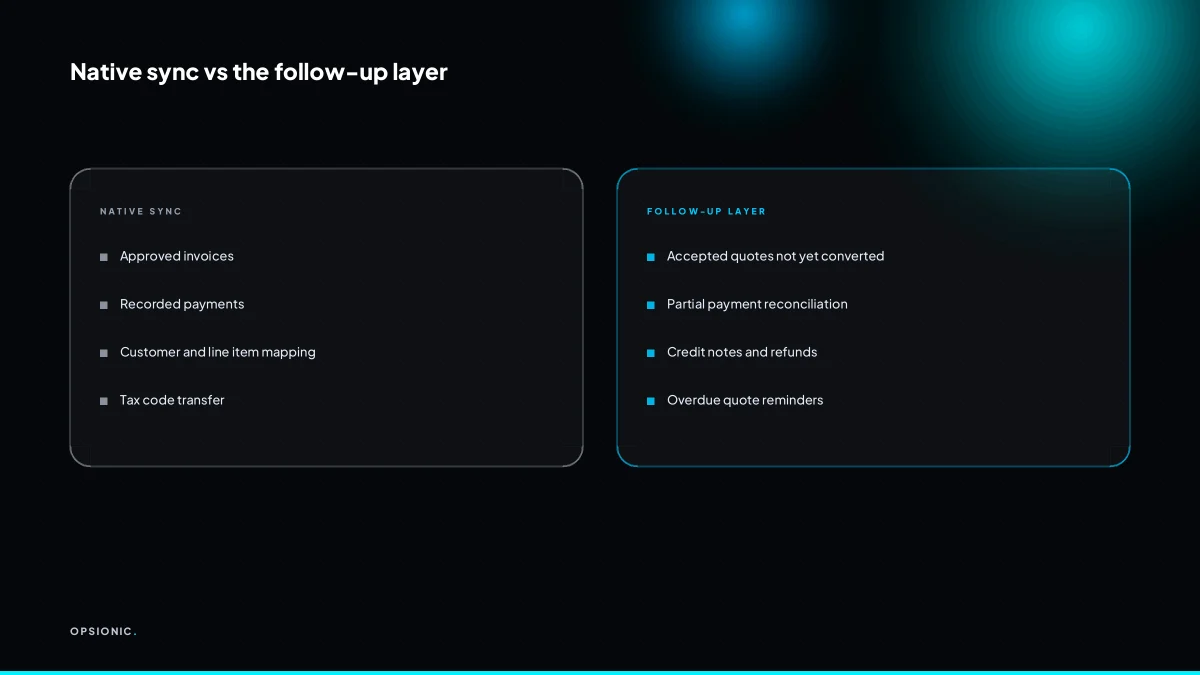
The native connection pushes approved invoices and recorded payments from ServiceM8 to Xero. It maps customers, line items, and tax codes according to your settings. Quotes, jobs that never become invoices, credit notes, and purchase orders are not included, so those records stay behind in ServiceM8.
That single sentence explains most of the confusion around this integration. It is an invoice pipeline, not a full job history. A quote you send in ServiceM8 exists only in ServiceM8 until you convert it to an invoice. A job that stalls before invoicing never reaches Xero. If you later issue a credit note against a synced invoice, that adjustment needs handling on the Xero side or through a separate process.
The table below shows what transfers and what does not.
| Record type | Transfers automatically? | What it becomes in Xero |
|---|---|---|
| Approved invoice | Yes | Sales invoice |
| Recorded payment | Yes | Payment applied to invoice |
| Customer details | Yes | Contact record |
| Quote | No | Stays in ServiceM8 |
| Job without invoice | No | Stays in ServiceM8 |
| Credit note | No | Stays in ServiceM8 |
When an invoice syncs, ServiceM8 maps the customer name and contact details to a Xero contact, each line item to a Xero line, and the tax code according to the mapping you set in the integration settings. The account code assigned to revenue depends on your Xero defaults and any per-item settings in ServiceM8. If a tax code is missing or mismatched, the sync can fail or post to the wrong account, so checking the mapping before your first real invoice is worth the time. This is the same discipline covered in Connect Stripe to Accounting Software Correctly, where the mapping rules decide whether the books stay clean.
Both sides need a paid plan that includes the integration. In ServiceM8, the Xero add-on is available on certain subscription tiers, and in Xero you need at least the standard plan rather than the starter version. Check the current plan pages in both products before you begin, because these tiers change and the paywall usually appears halfway through setup.
Which ServiceM8 and Xero plans do I need for this to work?
ServiceM8’s Xero integration is available on paid plans, but the exact tier varies by region and reseller. Xero’s side needs at least a standard plan for API connections. Check both vendors’ current pricing pages because plan features change, and budget for the monthly cost of each subscription.
On the ServiceM8 side, the Xero connection may not be part of the entry-level subscription. It often sits on the mid and upper tiers, which bundle job management features like recurring jobs, purchase orders, and the accounting sync. If you bought ServiceM8 through a reseller rather than directly, the included features can differ, so confirm with them rather than assuming.
Xero’s starter plan may not allow third-party integrations. You might need the standard plan or higher, because that is where API access often begins. If you already run payroll or multi-currency in Xero, you are likely on a plan that works, but check the integrations section of your Xero settings to be sure.
The quickest way to confirm your current setup is to open ServiceM8 and look for the Xero option under the accounting or integrations area. If it prompts you to upgrade, that answers the question. On the Xero side, try connecting a test app or check the plan comparison table on their pricing page.
The cost of the two subscriptions varies by region and plan. Check the current pricing pages for both products to see the exact monthly cost. If you are already paying for both products, the integration itself adds no extra per-connection fee on top.
Working with a European automation agency adds another layer to think about: VAT treatment, data residency, and who supports the connection when it breaks. VAT, data and support all deserve a clear answer before you commit to a build.
Not sure which of these applies to you?
Answer six questions and see what we would automate first in your business, and what it is worth.
How do I set up the native ServiceM8 to Xero sync correctly?
Start in ServiceM8’s settings under integrations or add-ons, find Xero, and follow the connection prompts to authorise access. Then map your accounts and tax codes so invoices land in the right Xero ledger. Finally, run a single test invoice and check the result in Xero before syncing anything else.
- Open ServiceM8 and go to settings. Look for the integrations or add-ons section, then select Xero from the list.
- Authorise the connection. ServiceM8 will send you to Xero’s own login page. Sign in to the Xero organisation you want to connect, and confirm the access request.
- Check which Xero plan you are on. The connection itself needs no extra fee, but Xero’s entry tier may not include everything the sync touches. Confirm before you rely on it.
- Map ServiceM8 tax codes to Xero tax rates. Open the tax mapping area of the integration settings. For each ServiceM8 tax code you actually use, pick the matching Xero tax rate. If a code has no counterpart, create one in Xero first.
- Choose the Xero account for invoice revenue. Tell the integration which ledger account sales invoices should post to. Most businesses use a sales or revenue account, but check with your accountant if you are unsure.
- Run one test invoice. Create a small invoice for a test customer in ServiceM8, mark it as complete, then open Xero and confirm it arrived in the right account with the right tax rate.
If the test lands in the wrong place, fix the mapping before syncing anything else. Once the first invoice is correct, the rest of the build follows the same rules. How we build an automation starts the same way: one small piece, checked properly, before the rest is allowed through.
What happens to quotes that never become jobs or invoices?
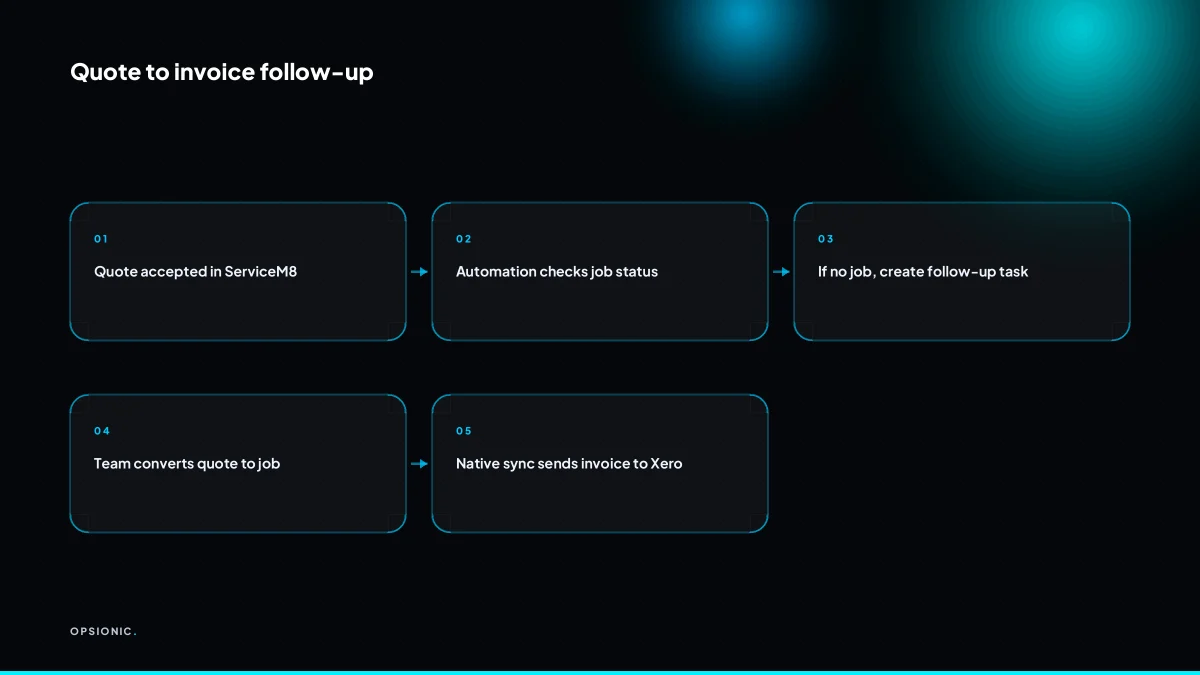
Quotes that are accepted but never converted to jobs stay in ServiceM8 and never reach Xero. That means revenue you could have earned sits invisible to your accounts. You need a separate automation that watches for accepted quotes and nudges the team to convert or follow up.
The native sync ignores quotes because Xero only cares about posted financial documents. A quote is a promise, not a sale, so ServiceM8 holds it back until you manually turn it into a job and then an invoice. That design is correct for bookkeeping. It is wrong for cash flow, because the quote is often where the sale is actually won or lost.
Here is a worked example, not a client. A trades business sends 40 quotes a month at an average job value of EUR 900. If four accepted quotes stall each month because nobody follows up, that is EUR 3,600 of booked work that never becomes an invoice. Over a quarter, the gap is EUR 10,800. The accounts show none of it, because the quote never entered Xero.
A simple automation watches ServiceM8 for quotes marked accepted. When one appears, it creates a task for the assigned person with the customer name, quote value and a link back to the record. If the quote is still sitting there after three days, it sends a second nudge to the owner. This is the same follow-up discipline as automation for cleaning companies, where a missed reminder means a missed visit and a missed invoice.
ServiceM8 may expose quote status through its API and webhooks. Search the developer section of ServiceM8 help for “webhooks” and look for quote events. You want the event that fires when a quote status changes to accepted. From there, the automation writes to your task tool or sends an internal email. You do not touch Xero at all in this layer. The goal is not a financial record. It is a person picking up the phone before the customer books someone else.
What is this costing you now?
Based on removing half of that time.
How do I handle partial payments, credit notes and refunds without breaking Xero?
The native sync sends invoice totals and payment amounts, but partial payments can create mismatched records if the sync runs before the payment is fully applied. Credit notes and refunds may need to be entered in Xero manually or via a separate automation, because ServiceM8 may not push them automatically.
Partial payment drift. A customer pays a deposit of EUR 200 against a EUR 800 invoice. ServiceM8 records the payment, but the sync fires before the remaining EUR 600 is applied. Xero shows the invoice as partially paid, then the next sync overwrites the payment record with the newer total. The symptom is an invoice in Xero that flips between paid and unpaid, or a payment that vanishes from the bank reconciliation. The fix is to treat partial payments as Xero’s job, not ServiceM8’s. Let ServiceM8 push the invoice only. Record every payment against that invoice inside Xero, then reconcile the bank feed there.
Credit note order. The mistake is creating the credit note in Xero before the original invoice is marked as paid or void in ServiceM8. ServiceM8 then re-syncs the original total and the credit sits unallocated. The symptom is a customer balance that never clears. The correct sequence is: finalise the invoice in ServiceM8 first, then create the credit note in Xero and allocate it to that invoice in the same screen.
Refund double-counting. A refund entered as a new payment in an automation, rather than as a refund against the original payment, makes revenue look higher than it is. Xero reports the sale and the refund as two separate transactions. The fix is a separate automation that watches for refund events and creates a credit note, never a negative payment. The hidden costs of automation include exactly this: a workflow that saves ten minutes but creates an hour of reconciliation.
Tax line mismatch. A credit note created from a template may copy the net and gross, but not the tax rate from the original invoice. The symptom is a VAT return that is out by a few euros and nobody knows why. Check the tax rate on the credit note against the original invoice before you approve it, every time.
When is a ServiceM8 to Xero automation not worth building?
If you send fewer than ten invoices a month and your quote follow-up is already disciplined, manual entry may be faster and cheaper than building and monitoring an automation. The real payoff comes when you have dozens of invoices, recurring jobs, or a team that forgets to chase accepted quotes.
The volume threshold is lower than most people expect. At five invoices a month, manual entry takes perhaps fifteen minutes total. An automation that saves those fifteen minutes still needs to be checked, updated when ServiceM8 or Xero changes a field name, and restarted when a token expires. You have swapped a small weekly task for a small monthly maintenance task, and the saving is marginal.
Hidden maintenance is the part nobody quotes you. Every integration has a failure mode: a webhook that stops firing, a duplicate that appears after a retry, a field that silently maps to the wrong account. You only find these by reviewing the output, which is itself a recurring task. Before you build, work out your break-even point honestly:
- Count the minutes you actually spend on manual entry each week, including fixing mistakes.
- Estimate the minutes you will spend checking the automation each week. Be realistic: most people check at least once.
- If the checking time is more than half the manual time, the automation is not saving you enough to justify the setup effort.
- If you cannot describe your quote-to-invoice process in five steps or fewer, fix the process before you automate it.
- If two different people would enter the same job differently, the automation will inherit that inconsistency and make it worse.
- If you already miss follow-ups on accepted quotes, the problem is discipline, not data entry. An automation will not fix a habit.
This is the same calculation behind how many hours automation can actually save your small business, and the answer is not always flattering. Automation rewards a stable, repeatable process. If your process changes every month because you are still figuring out how you work, hold off. Get the process boring first, then automate the boring part.
Want this running in your business next week?
A relaxed 20-minute video chat. Camera on or off. You leave with a plan whether or not you hire us.
- No call unless you ask for one
- From EUR 399 a month, no setup fee
- Built and run for you, not handed over as homework
Sources we checked
Questions people ask
Does ServiceM8 sync quotes to Xero automatically?
No. The native integration sends approved invoices and recorded payments only. Quotes stay in ServiceM8 until you convert them to a job and then an invoice. If you want a nudge when a quote is accepted but not converted, that needs a separate automation watching ServiceM8 quote status.
Can I connect ServiceM8 to Xero without a paid plan?
No. Both sides need a paid subscription that includes the integration. In ServiceM8 the Xero add-on sits on mid or upper tiers depending on region and reseller, and Xero's entry plan may not permit third-party connections. Check both vendors' current pricing pages before you start.
Why are my ServiceM8 invoices duplicating in Xero?
Usually a retry after a timeout, or the same invoice being re-approved in ServiceM8. The sync can fire again before the first attempt is confirmed. Check whether the invoice carries a stable reference and look for two records with the same number. Fix the trigger before syncing more invoices.
How do I stop the sync from overwriting tax codes in Xero?
Set the tax mapping inside the ServiceM8 integration settings and keep it current. If a ServiceM8 tax code has no Xero counterpart, create the Xero rate first, then map it. Unmapped codes are where wrong rates and failed posts come from, so review the mapping whenever you add a new code.
What happens if the integration disconnects and I don't notice?
Invoices stop arriving in Xero and nothing tells you. The gap is usually found at month end, when the bank reconciliation does not match. Add a weekly check comparing invoice counts in both systems, and watch for the authorisation expiring after a Xero password change or a plan downgrade.
Can I use Zapier or Make for ServiceM8 to Xero instead of the native sync?
You can, and it gives you control over quotes, credit notes and follow-ups that the native sync ignores. It also means you own the error handling and the retries. Many businesses run the native sync for invoices and a separate tool for the quote follow-up layer.
How do I handle jobs that are invoiced in ServiceM8 but paid outside Xero?
Let ServiceM8 push the invoice, then record the payment against that invoice inside Xero rather than in ServiceM8. Recording payments in both places is what causes invoices that flip between paid and unpaid, or payments that vanish from the bank reconciliation at month end.