Send WPForms Submissions to Slack with a Claim Button
A WPForms to Slack notification sends each form submission to a Slack channel the moment it arrives. You need WPForms on a paid tier or a connector like Zapier, plus a Slack incoming webhook. Format the message so the right teammate can claim the lead, reply once, and stop double answers.
What do I need before I can connect WPForms to Slack?
WPForms can send new form submissions to a Slack channel, so your team sees enquiries the moment they arrive. You need a WPForms plan that allows webhooks or Zapier, which depends on your licence, and a Slack workspace where you can create an incoming webhook. Slack webhooks are free on every plan. Check your WPForms licence before starting, because the free version cannot send directly to Slack.
The WPForms webhooks addon is available on some paid plans, but the exact tier depends on your licence. The Lite version does not include it. If you are unsure which licence you hold, open the Plugins page in your WordPress dashboard and look at the WPForms entry, or check the account area on the WPForms site.
On the Slack side, incoming webhooks work on the free plan and every paid plan. You need permission to add an app or integration to the workspace, which usually means being an admin. If you are a member without that permission, ask whoever manages the workspace to create the webhook for you and hand you the URL.
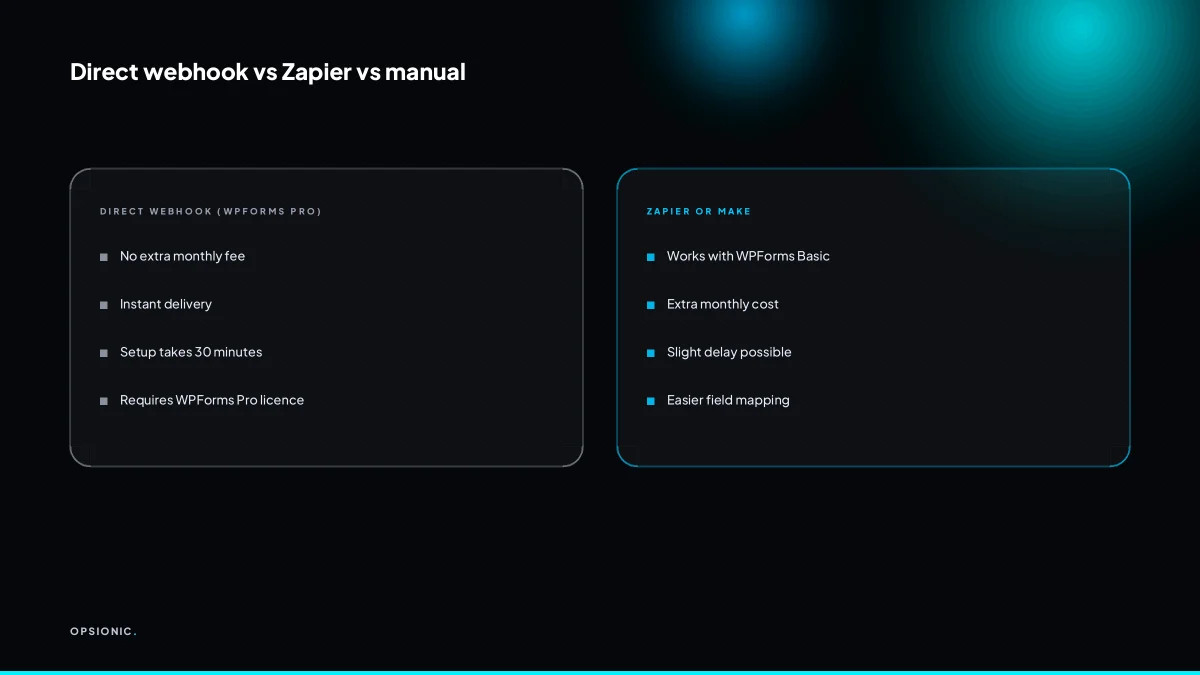
Zapier and Make are both workable middleware if your WPForms licence does not include webhooks. Zapier’s WPForms integration is available on paid plans, but the exact pricing depends on your usage and plan. Make also offers paid plans with usage limits. Either one can watch for new WPForms entries and post them to a Slack channel, but the pricing is an ongoing cost rather than a one-off, so it is worth checking what your licence already includes before adding another subscription. The pricing models differ more than the setup work.
Before you start building, confirm three things: your WPForms licence tier, your permission level in the Slack workspace, and whether you already pay for Zapier or Make. If the answer to all three is yes, the connection is straightforward.
How do I create a Slack incoming webhook for form submissions?
Create a Slack incoming webhook from the Slack app directory or your workspace settings, then choose the channel where submissions should land. Copy the webhook URL, which starts with https://hooks.slack.com. Keep that URL private, because anyone with it can post to your channel.
- Open your Slack workspace and search for “Incoming WebHooks” in the app directory, or look for a webhooks option in your workspace settings.
- Select the app and click the option to add it to your workspace, then confirm the permission request Slack shows you.
- Pick the channel where WPForms submissions should appear. A private channel works if the person approving the app is a member of it.
- Give the webhook a clear name such as “WPForms enquiries” so you can tell it apart from other integrations later.
- Copy the full webhook URL from the confirmation screen and store it in your password manager, not in a shared document.
- Treat the URL like a password. Anyone who has it can post to that channel without logging into Slack.
If you later move the form to a different channel, create a new webhook rather than renaming the old one. Slack ties each webhook to the channel you picked at setup, and reusing a stale URL is how messages end up in a channel nobody watches.
Not sure which of these applies to you?
Answer six questions and see what we would automate first in your business, and what it is worth.
How do I send WPForms entries to Slack without Zapier?
WPForms Pro and higher include a webhooks addon that posts form data directly to Slack. Install and activate the webhooks addon, then create a webhook for your form and paste the Slack incoming webhook URL. You can map form fields to the Slack message text.
- Install the webhooks addon. In your WordPress dashboard, go to the WPForms addons page and search for “webhooks”. Install and activate it.
- Open the form you want to connect. Edit the form, then open the Settings tab and find the Webhooks section.
- Add a new webhook. Give it a name like “Slack lead”, then paste the Slack incoming webhook URL you generated earlier into the request URL field.
- Set the request method to POST and the format to JSON. Slack expects both.
- Map the form fields to the Slack text. In the request body, write a plain sentence and insert the field values where you want them, for example “New enquiry from {name} at {email}.”
This route avoids a monthly Zapier fee because the webhook posts straight from your WordPress site to Slack. No third party sits in the middle counting tasks. If you already send other form data to a spreadsheet, the same logic applies to a website form to Google Sheets setup, where the connection is direct rather than brokered.
How do I format the Slack message so the right person claims it?
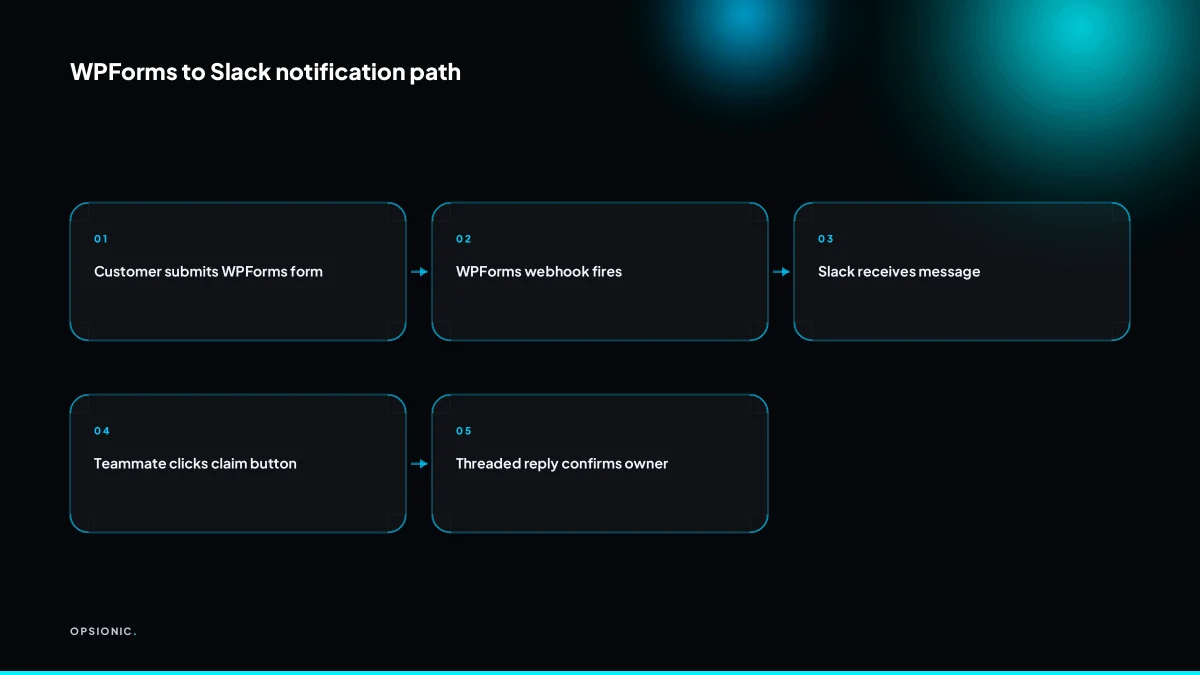
Build a Slack message with the submitter’s name, contact details, and the first line of their enquiry. Add a claim button that posts a threaded reply naming the owner. This layout lets a teammate see in one glance whether the lead is taken and who is handling it.
Keep the top block to three lines: name, phone or email, and the enquiry itself. Put the claim button directly beneath, labelled with the word “Claim” and the lead’s first name. When someone clicks it, the workflow posts a threaded reply that says “Claimed by Sarah at 14:32.” The thread stays attached to the original message, so nobody has to scroll through general channel chatter to find who owns it.
Ownership prevents the most common failure: two people replying to the same enquiry within minutes of each other. The customer receives two emails from different staff and the company looks disorganised. A worked example shows the cost. Suppose a five-person firm receives 30 WPForms enquiries a week and each double reply costs 10 minutes of staff time to sort out. If the claim button stops just 2 double replies a week, that is 20 minutes saved. Over a year, 20 minutes times 48 working weeks is 16 hours. At EUR 30 an hour, the layout saves roughly EUR 480 a year before you count the reputational damage of the customer noticing. Before adding a claim button, consider whether the team actually needs one, or whether a simpler shared inbox rule would do. The same question applies when deciding if you need a CRM or just three automations.
What is this costing you now?
Based on removing half of that time.
What breaks after I set up WPForms to Slack notifications?
The most common failures are duplicate posts when Slack retries a webhook, silent disconnection after a password change, and timezone drift on form timestamps. A retry can double-post the same submission, and two staff may answer it. Check the webhook logs weekly for errors.
Duplicate records on retries
Slack retries a webhook when it does not receive a fast enough confirmation. The symptom is two identical messages for one form submission, often seconds apart. Two staff open the enquiry and both reply. The fix is to give each submission a unique ID in the WPForms entry and include it in the Slack message. Then a retry still posts twice, but the team sees the same reference number and knows it is one lead.
Timezone drift in Slack timestamps
WPForms stores the submission time in the site timezone. Slack shows the message in the viewer’s timezone. A form submitted at 16:00 in Berlin can appear as 10:00 to a colleague in New York. The symptom is a reply sent hours late because the timestamp looked wrong. The fix is to convert the timestamp to UTC in the automation step and state the timezone in the message text, not just in Slack’s metadata.
Silent disconnection after credential changes
If someone changes the Slack workspace password or rotates the webhook URL, the connection stops without an error in WPForms. The symptom is a quiet week: no messages, no complaints, just missed enquiries. The fix is a weekly check of the webhook delivery logs, or a simple monitor that alerts you when no form submission has arrived in Slack for a set number of days.
Rate limits on rapid submissions
Slack limits how many messages a webhook can send per second. A busy open day or a pricing page form can trigger a burst. The symptom is some submissions arrive and some do not, with no pattern you can see at first. The fix is to queue messages in the automation tool and release them one per second, or to batch low-priority submissions into a single Slack post every few minutes. This is one of the hidden costs of automation that only appears after launch.
When is a WPForms to Slack notification not worth building?
If your site gets fewer than five form submissions a week and one person already checks email daily, a Slack notification adds a second inbox to watch. The setup and ongoing maintenance cost more than the few minutes saved. At that volume, manual forwarding is genuinely cheaper.
Five submissions a week is roughly one a working day. Opening the WPForms entries screen, copying the details into an email, and sending it to the person who handles enquiries takes under two minutes per submission. That is ten minutes a week. The Slack version saves those ten minutes, but you pay for them elsewhere.
Setup is the obvious cost. You need a paid WPForms tier that allows webhooks, a Slack workspace that someone administers, and an automation tool or custom script in between. Then you maintain it: Slack changes its app permissions, WPForms updates its webhook payload, and one day the connection stops silently. Finding and fixing that takes longer than ten minutes. You are trading weekly manual work for occasional but unpredictable repair work.
The second inbox problem is worse. Slack only helps if someone is watching Slack. In a small team, the person who checks email is often the person who should see the enquiry. Moving the notification to a channel they only open twice a day creates a delay that did not exist before. If nobody claims the message, the customer waits anyway.
A shared email inbox often solves the same problem with less machinery. Forward WPForms notifications to an address that two or three people monitor. Ownership is visible, replies stay in one thread, and nothing needs a webhook. The claim button pattern in Slack earns its keep when volume is high enough that email threads become unmanageable. Below that, it is one of the signs your business has outgrown doing it by hand in reverse: you have not outgrown it yet.
Want this running in your business next week?
A relaxed 20-minute video chat. Camera on or off. You leave with a plan whether or not you hire us.
- No call unless you ask for one
- From EUR 399 a month, no setup fee
- Built and run for you, not handed over as homework
Sources we checked
Questions people ask
Can I use WPForms free with Slack?
No. The free WPForms Lite version does not include the webhooks addon or a direct Slack connection. You need a paid WPForms licence that includes webhooks, or a middleware tool such as Zapier or Make on a paid plan. Check your licence tier before starting the setup.
Does Slack charge for incoming webhooks?
No. Incoming webhooks are available on Slack's free plan and every paid plan at no extra cost. You need permission to add an app to the workspace, which usually means being an admin. If you are not an admin, ask the workspace owner to create the webhook and send you the URL.
How do I stop duplicate Slack messages after a retry?
Include a unique reference number from the WPForms entry in every Slack message. When Slack retries a webhook and posts twice, the team sees the same reference and knows it is one lead. Without a shared ID, two identical messages look like two separate enquiries and two staff may reply.
Can I send different forms to different Slack channels?
Yes. Create a separate incoming webhook for each Slack channel, then use a different webhook URL in each WPForms form's webhook settings. Each webhook is tied to the channel you chose when you created it, so keep a note of which URL belongs to which form.
What happens if Slack is down when a form is submitted?
The webhook request fails and the submission is not posted to Slack. WPForms still stores the entry in your WordPress database, so no data is lost. Check the webhook delivery logs after any Slack outage and resend missed entries, or set up a monitor that alerts you when no messages arrive for a set period.
Is a Slack notification GDPR compliant for customer data?
Sending customer names and contact details to Slack is a transfer of personal data to a third-party processor. You need a lawful basis for processing, a data processing agreement with Slack, and a check on where Slack stores data. Keep the message minimal and avoid sensitive details in the channel.
How do I test the Slack notification without annoying my team?
Create a private test channel and a separate incoming webhook for it. Point a test form at that webhook, submit a few entries, and check the message layout and claim button. Only switch the live form to the team channel once the test works, and tell the team before the first real message arrives.