Connect a Website Form to Google Sheets and Email
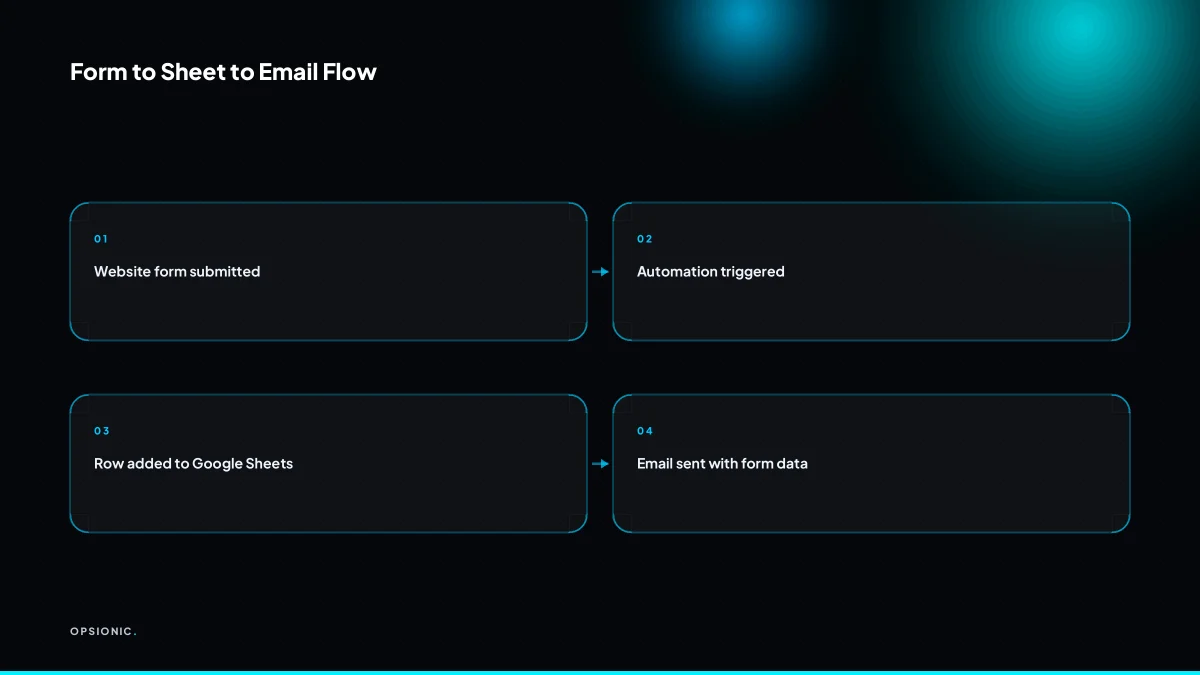
You can connect a website form to Google Sheets and email using a no-code automation tool like Zapier, Make, or n8n. The form submission triggers the automation, which adds a row to your sheet and sends you an email with the form fields. You need a paid tier on at least one side, and you must handle duplicates, spam, and silent failures.
Which tools can do this, and what tier do I need?
Zapier, Make, and n8n all connect website forms to Google Sheets and email. You need a paid plan on the automation tool for multi-step automations and webhook triggers. Google Sheets and Gmail are free for basic use, but your form plugin may require a paid tier for webhooks or integrations. Check each tool’s pricing page for current limits.
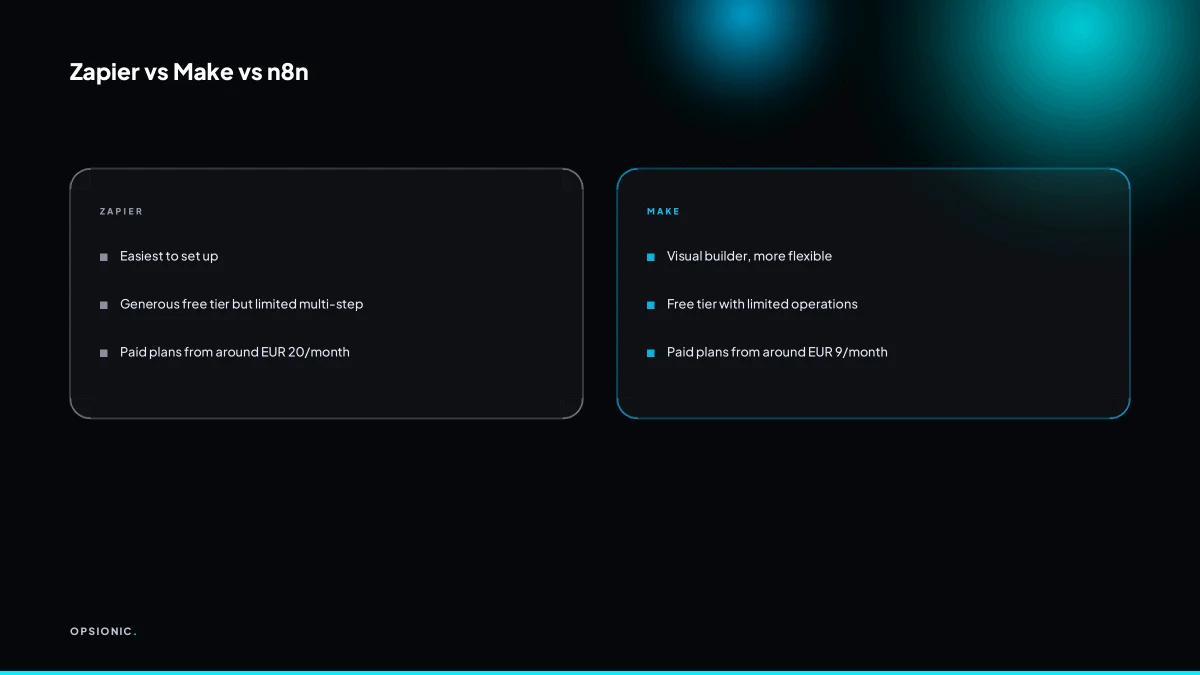
The three tools approach the same job differently. Zapier is the most literal: pick a trigger, pick two actions, done. Its free plan does not include multi-step automations, so you need at least the first paid tier. Make gives you a visual canvas and more control over error handling, but webhooks and multi-step scenarios sit behind its paid plans. n8n is self-hostable and can be cheaper at low volume, but you carry the hosting and updates yourself.
Your form plugin is the other half of the equation. Some forms, like the free tier of many WordPress plugins, only send email. For this automation you need either a built-in integration with your automation tool or a webhook URL field. If the plugin hides webhooks behind a paid tier, that cost sits on top of the automation tool’s fee. Before you buy anything, open the plugin’s settings and look for the words “webhook” or “integrations”. If neither appears on your current plan, search the vendor’s help site for “webhook” plus the plugin name.
| Tool | Trigger | Actions | Paid tier needed |
|---|---|---|---|
| Zapier | Webhook or form app | Google Sheets, Gmail | Yes, for multi-step |
| Make | Webhook or form app | Google Sheets, Gmail | Yes, for webhooks |
| n8n | Webhook or form app | Google Sheets, Gmail | No tool fee if self-hosted |
If you are comparing the real monthly cost, read what Zapier really costs for a small business before you commit. The headline price is rarely the number that leaves your account.
How do I set up the connection step by step?
- Create the automation and set the trigger. In Zapier, Make or n8n, start a new workflow and choose your form app as the trigger. Search for the form product’s own integration first. If it is not listed, look for a webhook trigger and paste the URL your form builder provides in its developer or integrations settings.
- Authenticate the form account. Connect the account that owns the form. The tool will ask for permission to read new submissions. Accept it, then send a test submission from a private browser tab so the trigger captures real field data.
- Add the Google Sheets action and map fields. Choose “create spreadsheet row” as the action. Connect the Google account that owns the sheet, then pick the spreadsheet and worksheet. Map each form field to a column. Put the submission timestamp in its own column rather than relying on the sheet’s own edit time.
- Add the email action and use dynamic data. Add a second action for email. Pick the recipient, usually the address that handles enquiries. Build the subject line with the form’s name or email field so replies are easy to scan. In the body, insert each mapped field where you want it to appear.
- Authenticate the email service. Connect Gmail or your chosen provider. If the tool asks for broad permissions, check what it actually needs. Some tools request full mailbox access when sending only requires a narrower scope.
- Run a live test from start to finish. Submit the form once, exactly as a customer would. Confirm the row appears in the correct sheet and the email arrives with the right values in the right places.
If you want someone else to own the mapping, the testing and the failure alerts, see how we build an automation from trigger to handover.
Not sure which of these applies to you?
Answer six questions and see what we would automate first in your business, and what it is worth.
How do I stop duplicate rows and spam?
Duplicates usually come from three places. A visitor double-clicks the submit button. The form provider retries a delivery because it did not get a confirmation back fast enough. Or a webhook redelivers the same event after a timeout. Each one looks like a new lead, but it is the same row twice.
The fix is a unique key. Use the submission ID the form platform generates, or a timestamp plus email address if no ID exists. Before writing a row, search the sheet for that key. If it is already there, stop the automation. This one check removes most duplicate rows without any manual cleanup.
For spam, add a honeypot field to your form: a hidden input that real visitors never see, but bots fill in. If that field has a value, discard the submission. Then add a filter for obvious patterns, like email addresses with random strings before the @ sign or links in message fields.
Some spam still gets through. Route those rows to a separate sheet or tag them for review instead of deleting them outright. A quick weekly scan keeps your main sheet clean while preserving anything a real prospect might have typed. This is also where a broader GDPR compliant automation checklist helps, since storing spam entries you never use is still personal data.
What breaks in the real world?
Silent connection stops. The sheet stops updating and your inbox goes quiet. You only notice when a prospect asks why nobody replied. The fix is a heartbeat check. Add a step that writes a timestamp to a log sheet every hour, then set an alert if that timestamp is older than two hours. If you skip this, a revoked token or an expired trial on the automation tool can sit broken for weeks. This is the exact failure pattern covered in why automation projects fail in small businesses.
Duplicate rows. A form submission times out, the automation retries, and the same lead appears twice. You then email the person twice or quote them twice. The fix is the deduplication key described above: use the form entry ID or a hashed email address as a unique column, and tell the automation to skip rows where that key already exists.
Timezone drift. Your form records the submission time in the visitor’s timezone, but your sheet or email shows a different one. A lead that arrived at 09:00 looks like it arrived at 17:00, so your reply is late. The fix is to store every timestamp in UTC and convert only at the point of display, in the email or the dashboard.
Rate limits. Google Sheets has a write limit per minute. A busy campaign or a spike of form traffic can push you past it, and the automation drops rows without telling you. The fix is to batch writes or add a short delay between rows, and to monitor the automation’s error log.
Spam and junk submissions. Even with a CAPTCHA, junk gets through. The symptom is rows full of nonsense names and disposable email addresses. The fix is a filter step that checks the email domain against a short blocklist and routes suspicious rows to a separate sheet for review.
What is this costing you now?
Based on removing half of that time.
How do I test that it actually works?
Testing with a live form submission
Open the live form in a normal browser, not the form builder’s preview. Fill every field as a real lead would, including optional fields. Submit once and wait. Do not judge the result until the automation’s full run time has passed, which can be a minute if you have added delays or batching.
Verifying data mapping and email content
Open the Google Sheet and compare each submitted field against its column. Check the email’s subject, sender name, reply-to address and body. Confirm the lead’s name, phone number and message appear in the right places, and that no field has been swapped or truncated.
Simulating a failure to test alerts
Pause the automation from its dashboard, then submit the form again. Wait for the failure alert to arrive by email or Slack. If nothing arrives, your alert is not configured correctly, and a real outage would be silent. Restore the automation and run one more submission to confirm recovery.
Checking for edge cases and formatting
Submit a second test with an apostrophe, an ampersand and a non-Latin character in the name or message. Check the Sheet stores them correctly and the email does not mangle them. If your form includes a date or time field, confirm the timezone matches your business location.
Printable test checklist
- Submit one real form entry from a live browser and wait for the run to finish.
- Open the Sheet and verify every field landed in the correct column.
- Check the email’s subject, sender and body against the submitted data.
- Pause the automation, submit again, and confirm the failure alert arrives.
- Restore the automation and confirm a new submission flows normally.
- Submit a test with special characters and confirm no corruption in Sheet or email.
- If the form has date or time fields, verify the timezone is correct.
Once these checks pass, you can stop testing and start relying on the chain. If you are building this as your first automation, start with one process and get it stable before adding more.
When should I not automate this?
If you receive fewer than 10 form submissions per month, manual copy-paste into a spreadsheet and a simple email notification from your form plugin may be cheaper and less complex. Automation pays off when volume is high enough that manual work costs more than the automation tool subscription and your time spent maintaining it. Calculate your break-even point.
As an example, say you get eight submissions a month and each takes four minutes to copy into Sheets and forward by hand. That is 32 minutes a month. At a modest EUR 30 an hour for your time, manual handling costs EUR 16 a month. A Zapier or Make subscription that can run this chain starts at around EUR 20 a month at the time of writing, before you spend an hour setting it up and occasional time checking it still runs. You would be paying more to automate than to do the work yourself.
At 40 submissions a month, the same maths changes. Manual work is 160 minutes, worth EUR 80. Now a EUR 20 tool subscription plus one hour of setup pays for itself within the first month.
Maintenance matters too. Every automation has a failure mode: a changed field name, an expired connection, a spreadsheet someone renamed. If you are not willing to check the chain weekly or fix it when it breaks, stick with the form plugin’s built-in email notification until volume justifies the upkeep. Before building anything, run the payback sum on your own numbers to see whether the time saved covers the subscription and the upkeep. The automation ROI calculation is the same one you would use for any larger project.
Want this running in your business next week?
A relaxed 20-minute video chat. Camera on or off. You leave with a plan whether or not you hire us.
- No call unless you ask for one
- From EUR 399 a month, no setup fee
- Built and run for you, not handed over as homework
Sources we checked
Questions people ask
Can I connect a WordPress form to Google Sheets without Zapier?
Yes. Some WordPress form plugins have a native Google Sheets integration, and several offer a webhook field you can point at Make, n8n or your own script. Check the plugin's settings for the words webhook or integrations, then search the vendor's help site if neither appears on your current plan.
Does Google Forms have a built-in email notification?
Google Forms can email you when a response arrives, and it can send a copy to the respondent if you enable it. The notification is basic: it does not map fields into a formatted message or write rows to another spreadsheet. For anything beyond that you need Apps Script or an automation tool.
How do I handle file uploads from my form to Google Sheets?
A Google Sheet cell holds a link, not a file. Most tools upload the file to Google Drive or your own storage, then write the sharing URL into the row. Check the storage quota on the account doing the uploading, and confirm the link is accessible to whoever reads the sheet.
Can I use Google Apps Script instead of a third-party tool?
Yes, if your form can post to a webhook or your data already lives in Google. Apps Script is free and runs inside your Google account, but you write and maintain the code, handle retries yourself, and get no visual error log. It suits simple, low volume chains.
What if my form submissions contain personal data?
Treat the sheet as a record of personal data. Restrict who can open it, avoid storing fields you do not need, set a retention period, and delete rows once they are no longer useful. If you operate in the EU, check your lawful basis and your privacy notice before you start.
How do I keep the Google Sheet from getting too large?
Archive on a schedule rather than waiting for the sheet to slow down. A common pattern is a monthly job that copies rows older than a set period into an archive spreadsheet and removes them from the live one. Keep the live sheet small so lookups for duplicate keys stay fast.