Send Gravity Forms Entries Straight to Your CRM
Sending Gravity Forms entries to your CRM automatically means every new submission becomes a contact or lead without copy-paste. The most flexible route is a webhook from Gravity Forms to your CRM's API, which works with any CRM and survives a platform change. You need a paid Gravity Forms tier and a CRM that accepts incoming webhooks.
Which Gravity Forms plan do I need to send entries out?
The built-in Webhooks Add-On is a paid add-on available on Gravity Forms’ paid plans. The free version does not include it. If you are not on a paid tier, you can still use a third-party connector like Zapier or Make, but that adds another subscription and another point of failure.
The free Gravity Forms plugin stores entries in your WordPress database and can email them. There is no native “send this lead to my CRM” switch, because the developer treats CRM connections as a paid feature. You can export entries as a CSV and import them by hand, which works for a handful of leads a week and gets old quickly after that.
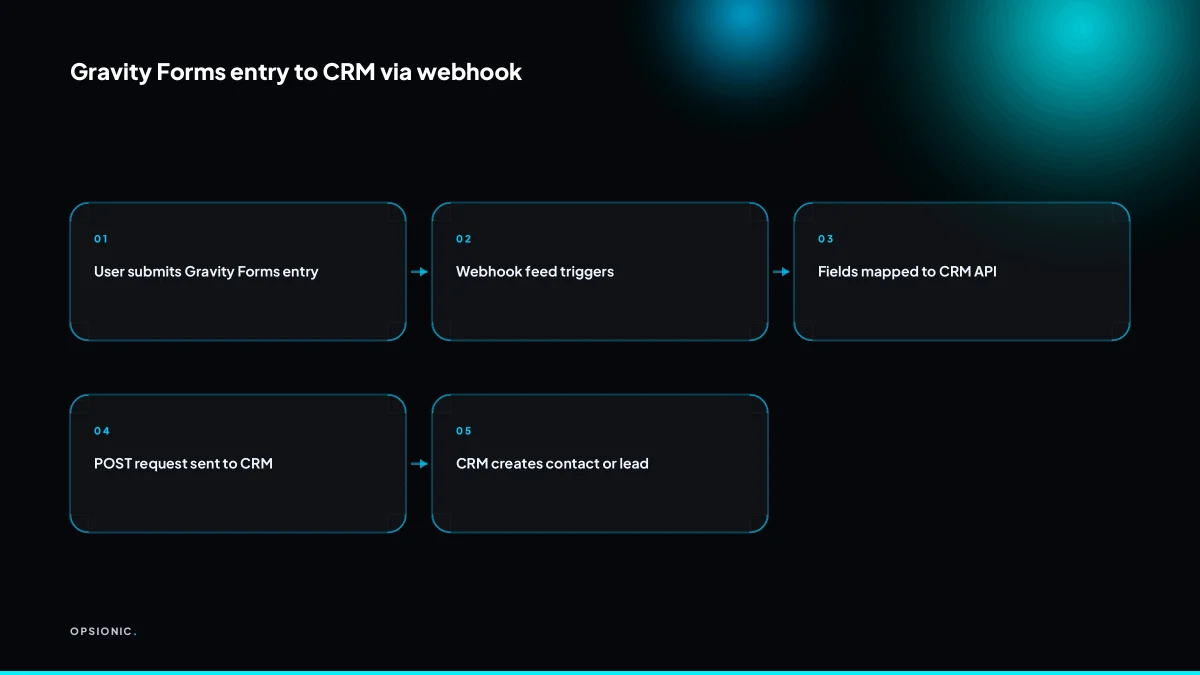
The Webhooks Add-On lets Gravity Forms POST an entry to an outside URL the moment a form is submitted. It does not know anything about your CRM. It simply sends the data to whatever address you give it, in the format you configure. Your CRM or a middle layer has to accept that request and turn it into a contact, deal or ticket.
If you are on a lower tier, Zapier and Make can both watch for new Gravity Forms entries and push them into a CRM. That works, and it is often the fastest way to test the idea. The trade-off is that you now pay for two subscriptions and you depend on a third-party cloud staying up. Before committing, check what Gravity Forms actually costs on its own so you can compare the real monthly total.
Does a webhook work with my specific CRM?
A webhook works with any CRM that has a public API and accepts incoming HTTP requests. HubSpot, Salesforce, Pipedrive, Zoho CRM, and most others do. The webhook sends a JSON payload to a URL you provide. The only requirement is that your CRM can accept a POST request with the fields you want to map.
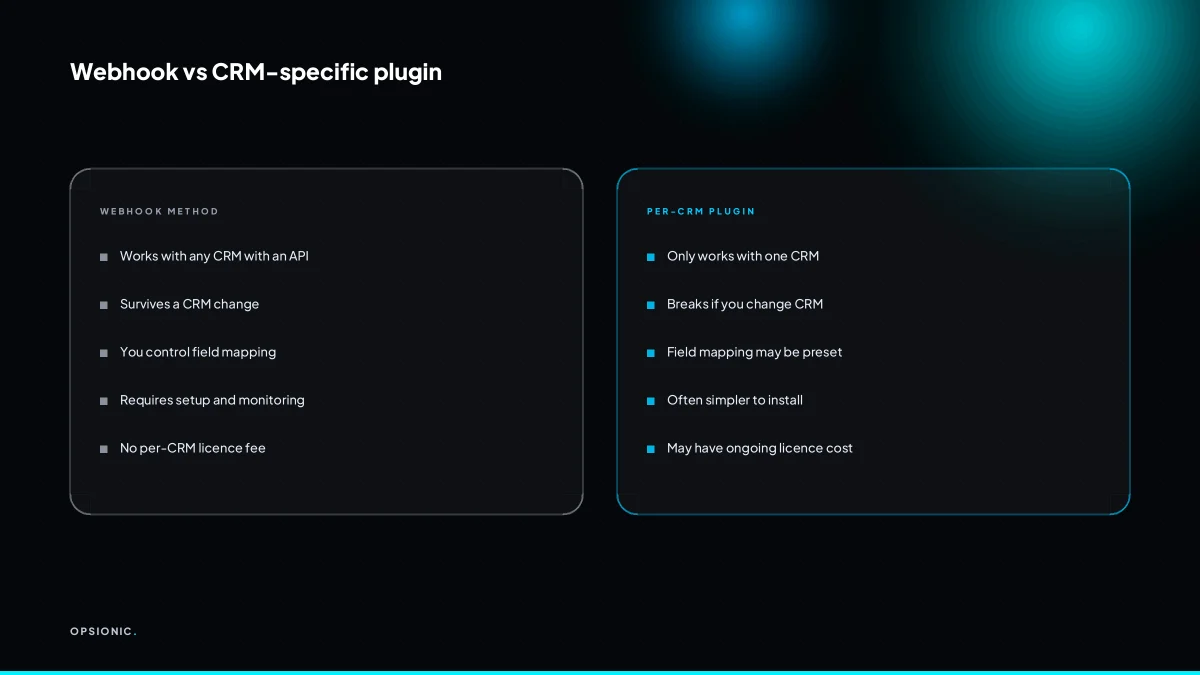
A webhook is a direct, point-to-point connection. When someone submits your Gravity Form, the form fires an HTTP request straight to your CRM’s URL. No plugin sits in between, and no third-party service holds the data on its way through. A plugin, by contrast, is a piece of code that lives inside WordPress and talks to one specific CRM. Change your CRM and the plugin becomes dead weight.
To check whether your CRM accepts incoming webhooks, search its help documentation for “incoming webhook” or “API webhook receiver”. You are looking for a page that gives you a URL to paste into Gravity Forms, plus instructions on how to authenticate the request. If the CRM has a developer settings area, that is where the webhook URL usually lives.
The reason this method matters is portability. You build the webhook once, and the Gravity Forms side stays identical whether you use HubSpot today or Pipedrive next year. You only change the destination URL and the field mapping. That is the same logic behind moving a booking from Calendly into your CRM: the connection should survive a change of tool.
The one real limitation is that you map fields yourself. A dedicated plugin often knows that “First Name” in Gravity Forms equals “firstname” in your CRM. With a webhook, you open both screens side by side and match them by hand. That takes an afternoon once, and then it is done.
Not sure which of these applies to you?
Answer six questions and see what we would automate first in your business, and what it is worth.
How do I set up the Gravity Forms webhook to my CRM?
Install the Webhooks Add-On, open the form’s settings, and add a new feed. Choose the CRM’s API endpoint as the request URL, set the method to POST, and map each Gravity Forms field to the CRM’s expected field name. Save the feed and send a test entry to confirm the CRM receives it.
- Install the Webhooks Add-On. In your WordPress admin, go to the Forms section, then Add-Ons, and find Webhooks. Install and activate it. This add-on is available on Gravity Forms’ paid plans, so check your licence tier before you start.
- Open the form you want to connect. Go to Forms, hover over the relevant form, and choose Settings, then Webhooks. This is where you create a new feed.
- Create a new feed and name it after the CRM. Click Add New, give the feed a clear name like “Send to Pipedrive” or “Send to HubSpot”, and save it. The name is just for you; it does not affect the data sent.
- Set the request URL to your CRM’s API endpoint. This is the address your CRM exposes for receiving new records. Search your CRM’s developer documentation for “create record API endpoint” or “webhook receiver”. The exact URL differs per CRM, so do not guess it.
- Set the method to POST. Gravity Forms gives you a choice of request methods. Choose POST, because you are sending a new record to the CRM, not fetching one.
- Add authentication. Most CRMs require an API key or bearer token in the request headers. Look in your CRM’s settings for “API keys” or “personal access tokens”. In Gravity Forms, add this as a request header, not in the body. Check your CRM’s docs for the exact header name, often something like Authorization.
- Map each Gravity Forms field to the CRM’s expected field name. In the feed’s request body settings, you list key-value pairs. The key is the field name your CRM’s API expects, like first_name or email. The value is the Gravity Forms merge tag for your field, which you can pick from the dropdown. Open your CRM’s API reference in another tab and match them one by one.
- Save the feed and send a test entry. Submit your form once with dummy data, then check the CRM for the new record. If nothing arrives, look in Gravity Forms’ feed logs to see the response the CRM sent back.
Before you wire up your live form, do this on a staging or duplicate form first. A wrong field name in the mapping can create blank records in your CRM, and cleaning those up takes longer than testing once. If you already send form entries to a spreadsheet, connecting a form to Google Sheets and email follows the same mapping logic, so the habit carries over.
What happens when the CRM is down or the webhook fails?
If the CRM is down, the webhook request fails. Gravity Forms does not retry failed webhooks by default. You can enable retry logic in the feed, but it only retries a few times and then gives up. Entries that fail permanently are not sent unless you use a queue or a third-party tool that holds them until the CRM is back.
The silent drop. Your form shows a success message, the entry sits in Gravity Forms, and the CRM never hears about it. You find out when a customer calls asking why nobody replied. The fix is to check failed webhook logs weekly, not monthly, and to treat every failed entry as a lead you still hold.
The retry that gives up. Gravity Forms lets you set a retry count on the feed. That covers a thirty-second CRM blip. It does not cover an hour-long outage. If the CRM is down for maintenance or a bad deploy, the retries exhaust themselves and the entry stops moving. You need a queue outside Gravity Forms, something like a middleware tool that stores the payload and keeps trying until the CRM confirms receipt.
The duplicate record. This is the ugly one. The webhook times out, Gravity Forms retries, and the CRM had actually accepted the first request but replied too slowly. You now have two contacts or two deals for one person. Before you retry anything, ask whether the CRM endpoint is idempotent. Most form-to-CRM endpoints are not. If yours is not, build deduplication into the queue: check for an existing record by email or a unique field before creating a new one. This is the sort of failure that only shows up under load, and it is exactly the kind of thing worth raising with an automation agency before you sign.
What is this costing you now?
Based on removing half of that time.
What breaks in the real world after the webhook is live?
Real-world breakages include duplicate records when a retry succeeds after the CRM already created the contact, timezone drift on date fields, rate limits on the CRM’s API, and silent failures when the webhook stops sending and nobody notices for a month. GDPR consent fields also need careful mapping to avoid storing invalid consent.
Duplicate records from retry logic
The symptom is a contact who appears twice, three times, or more, each with the same email but different internal IDs. It happens when your webhook times out, the CRM still creates the record, and your retry sends the payload again. The fix is a unique field. Most CRMs let you match on email or a custom external ID before creating. Set the webhook to upsert on that field, not to blindly insert. If your CRM cannot upsert, check for an existing record first and skip creation when one exists.
Timezone and date format mismatches
WordPress stores times in its own timezone setting. Your CRM may store them in UTC or in the sales rep’s local time. A booking made at 09:00 can arrive as 07:00, 10:00, or a date that is one day off. The symptom is a diary that looks plausible but is wrong. The fix is to agree on one timezone at the webhook boundary, convert the timestamp before sending, and send an unambiguous format such as ISO 8601 with an explicit offset. Do not rely on either system guessing.
Rate limits on the CRM API
Most CRMs cap how many API calls you can make per minute or per day. A busy form can blow through that cap in an afternoon. The symptom is entries that fail silently or queue up and arrive hours late. The fix is to throttle the webhook sender or batch entries into a queue that respects the CRM’s published limits. This is also where GDPR compliance intersects with reliability: a queue that holds personal data longer than necessary creates its own obligations.
Silent failures
A webhook can stop delivering and nothing tells you. The form still accepts entries. The CRM simply stops receiving them. A month later you notice the pipeline is thin. The fix is monitoring. Set up delivery logs, check them daily or weekly, and alert on any entry that fails more than twice. A dead webhook is a data leak in reverse: the data exists, but it never reaches the system that needs it.
GDPR consent fields
If your form captures consent to marketing, that consent must land in a specific CRM field, not a generic notes box. The symptom is a contact who ticks the box on your site but whose CRM record shows no lawful basis for contact. The fix is to map the consent checkbox to the CRM’s designated consent field, record the timestamp and the wording shown, and never send a blank or default value that overwrites a previously recorded refusal.
When is it not worth building this?
If you get fewer than ten form entries a week, manual export is cheaper. The webhook setup takes a few hours and needs monitoring. A simple CSV export and import into your CRM once a week is faster and has no ongoing failure risk. Automation pays off when volume is high enough that manual work costs more than the setup and maintenance.
The rough threshold is about forty entries a month. Below that, the arithmetic rarely works. Building the webhook, mapping fields, testing failure cases and setting up monitoring is a half-day job on the first attempt. Then you carry the ongoing cost of checking logs, handling retries and fixing the occasional field mismatch. That maintenance is not zero, even when nothing goes wrong.
Take a worked example, with invented but realistic figures. A five-person firm receives 30 entries a month. Manual export takes 15 minutes a week: open Gravity Forms, export a CSV, import it into the CRM, check for duplicates. That is one hour a month, or 12 hours a year. At a modest internal cost of EUR 30 per hour, manual work costs EUR 360 a year. Building the webhook takes four hours at the same rate, or EUR 120. Monitoring and occasional fixes take 20 minutes a month, or four hours a year, another EUR 120. The first-year total is EUR 240, plus the risk that a silent failure loses entries. The saving is EUR 120, and it only appears if nothing breaks.
Low-volume businesses should stick to CSV export. The failure risk is visible because you are looking at the data every week, and the time cost is small enough that the hours saved by automation do not justify the setup. Automation earns its place when the manual work is measured in hours per week, not minutes.
Want this running in your business next week?
A relaxed 20-minute video chat. Camera on or off. You leave with a plan whether or not you hire us.
- No call unless you ask for one
- From EUR 399 a month, no setup fee
- Built and run for you, not handed over as homework
Sources we checked
Questions people ask
Can I use the free version of Gravity Forms to send entries to my CRM?
No. The Webhooks Add-On that sends entries out is only on Gravity Forms' paid plans. On the free version you can export entries as a CSV and import them by hand, or use a third-party connector like Zapier or Make, which adds another subscription.
Does the Gravity Forms webhook work with HubSpot?
Yes, if your HubSpot plan allows incoming webhook or API requests. Search HubSpot's developer documentation for its create-contact endpoint, then paste that URL into the Gravity Forms webhook feed and map each field. Check your HubSpot tier before you start.
How do I stop duplicate contacts when the webhook retries?
Make the CRM endpoint upsert on a unique field such as email or a custom external ID, rather than blindly inserting a new record. If your CRM cannot upsert, add a check in a queue or middleware step that looks for an existing record before creating one.
What is the difference between a webhook and a CRM add-on?
A webhook is a direct POST request from Gravity Forms to your CRM's API, so it works with any CRM that accepts incoming requests. A CRM add-on is a plugin inside WordPress tied to one specific CRM, and it stops working if you change CRM.
Can I map custom fields from Gravity Forms to my CRM?
Yes. In the webhook feed's request body you list key-value pairs: the key is the field name your CRM's API expects, and the value is the Gravity Forms merge tag for your field. Open your CRM's API reference and match them one by one.
How do I know if the webhook stopped working?
Check the Gravity Forms feed logs for failed requests and confirm that test entries reach the CRM. Set a weekly reminder to review failed webhook logs, and treat every failed entry as a lead you still hold rather than assuming the CRM received it.
Is there a way to send Gravity Forms entries to my CRM without any coding?
Yes. The Webhooks Add-On gives you a settings screen where you paste the CRM's URL, choose POST, add authentication headers and map fields with merge tags. No coding is needed, though you do need to read your CRM's API documentation to get the field names right.