AI-Drafted Replies, Human Send: The Safe Pattern
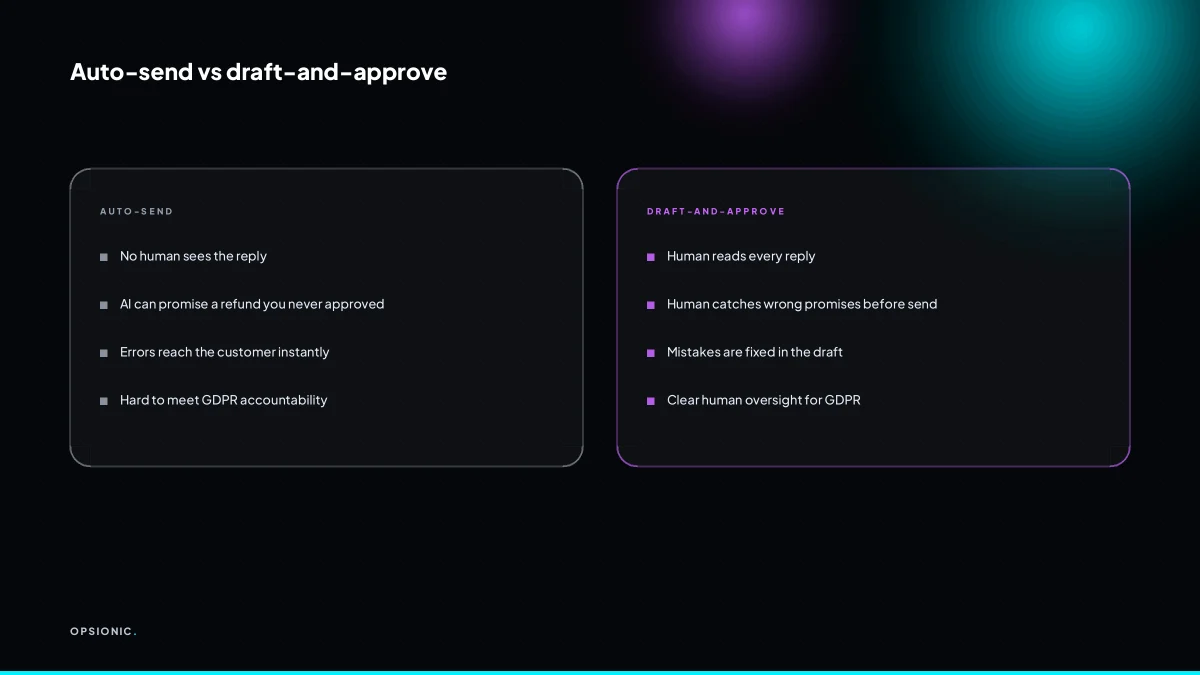
To use AI to answer customer emails safely, connect a drafting tool to your inbox so it writes a suggested reply from your own knowledge base, then you review and send it yourself. This draft-and-approve pattern keeps replies fast and accurate while stopping AI from promising refunds, discounts or facts you never authorised.
Which AI tools can read and draft customer emails?
ChatGPT, Claude and the OpenAI API all draft email replies when you paste in the message and a short instruction. For a repeatable inbox workflow, use automation platforms like Zapier, Make or n8n to trigger the AI with each new email and return a draft to your drafts folder.
ChatGPT and Claude are the simplest starting point. You open the chat, paste the customer email, and write one line: “Draft a polite reply saying we will check stock and confirm by Thursday.” The model returns a draft you can edit before sending. This works well for a few emails a day. It falls apart when volume rises, because you are still copying and pasting every message by hand.
Zapier, Make and n8n remove that copying. Each platform can watch a Gmail or Outlook label, take the incoming message, send it to an AI model, and place the drafted reply in your drafts folder. You then review and press send. The AI never sends anything itself.
A triggered draft beats copy-pasting because the AI sees the same context every time. You define the instruction once: your tone, your refund policy, what to say when a delivery is late. The model applies it consistently. You stop rewriting the same prompt for every email. If you are weighing n8n against Zapier for this kind of workflow, the choice affects your monthly cost and how much you can customise.
How do I connect AI to my inbox without giving it full send access?
Set up the automation to create a draft email, not send one. In Gmail, that means the AI writes to the drafts folder; in Outlook, to the drafts folder as well. You then open the draft, check it, and press send yourself.
The permission to avoid is any scope that lets a third party send mail as you: Gmail’s send scope, or an Outlook app registration that requests Mail.Send. A draft-only connection cannot fire off a reply while you are asleep, so a hallucinated promise about a refund or a delivery date stays in your drafts folder where you can kill it.
- Create the connection in your automation tool using a scope that allows compose but not send.
- Point the AI step at your inbox trigger, such as a new email from a known customer.
- Set the output action to Create Draft in Gmail or Create Draft in Outlook, never Send Email.
- Write the prompt so the model addresses the sender by name and answers the specific question, not a generic template.
- Open the draft in your own mail client, correct anything wrong, and press send yourself.
That final click is the control point. It costs you five seconds per reply and buys you total authority over what leaves your address. When you want this built properly, we map the draft step into a workflow you can run every day.
Not sure which of these applies to you?
Answer six questions and see what we would automate first in your business, and what it is worth.
What information should I give the AI so it does not invent answers?
Give the AI a knowledge base of your real policies, prices and FAQs, and instruct it to answer only from that text. If the customer asks something not in the knowledge base, the AI should say it will check with a human.
Start with the documents you already have. Export your FAQ page, your returns policy, your shipping terms and your pricing sheet into one folder. Ten pages of plain text beats a hundred scattered emails. The AI reads from this folder before it writes a single word.
Your prompt then does two jobs. First, forbid invention: “Answer only from the knowledge base. If the answer is not there, write: I will check this with a colleague and come back to you.” Second, force the fallback: “Never guess a price, a date or a policy.” Test it by asking a question you know is missing. If the AI invents a refund window, tighten the prompt.
Retrieval augmented generation, usually called RAG, makes this reliable at scale. The system searches your knowledge base for the most relevant passages, then feeds only those passages to the AI alongside the customer’s question. The AI composes a reply from retrieved text rather than from memory. This keeps the answer inside your own words.
Here is a worked example, with invented figures, of why grounding matters. Suppose you sell furniture and your real policy is a 14-day return window with the customer paying return shipping. An ungrounded AI, asked “Can I return a sofa after a month?”, might answer: “Yes, we accept returns within 30 days at no cost.” That reply promises a free return you do not offer. The customer sends the sofa back, you refuse the refund, and you now have a dispute. With grounding, the same AI writes: “Our return window is 14 days. After that, I am afraid we cannot accept the return. I can check with a colleague if you would like.” You lose nothing by saying no, because the AI never invented the yes. One invented promise costs you the return shipping, roughly EUR 45, plus the time spent arguing with a customer who was told something false. The grounded reply costs you nothing.
The same pattern applies to a grounded and honest AI chatbot on your website, where the fallback is a human handoff rather than a wrong answer.
How do I keep customer data private and GDPR compliant?
Use a processor that signs a data processing agreement, minimise the personal data you send to the AI, and avoid sending unnecessary identifiers. Under GDPR you need a lawful basis, usually legitimate interests for customer service, and you must tell customers their data is processed by AI.
Start with the tool. Choose an AI provider that offers EU data residency or, failing that, signs Standard Contractual Clauses. The SCCs give you a legal transfer mechanism, but residency in the EU removes one whole category of worry. Check the vendor’s own documentation before you connect anything, and do not take a sales page as proof.
Then cut what you send. The AI does not need the customer’s phone number, home address or order history to draft a reply about a late delivery. Strip those fields before the prompt leaves your system. The same applies to your knowledge base: do not paste a spreadsheet of client names into a training document.
Finally, update your privacy notice. It should say that customer service emails may be processed by an AI assistant to draft replies, with a human reviewing before sending. That is a small edit, but it keeps you honest. Here is a checklist you can print:
- Confirm the AI provider signs a data processing agreement.
- Check whether the provider offers EU data residency or Standard Contractual Clauses.
- List every field your automation sends to the AI and delete identifiers you do not need.
- Review any knowledge base file for customer names, emails or phone numbers before uploading.
- Set the automation to draft only, never send, so a human approves every reply.
- Add one sentence to your privacy notice stating that AI assists with drafting customer service replies.
- Keep a record of your lawful basis for processing, normally legitimate interests for customer service.
If you are unsure whether an existing workflow is compliant, the practical checklist in our guide to GDPR compliant automation for small business walks through each point in order.
What is this costing you now?
Based on removing half of that time.
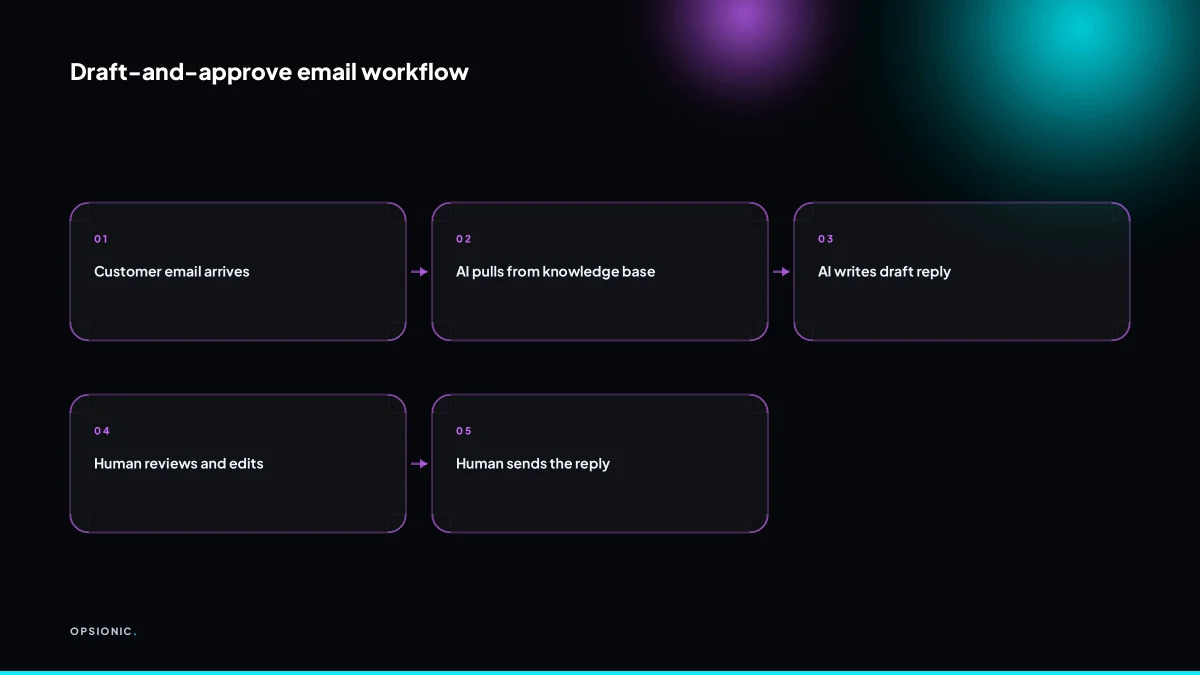
What does the draft-and-approve workflow look like step by step?
Each new customer email triggers the AI, which pulls relevant facts from your knowledge base and writes a draft reply in your drafts folder. You open the draft, correct anything wrong, and send it. The AI learns nothing from the correction unless you update the knowledge base.
- Connect the mailbox to the automation. Point the workflow at the shared inbox or support address that receives customer emails.
- Trigger the AI on each incoming message. The moment an email lands, the automation reads the subject and body and decides whether it needs a reply.
- Look up relevant facts in the knowledge base. The AI searches your stored policies, product details, delivery windows and return rules, then drafts an answer using only what it finds there.
- Write the draft into your drafts folder. The reply sits unsent, addressed to the customer, with the subject line prefixed so you can spot it.
- Open the draft and check the specifics. Confirm that prices, dates, refund terms and any promise match what you actually offer before you press send.
- Send the corrected reply yourself. The human action of sending is the approval step. Nothing leaves the mailbox without that click.
- Update the knowledge base when you correct the AI. If you changed a policy or caught a wrong detail, edit the source document so the next draft starts closer to correct.
This pattern keeps the speed of automation without handing the send button to a model that cannot know your latest stock level or a customer’s unwritten history. If you are starting with one process, the step by step approach in how to start automating your business applies the same logic to your first workflow.
How do I stop the AI from promising a discount or refund I would not offer?
Write an explicit instruction in the prompt: never promise a refund, discount, credit or compensation. Tell the AI to say a human will review the request. Then, in the approval step, scan every draft for the words refund, discount, credit, free and upgrade before you send.
The over-eager appeaser
Symptom: the customer sounds annoyed, so the draft opens with an apology and a credit note you never authorised. The model has been trained to de-escalate, and money is its easiest tool.
Fix: put the forbidden words in the prompt as a named list: refund, discount, credit, compensation, free, upgrade, voucher, goodwill. Add one line: “If the customer asks for any of these, say a manager will reply within one working day.” That single sentence removes the model’s licence to invent a remedy.
The five-second scan
Before you click send, read only the first line and the last line of the draft, then search the page for those eight words. That is the whole scan. A dangerous promise almost always sits in the opening apology or the closing “as a gesture of goodwill”. If you find one, you have caught the failure in under five seconds. This is not a proofread. It is a filter for the one class of error that costs you money.
When the draft says what you would not
Do not edit the sentence and send. Delete the promise, then re-run the draft with a note in the prompt: “Previous draft offered a discount. Do not do that.” The model learns from the correction only if the correction is explicit. If the same promise appears twice in one week, the prompt is too weak, not the model too clever. Tighten the forbidden list and shorten the approval step to the scan above. A workflow that keeps drafting refunds is one of the ways why automation projects fail in small businesses: nobody defined what the machine may never say.
Want this running in your business next week?
A relaxed 20-minute video chat. Camera on or off. You leave with a plan whether or not you hire us.
- No call unless you ask for one
- From EUR 399 a month, no setup fee
- Built and run for you, not handed over as homework
Sources we checked
Questions people ask
Can I use AI to answer customer emails on my phone?
Yes, if your automation writes drafts into Gmail or Outlook. Open the draft in your mobile mail app, edit it, and send. The AI does the typing; you keep the send button. This works with Zapier, Make, or n8n connected to your mailbox, and you never grant send permission to the AI.
How do I handle emails that need a personal touch, like complaints?
Route complaints to a human queue before the AI drafts anything. Use a filter on subject or sender, or a keyword list such as 'complaint', 'refund', or 'angry'. The AI can still suggest a reply, but a person should write the final message. For sensitive cases, skip the AI entirely.
What if the AI drafts something factually wrong about my product?
That is why you review every draft before sending. To reduce errors, ground the AI in a knowledge base of your real product details, prices, and policies. Instruct it to answer only from that source and to say 'I will check' when unsure. Test with questions you know are missing.
Can the AI learn from my previous replies to sound more like me?
Some AI tools let you provide examples of your past replies to guide tone. You can paste a few representative emails into the prompt or knowledge base. The AI does not learn automatically from your corrections unless you update that source. Review the output for accuracy, not just style.
Is there a way to automate only the first reply and not follow-ups?
Yes. Set your automation to trigger only on the first email in a thread, for example by checking that the subject does not start with 'Re:' or that the message is not a reply. Follow-ups then go to a human. This keeps the AI focused on initial queries and avoids loops.
How do I measure whether the AI drafts are actually saving me time?
Track two numbers: the average time to send a reply before and after, and the number of drafts you edit heavily versus send with small changes. A simple spreadsheet works. If editing takes longer than writing from scratch, your prompt or knowledge base needs work. Review after two weeks.
What happens if the AI is down or returns an error?
Build a fallback into your automation. If the AI step fails, the workflow should either retry once or route the email to a human queue with a notification. Never let an error leave a customer waiting. Test the failure path by disabling the AI step temporarily.