Jotform to Google Sheets: Set It Up Properly
To send Jotform to Google Sheets automatically, connect the two through Jotform's native integration. It copies each new submission into a new row in your chosen sheet. Before you start, check your Jotform plan: the integration is available on paid plans, not the free Starter tier. After connecting, test with a real submission and watch for file uploads and multi-select answers, which the sheet handles poorly.
What does the Jotform Google Sheets integration actually do?
The Jotform Google Sheets integration appends each new form submission as a row in a Google Sheet. It runs on Jotform’s servers, so it works even when your computer is off. It copies text and numbers cleanly. File uploads and some field types are not fully supported.
A simple contact form or order form syncs without fuss. A form with signatures, file uploads or multi-select questions arrives in the sheet with gaps or awkward formatting. You get the row, but not the whole submission.
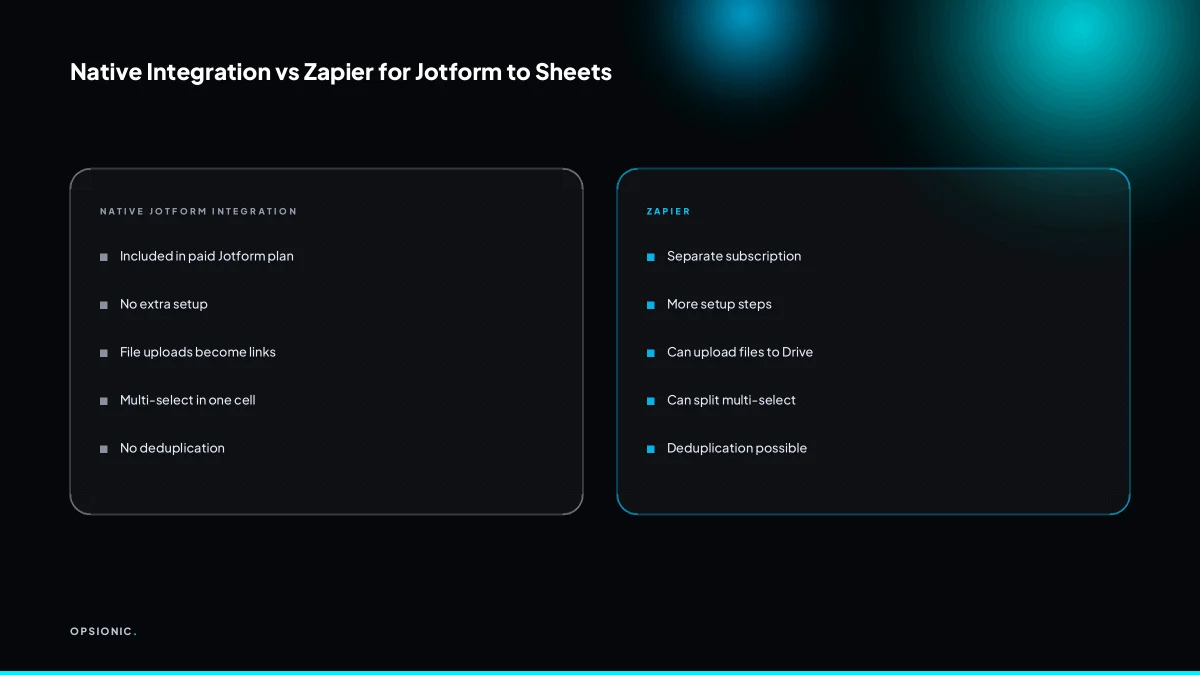
The native integration is the obvious first choice because it needs no third-party account and no extra cost on the Google side. It is built into Jotform and maintained by Jotform. That is also its limit: you cannot transform the data as it moves, and you cannot fix a sync that Jotform has not built support for.
Third-party tools like Zapier or Make can fill some of those gaps, such as splitting a multi-select answer across columns or saving an uploaded file to Google Drive. They add a monthly cost and a second service to watch. For a small business that just wants submissions in a sheet, the native link is usually enough to start.
Which Jotform plans include it depends on your account tier at the time you set it up. The integration has historically been available on paid plans rather than the free Starter tier, but the exact line moves. Check Jotform’s own pricing page before you build, so the paywall does not surprise you halfway through. If your form volume is low and your plan does not include it, a manual weekly export may honestly be the cheaper route. For most small teams, the automation work we do sits one step further on: taking that sheet row and turning it into an invoice, a CRM record or a task without anyone retyping it.
Which Jotform plan do I need, and what should I check first?
The Google Sheets integration is available on some Jotform paid plans, but not on the free Starter plan. Before you begin, log into Jotform and check your plan under Account settings. Also confirm you own the Google account you want to use for the sheet, because the connection will ask for permission to edit that specific spreadsheet.
If you are on Starter, the integration will not appear as an option when you open the form’s settings. Upgrading to a paid plan is the usual fix, but check Jotform’s own pricing page first because plans change and you may not need the extra features that come with the jump.
On the Google side, the account you connect needs edit rights to the target spreadsheet. You do not need to share the sheet with anyone else. Jotform will request permission to view and manage that file, and only that file, when you authorise the connection.
Before you start, run three quick checks:
- Your Jotform plan includes the Google Sheets integration, confirmed in Account settings.
- The Google account you will use is already signed in on the same browser.
- You have created the spreadsheet and know its name, because the setup will ask you to pick it.
Skipping the plan check is the most common reason the setup fails before it starts. A user on Starter opens the form, looks for Google Sheets, sees nothing, and assumes the feature is broken. It is not broken. It is just not on that tier.
Not sure which of these applies to you?
Answer six questions and see what we would automate first in your business, and what it is worth.
How do I connect Jotform to Google Sheets step by step?
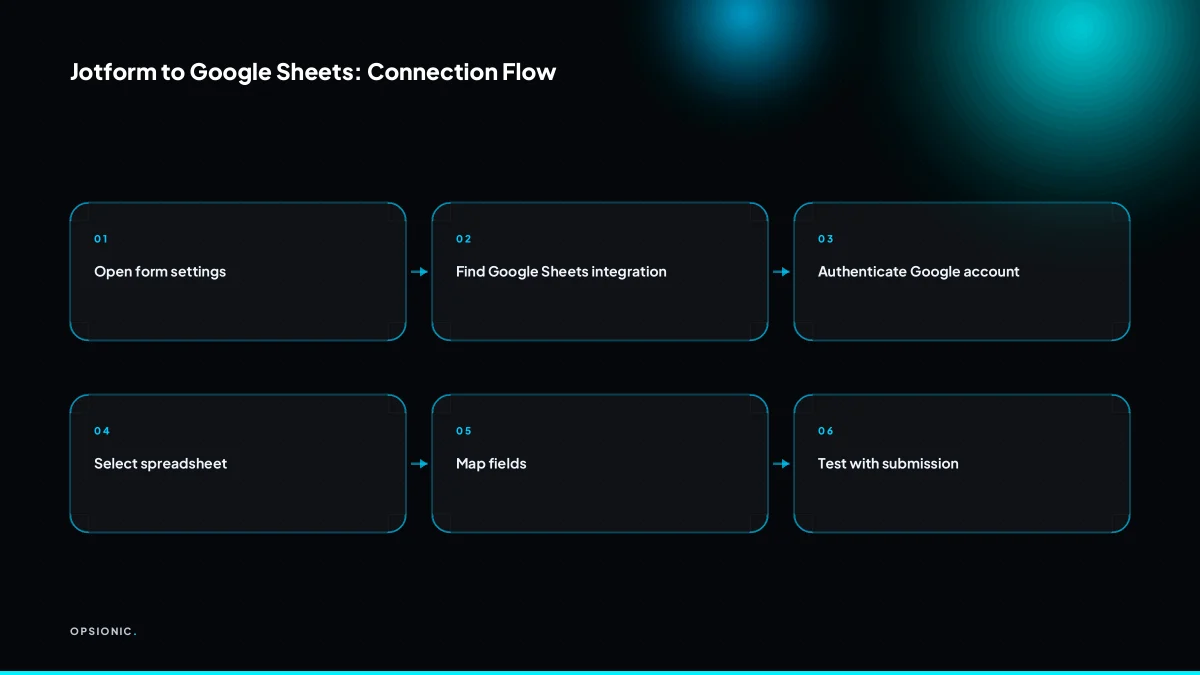
From your Jotform dashboard, open the form you want to connect. Go to Settings, then Integrations, and search for Google Sheets. Click the Google Sheets icon and follow the prompts to authenticate your Google account and pick a spreadsheet. Choose whether to create a new sheet or use an existing one, then map the form fields to columns.
- Open the form from your Jotform dashboard, then find the Settings area and look for anything labelled Integrations. Search for Google Sheets inside that list rather than scrolling through every available service.
- Start the connection by selecting the Google Sheets entry. You will be asked to sign in to the Google account that owns or will own the spreadsheet. Use the account you actually work in, not a personal one, because changing it later means rebuilding the connection.
- Pick the destination when prompted. You can create a new spreadsheet or choose an existing one from your Drive. If you pick an existing sheet, it must be one you can edit, and the integration will add a new tab rather than overwrite what is there.
- Map the fields one by one. Each form question appears next to a column name. The integration often suggests matching names, but check every row: a field called “Email” on the form may land in a column called “Email1” if you already have one.
- Save the integration and send a test submission through the live form, not the preview. The preview sometimes bypasses integrations.
Field mapping is where most silent mistakes happen. Multi-select questions, file uploads and full-name fields do not map cleanly to a single spreadsheet cell. A multi-select answer often arrives as one text string with commas or line breaks inside it. A file upload arrives as a link, not the file itself. If you need those answers split across columns or files stored somewhere usable, the built-in integration is the wrong tool and you should look at how we build an automation that handles those cases properly.
Creating a new sheet is the safer choice for a first setup. It guarantees the column headers match your current form fields. Using an existing sheet makes sense only when you already have a report or dashboard pointing at that tab and you want to keep feeding it. In that case, name the tab before you connect, because renaming it later can break the link silently.
What breaks after setup: file uploads, multi-select, and new questions
File uploads appear as links to Jotform’s storage, not the actual files. Multi-select answers land in a single cell, separated by commas, making filtering hard. If you add a new question to the form after connecting, the integration does not automatically add a new column; you must manually update the sheet or reconnect, or new data may be lost.
File uploads: links, not files. When a customer attaches a photo or document, Google Sheets receives a URL pointing to Jotform’s storage. The cell contains a string like https://www.jotform.com/uploads/…, not the image or PDF itself. If you need the actual file in Google Drive or a folder on your machine, this integration will not do it. The fix is to treat the link as a reference and download what you need manually, or set up a separate automation that watches the link column and fetches the file. For most admin work, the link is fine. For anything that needs the file itself, it is not.
Multi-select: one cell, many answers. A checkbox question with five options produces a single cell like Option A, Option B, Option D. Filtering that column for “Option B” will miss rows where B sits in the middle of the string. Pivot tables and charts built on that column will count the whole comma-separated string as one value, not three. The fix is to split the cell into separate columns after import, which means extra spreadsheet work every week. If you need clean filtering, change the form to use a separate yes/no question per option instead of a multi-select.
New questions: silent data loss. Add a field to the form after the connection is live and the integration keeps writing to the old column layout. The new answer has nowhere to go, so it either drops or lands in the wrong place depending on how Jotform maps fields. The symptom is a sheet that looks fine but is missing a column you added last month. The fix is to check the sheet headers against the form fields after any change, and update the mapping or reconnect before you rely on the data.
What is this costing you now?
Based on removing half of that time.
Why do I get duplicate rows, and how do I stop them?
Duplicate rows happen when Jotform retries a failed submission sync. The integration has no built-in deduplication, so each retry appends a new row. To stop this, add a hidden field to your form that captures the submission ID, then use a Google Sheets formula or script to remove rows with the same ID. Alternatively, switch to a tool like Zapier that deduplicates.
The retry is the silent part. Jotform does not tell you it tried twice. If the connection to Google Sheets times out, or the sheet is briefly unavailable, Jotform queues the submission and sends it again. Both attempts succeed from Jotform’s side, so you get two identical rows. The only difference is the timestamp, and if you are not looking for it, you will miss it until a monthly total is out by one.
To catch this, add a hidden field to your form that stores the submission ID. Jotform exposes this value, and it is unique per submission. It never changes on retry. In Google Sheets, add a helper column and use a formula like =COUNTIF(A:A,A2) to flag any ID that appears more than once. Then filter and delete the extras. If you prefer, a small Apps Script can run on a schedule and remove duplicate rows automatically.
As a worked example, suppose a small training company takes 80 bookings a month through Jotform. Each booking row feeds a spreadsheet that the owner checks before running invoices. Three duplicate rows slip in one month because of intermittent Wi-Fi during a retry. Each duplicate takes the owner six minutes to spot, cross-check against the payment log, and delete. That is 18 minutes lost. Over a year, if it happens most months, the owner spends around three hours cleaning rows that should never have existed. A hidden ID field and a five-minute monthly filter removes that work entirely.
If you would rather not run formulas, a third-party connector can deduplicate before the row reaches Sheets. The same principle applies to any form that writes to a spreadsheet, including the pattern we describe for a website form to Google Sheets and email.
When should I not automate this, and just copy by hand?
If you get fewer than 10 submissions a month, the integration is not worth the setup and maintenance. Copying each entry by hand takes a few minutes and gives you a chance to eyeball the data for errors. The break-even point is roughly 10 submissions per month, but consider the cost of your time: at 5 minutes per entry, 10 entries is 50 minutes, which is less than an hour of work.
Here is a worked example, not a client. Say you value your time at EUR 25 an hour. Copying one Jotform entry into Sheets, including a quick read for typos, takes about 4 minutes. At 8 submissions a month, that is 32 minutes, costing roughly EUR 13. Setting up the integration properly takes two to three hours the first time, plus a monthly check that it still runs. At the same hourly rate, that is EUR 50 to EUR 75 upfront and EUR 10 a month to verify. You would need many months of 8 submissions just to recover the setup time.
Low volume also hides failures. If the connection breaks and nobody notices for six weeks, you might lose 12 entries. With 8 submissions a month, that is a month and a half of data gone before you spot it. Copying by hand means you see every entry the day it arrives.
Want this running in your business next week?
A relaxed 20-minute video chat. Camera on or off. You leave with a plan whether or not you hire us.
- No call unless you ask for one
- From EUR 399 a month, no setup fee
- Built and run for you, not handed over as homework
Sources we checked
Questions people ask
Does Jotform's free plan include Google Sheets integration?
No, the free Starter plan does not include the Google Sheets integration. You need a paid Jotform plan to use it. Check Jotform's pricing page for the current plan that includes integrations, as the exact tier can change.
Can I sync Jotform to an existing Google Sheet without overwriting data?
Yes, you can connect to an existing spreadsheet. The integration adds a new tab rather than overwriting existing data. Make sure the sheet is editable by the Google account you connect, and name the tab before connecting to avoid breaks.
How do I fix a Jotform Google Sheets integration that stopped working?
First check your Jotform plan is still active and the Google account still has edit access. Then reauthorise the connection in Jotform's integrations settings. Also verify the sheet has not been renamed or moved, and that column headers match your form fields.
Can I send file uploads from Jotform to Google Drive automatically?
The native integration only sends a link to the file stored on Jotform, not the file itself. To save uploads to Google Drive, you need a third-party automation tool like Zapier or Make that can fetch the file from the link and upload it.
What happens to the integration if I delete a column in the Google Sheet?
Deleting a column can break the field mapping. New submissions may land in the wrong column or fail to appear. Always update the integration mapping after changing the sheet structure, or reconnect to ensure data goes to the right place.
Is there a way to split multi-select answers into separate columns automatically?
The native integration puts all selected options in one cell, separated by commas. To split them into separate columns, you need a third-party tool like Zapier or Make with a formatter step, or use Google Sheets formulas to split the text after import.