How to Start Automating Your Business: One Process First
To start automating your business, pick one repetitive task you do every week, write down its exact steps, and rebuild that process in a no-code tool like Zapier or Make. Do not buy a platform first. Run your first small workflow for a week, then expand.
What does business automation actually mean for a small company?
Business automation means using software to carry out a repetitive task that a person currently does by hand, such as copying data between apps or sending the same email. For a small company, it is about removing one annoying weekly job, not overhauling everything at once.
Think of it as giving a quiet, reliable assistant a checklist. The assistant works at night, never gets bored, and follows the same steps every time. You decide the steps once. The software repeats them forever.
This is not the enterprise version of automation, with its project managers and six-month rollouts. And it is not the AI hype where a chatbot is supposed to run your marketing. Small business automation is closer to a light switch than a robot. You wire one thing to another, and it happens without you.
For example, when a client books an appointment, the system sends the confirmation email and adds the booking to your calendar. When an invoice falls overdue, the system sends the reminder and flags it in your accounting tool. When a form is filled in, the details land in your spreadsheet without you copying them across.
Underneath every one of these is the same simple model: a trigger and an action. The trigger is the event that starts the job, such as a form submission or a due date passing. The action is the step the software then takes, such as sending an email or updating a record. One trigger, one action, repeated reliably.
That is why the starting point matters more than the tool. Before you compare platforms, you need to know which task you are removing. If you are unsure where to begin, this guide to what tasks a small business should automate first walks through the sensible candidates.
How do I pick the first process to automate?
List every repetitive task you do at least once a week, then score each one on volume, time spent, and how annoying it is. Choose the task with the highest combined score that also has clear inputs and outputs. That is your first automation.
The scoring does not need to be scientific. Give each task a mark out of five for three things: how often it happens, how many minutes it eats each time, and how much you dread it. Multiply or add the three numbers. The task that scores highest is usually the one you already complain about.
- Write down every task you repeat weekly, from sending the same email to copying figures between spreadsheets.
- Score each task from one to five for volume, time spent, and frustration.
- Cross out any task where you cannot name the trigger and the action in one short sentence.
- Pick the highest scoring task that remains.
Good first candidates tend to be invoice reminders, appointment follow-ups, and moving data from one system to another. Each has an obvious trigger: an invoice due date, an appointment time passing, a new row appearing. Each has an obvious action: send an email, send a text, update a field.
Avoid picking a complex process that touches five departments or runs once a quarter. Rare tasks give you little time to notice when the automation breaks, and complex ones hide the failure somewhere in the middle. Start with something boring and frequent. If you want a fuller list of sensible starting points, this guide to what tasks a small business should automate first walks through them.
Clarity beats ambition. If you cannot describe the trigger and the action in one sentence, you are not ready to automate that process yet.
Not sure which of these applies to you?
Answer six questions and see what we would automate first in your business, and what it is worth.
What tools do I actually need to start?
You need one no-code automation platform, such as Zapier, Make, or n8n, and accounts for the two apps you want to connect, like Gmail and QuickBooks. You do not need to code. Start with the free tier of a tool and upgrade only if you hit limits.
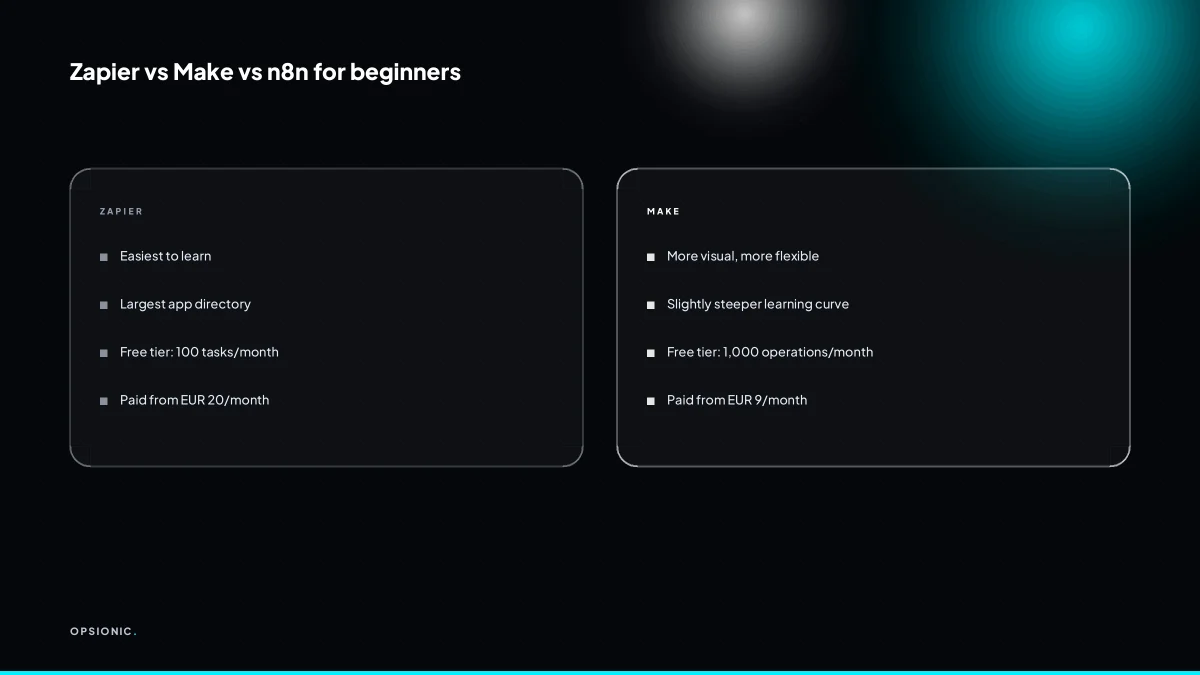
For a beginner, the three platforms differ mainly in how they charge and how much freedom they give you. Zapier is the easiest to learn but the most expensive once you grow. Make is cheaper and more visual, with a drag and drop canvas. n8n is the most flexible and can run on your own server, but it asks more of you up front.
| Tool | Ease for a beginner | Free tier | Best reason to pick it |
|---|---|---|---|
| Zapier | Easiest | Limited free tasks per month | You want the least thinking |
| Make | Moderate | Generous free operations per month | You want visual logic without a high bill |
| n8n | Hardest | Self-hosted, free | You want control and zero per-task cost |
Free tiers are enough for a first workflow. You only pay when your task count grows or you need premium apps. Before buying anything, check whether your apps already talk to each other natively. Many scheduling tools, for example, can push bookings straight to a calendar with no platform in the middle. Native integrations are simpler, cheaper, and one less thing to break.
Pick the simplest tool that covers your one workflow. If you are still choosing between Zapier and n8n, this comparison of n8n and Zapier for small business lays out the trade-offs without the marketing noise.
Can I build an automation without coding?
Yes. No-code platforms let you build automations by choosing triggers and actions from drop-down menus. You connect your apps by logging in, then map fields like name and email. It is like setting a rule in your email, not writing software.
The visual builder works in three parts. First you pick a trigger: the event that starts the flow, such as a new row in a Google Sheet or a form submission. Then you add one or more actions: the things that happen next, like sending an email or creating an invoice. Between them sit fields, where you tell the tool which piece of data goes where. The subject line pulls the customer’s name. The email address pulls from the form. You are not writing logic. You are filling in boxes.
Take a simple example. A kitchen fitter receives 30 enquiry forms a month through a website. Each enquiry currently gets a manual reply confirming receipt and asking for a preferred call time. That reply takes four minutes to write. Four minutes times 30 enquiries is 120 minutes a month, or two hours. The automation sends the same email instantly, pulling the name and project type from the form. The build can often be completed in an afternoon. In the first month the owner gets that hour back, and every month after saves two.
The fear of technical complexity is usually worse than the reality. Most people who can set an email filter or a spreadsheet formula can follow a visual builder. The hard part is not the clicks. It is deciding exactly what should happen and in what order. That is a thinking problem, not a coding problem. You may need help when a flow branches, when two systems name the same field differently, or when a tool refuses to talk to another. But a basic trigger, action, and field mapping is doable in an afternoon. If you want to see how a build is put together step by step, this page on how we build an automation shows the method without jargon.
What is this costing you now?
Based on removing half of that time.
What is a sensible first automation to build in one week?
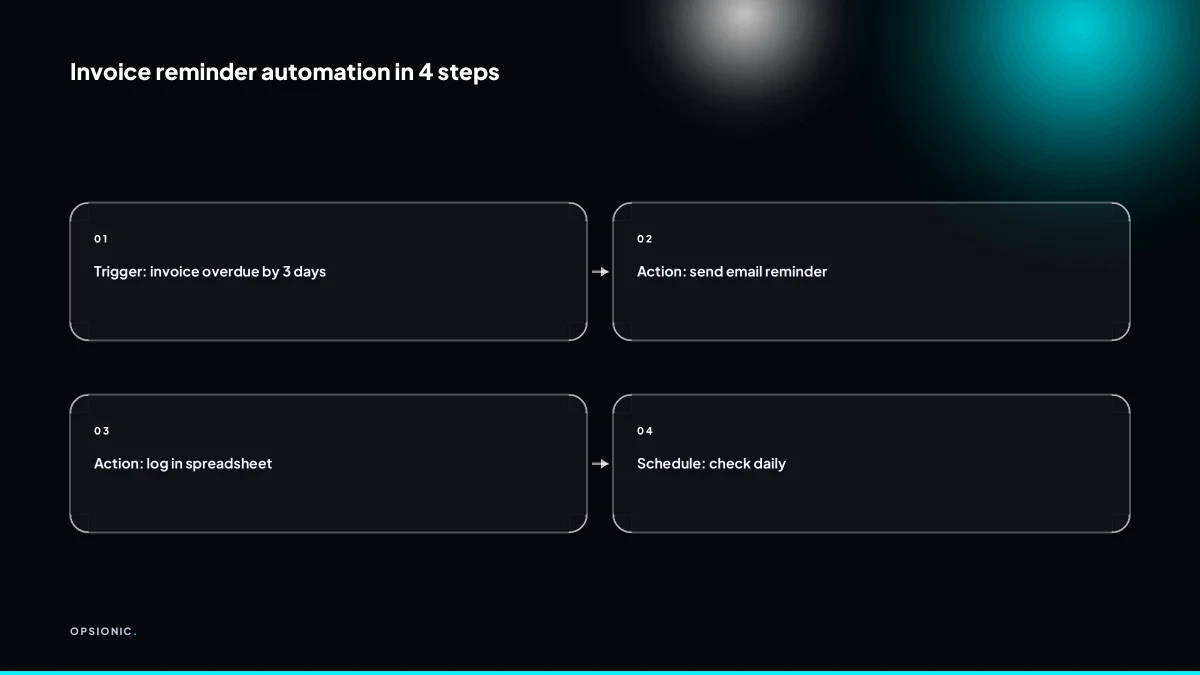
Automate invoice reminders. Connect your invoicing tool to your email, set a trigger for invoices overdue by three days, and send a polite reminder with a payment link. You can often build and test this in an afternoon, then let it run.
- Connect your invoicing tool to your automation platform. In Zapier or Make, add QuickBooks or Xero as the trigger app. Authorise the connection with your normal login.
- Set the trigger to fire on an overdue invoice. Choose “invoice overdue” or build a scheduled check that looks for invoices past their due date by three days. Name the trigger clearly, for example “Invoice three days overdue”.
- Pull the fields you need. Map the customer name, invoice number, amount due, due date and payment link from the invoice record. These become the placeholders in your email.
- Connect your email account as the action. Add Gmail or Outlook and choose “send email”. Use your own address as the sender so replies come back to you, not to a noreply address.
- Write a short, specific subject line. Something like “Invoice 1043 from Northbridge Plumbing is now due” tells the customer exactly what they are opening.
- Keep the body to three sentences. State the invoice number and amount. Say it was due three days ago. Give the payment link and a one-line offer to help if something is wrong. Avoid phrases like “just a gentle nudge” or “we value your business”. A reminder that reads like a human wrote it is more likely to be read. If you want a fuller sequence for chasing late payments, this guide to automated invoice reminders covers the wording in detail.
- Send a test to yourself. Run the automation once with a sample overdue invoice and check the email lands, the placeholders are filled, and the payment link opens. Fix any field that shows as blank or as raw code.
- Turn the automation on. Set it to run each morning. Check it after the first two real reminders go out, then leave it alone.
What are the most common mistakes with a first automation?
The biggest mistakes are automating a broken process, picking a tool before understanding the task, and ignoring edge cases like refunds or duplicate emails. Also, people expect perfection on day one and give up when the first run has an error.
Automating the wrong process
Symptom: you spend a week connecting apps, then realise the manual task had exceptions nobody wrote down. The automation produces output, but a person still has to check every row. Fix: automate a task you can describe in five steps or fewer. If the explanation starts with “it depends”, you are not ready. Before building anything, work through whether the payback is actually there.
Picking the tool first
Symptom: you sign up for a platform because a tutorial used it, then discover it cannot read a PDF attachment or update a custom field. Fix: write the process on paper first. Name the trigger, the data, and the action. Only then compare tools.
No test run
Symptom: the automation goes live and sends an invoice reminder with the customer name missing. Fix: run one real example through the whole flow before turning it on. Check every placeholder. Send it to yourself.
Ignoring edge cases
Symptom: the automation works on normal orders, then duplicates a refund or emails a customer who already paid. Fix: list the three ways this task goes wrong. Add a condition for each before launch. If you cannot handle an edge case, have the automation flag it for a human instead of guessing.
No review after launch
Symptom: the automation runs for a month, silently failing on a field nobody checks. Fix: open the run history after one week. Look at every failed run and every skipped step. Fix the pattern, not just the single error. Then check monthly. A first automation is a draft until it has survived a week of real data.
Want this running in your business next week?
A relaxed 20-minute video chat. Camera on or off. You leave with a plan whether or not you hire us.
- No call unless you ask for one
- From EUR 399 a month, no setup fee
- Built and run for you, not handed over as homework
Sources we checked
Questions people ask
How much does it cost to start automating my business?
You can begin on a free tier of Zapier, Make or n8n, so the first workflow often costs nothing beyond your time. Paid plans start at around EUR 20 a month at the time of writing, depending on the vendor. If you would rather not build it yourself, managed automation from Opsionic starts at EUR 399 per month.
What if I automate the wrong thing?
The cost is small if you start with one frequent, simple task. Turn the automation off, delete it, and pick another. The real risk is automating something rare or complex, because a failure hides in the middle and you notice it weeks later. Start boring and frequent.
Can I automate tasks between two apps that don't have a direct integration?
Yes. A no-code platform such as Zapier, Make or n8n sits between the two apps and passes data across. You connect each app by logging in, then map fields like name, email and invoice number. If one app has no connection at all, a webhook or a scheduled spreadsheet export usually bridges it.
How long does it take to see results from automation?
A simple trigger-and-action workflow can be built and tested in an afternoon, so the first saved minutes arrive the same week. The saving compounds monthly. A kitchen fitter sending 30 manual replies a month at four minutes each gets two hours back every month once the flow runs.
Do I need to hire a developer to set up automations?
No, for most first workflows. No-code builders use drop-down menus and field mapping, so anyone comfortable with an email filter or a spreadsheet formula can follow them. You may want help when a flow branches, when two systems label the same field differently, or when an app refuses to connect.
What is the difference between Zapier and Make?
Zapier is easier to learn and charges more as your task count grows. Make is cheaper, with a generous free operations allowance, and shows the flow on a visual drag-and-drop canvas. Pick Zapier if you want the least thinking, Make if you want visual logic without a high bill.
Can automation work with my existing accounting or CRM software?
Usually yes. QuickBooks, Xero, HubSpot and most common CRM and accounting tools have built-in connections on the main platforms. Check the vendor's own integrations page before you commit, because coverage and pricing change. If there is no native connection, a webhook or scheduled export can bridge the gap.