Send Every WooCommerce Order to a Google Sheet Automatically
To get WooCommerce to Google Sheets automatically, use a connector like Zapier, Make, or n8n to watch for new orders and append rows to a sheet. Or use WooCommerce webhooks with Google Apps Script. The sheet must be append-only with fixed columns, or duplicate retries and refunds will corrupt it.
Which tools can move WooCommerce orders to Google Sheets automatically?
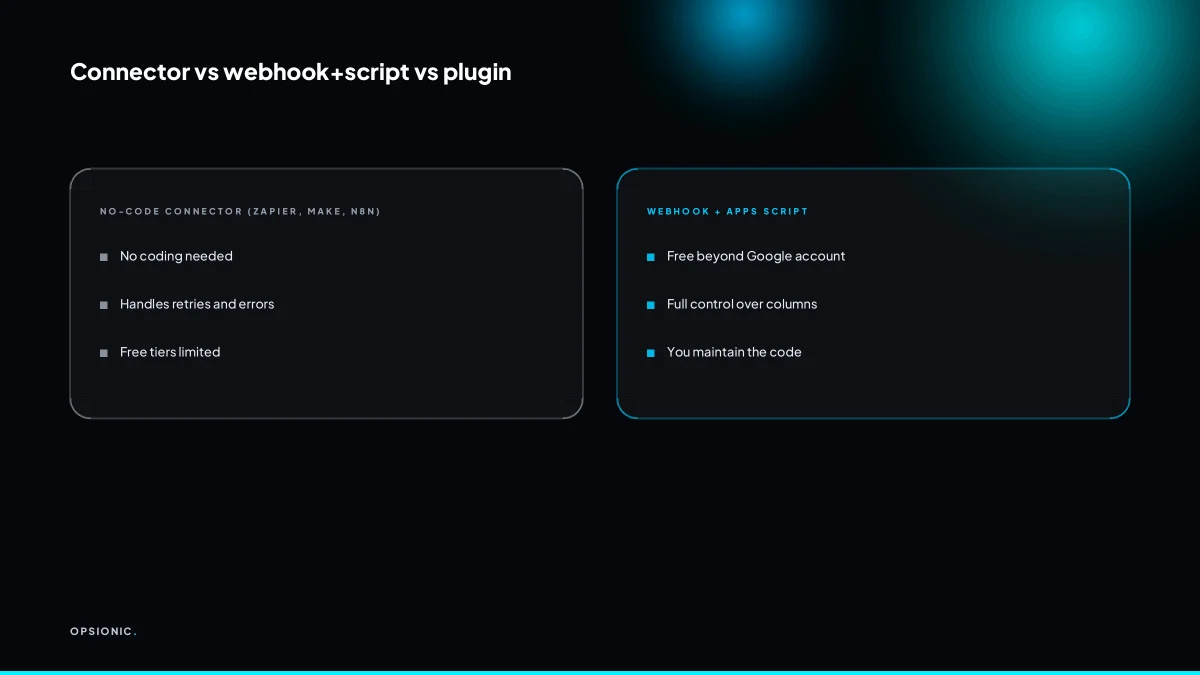
You have three main options: a no-code connector like Zapier, Make, or n8n; WooCommerce webhooks plus Google Apps Script; or a dedicated plugin. Connectors are easiest and most flexible. Webhooks with Apps Script are free but require coding. Plugins are simplest but lock you into their schema and pricing.
For most small shops the connector route wins because it does not ask you to learn a scripting language or accept a plugin’s fixed column layout. You pick the trigger, pick the fields, and the tool handles retries and error logging. The trade-off is a monthly fee that scales with your order volume, and a second system to understand when something stops working.
Webhooks with Apps Script cost nothing beyond your existing Google account and WooCommerce hosting, but every change means editing code. A new custom field, a different tax line, a product variation: each one is a small programming task. That is fine if you enjoy it, less fine at 9pm after a busy week.
Plugins sit between the two. Setup can take minutes, but you inherit whatever columns and update logic the developer chose. If the plugin stops being maintained, your export quietly stops with it.
| Method | Typical cost | Coding needed | Best for |
|---|---|---|---|
| Connector (Zapier, Make, n8n) | Free tier to around EUR 20 per month, rising with volume | None | Shops that want control without code |
| Webhooks + Google Apps Script | Free | Yes, every change | One-person shops comfortable with JavaScript |
| Dedicated plugin | Varies by vendor, often a yearly licence | None | Shops that accept a fixed schema |
If you are weighing connectors against each other, the n8n vs Zapier question for a small business usually comes down to whether you want a hosted tool you never touch or a self-hosted one you control. Both will move an order to a sheet. The difference is what happens when the automation needs a change six months later.
What paid tier does each side need before you start?
Check this before building, or you will hit a paywall halfway through. WooCommerce does not charge for webhooks, but its REST API may require an API key. Google Sheets is free with a Google account, but connectors may count rows or tasks. Zapier’s free plan handles limited tasks; Make has a free tier; n8n is free if self-hosted.
WooCommerce itself costs nothing extra here. Webhooks are part of the core plugin, and the REST API is available on any WordPress install running WooCommerce. You may need to generate an API key, but that is a setting, not a paid upgrade.
Google Sheets needs no special tier. A standard Google account gives you the spreadsheet and the ability to append rows through a connector. The cost that matters is on the connector side, where free plans run out of monthly tasks quickly once every order becomes a row.
| Product | Free tier | What you hit first |
|---|---|---|
| WooCommerce | Webhooks and REST API free | Nothing for this automation |
| Google Sheets | Free with Google account | Nothing for this automation |
| Zapier | Limited monthly tasks | Task limit |
| Make | Free tier with operations cap | Operations reset monthly |
| n8n self-hosted | Free | Your own server or a small hosting fee |
If your shop does more than a couple of orders a day, a free connector plan will not last the month. Before you commit to one, work out what one automation actually costs across DIY, a freelancer or an agency. A EUR 20 monthly connector plan is cheap. Rebuilding the thing three times because you outgrew the free tier is not.
Not sure which of these applies to you?
Answer six questions and see what we would automate first in your business, and what it is worth.
What columns should the Google Sheet have so it stays sortable?
Use a fixed header row and never reorder columns after data exists. Essential columns: Order ID, Order Date, Order Status, Customer Email, Billing Name, Shipping Address, Product SKU, Product Name, Quantity, Line Total, Tax, Shipping, Order Total, Payment Method. Add a separate Timestamp column for when the row was appended, not the order time.
Set each column to a plain data type from the start. Order ID and Product SKU are text, even when they look numeric, so leading zeros survive. Order Date is a date. Quantity, Line Total, Tax, Shipping and Order Total are numbers. Everything else is text.
The Timestamp column records when the automation wrote the row. If you use Order Date for that job you inherit the customer’s timezone, the server’s timezone, or both, and a 23:50 order can land on the wrong business day. A separate appended-at timestamp keeps reporting honest.
Do not add a column later because one order needs it. A column that is empty for 400 rows and filled for 3 makes sorting and filtering lie to you. If a new field matters, build a second sheet and join on Order ID, or accept that the field lives in WooCommerce and not in the sheet.
| Column | Type | Why it matters |
|---|---|---|
| Order ID | Text | Stays unique and sortable, never rounds |
| Order Date | Date | For daily and monthly sales totals |
| Product SKU | Text | Joins to stock or purchasing sheets |
| Quantity | Number | For stock movement and picking lists |
| Order Total | Number | For revenue checks against the bank |
| Timestamp | Date and time | Shows when the row arrived, not when the sale happened |
Why append rows instead of updating existing rows?
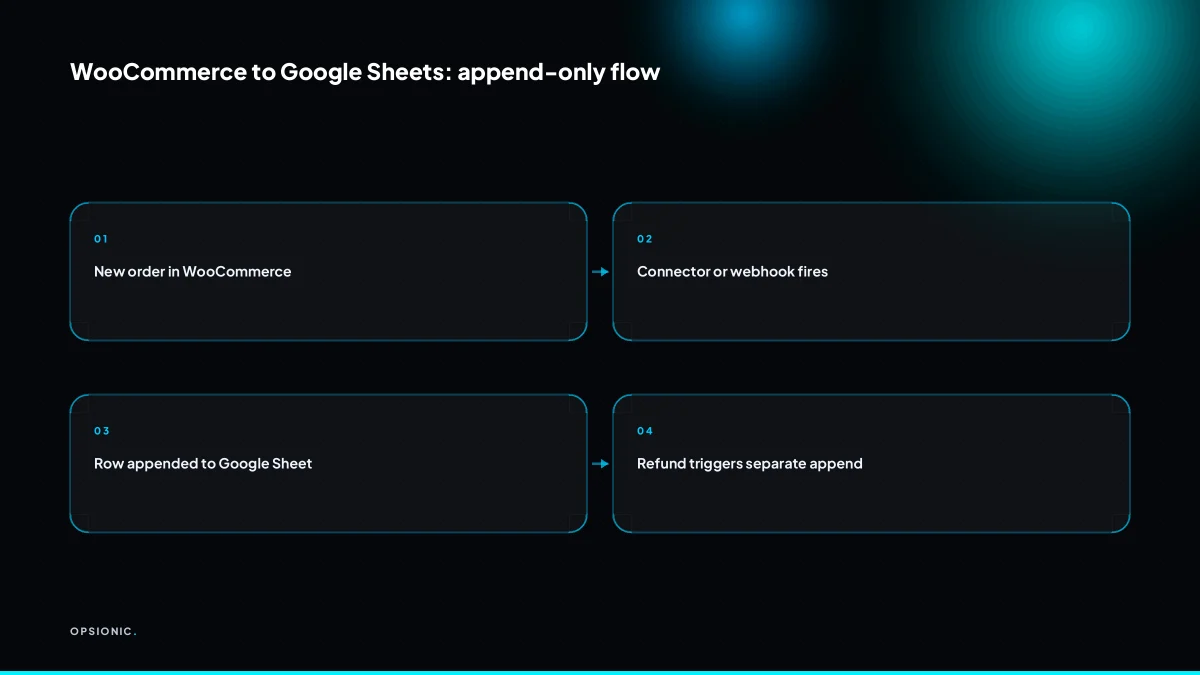
Appending rows creates an immutable log. If a retry duplicates an order, you see two rows and can delete one. If you update a row in place, a retry may overwrite good data or create mismatches. Append-only also preserves history for refunds and status changes, which you record as new rows with a type column.
Most connectors retry when a webhook or API call fails. The sending side cannot always tell whether the first attempt reached Google Sheets. So it sends the order again. With append-only, that retry produces a second row with the same Order ID. You spot it in seconds, delete the duplicate, and nothing else is affected.
Update-in-place fails here because the retry targets the same row. If the first attempt wrote partial data, the retry overwrites it. You never see the bad row, so you cannot know it happened. Worse, two orders can end up merged if the matching key is mistyped.
Order changes follow the same logic. When a customer asks for a refund or changes a line item, do not edit the original row. Append a new row with the same Order ID and a Type column set to refund or change. The original sale stays intact, and the sheet shows the full sequence of what happened.
Update-in-place destroys that history. You overwrite the total, lose the original quantity, and cannot reconstruct what the customer originally bought. For tax queries or stock reconciliation months later, that missing history costs real time.
What is this costing you now?
Based on removing half of that time.
How do you handle partial refunds and credit notes without breaking the sheet?
Do not edit the original order row. Append a new row with the same Order ID, a Type column set to ‘refund’ or ‘credit’, and the negative amounts in the relevant columns. This keeps the original sale intact and lets you sum totals correctly. Most connectors do not do this automatically; you need a filter or custom script.
Add a Type column to your sheet and use three values: ‘order’ for the original sale, ‘refund’ for money returned, and ‘credit’ for a credit note issued against a future purchase. The Order ID stays the same across all three, so you can group rows later with a simple pivot or SUMIF.
Here is a worked example with invented figures. A customer orders two items for EUR 80 and one for EUR 20, a EUR 100 sale. You append a row: Order ID 1042, Type ‘order’, Amount 100. A week later they return the EUR 20 item. You append a second row: Order ID 1042, Type ‘refund’, Amount -20. The SUMIF on Order ID 1042 returns 80, which is the correct net revenue. The original EUR 100 row still shows what was first sold.
The catch is that most WooCommerce connectors only watch for new orders, not refunds. A refund processed in the WordPress admin may never reach the sheet unless you extend the trigger or add a separate workflow. The same logic applies to bookkeeping integrations like syncing Shopify orders to QuickBooks, where an unrecorded refund quietly inflates your revenue.
What breaks in the real world, and how do you check it actually worked?
Common failures: duplicate rows on retries, timezone drift in order timestamps, missing refunds or credit notes, rate limits on the connector, and silent disconnections that stop syncing for weeks. After setup, place a test order, wait for the sync, then check the sheet for correct columns, no duplicates, and correct order totals.
Retries are the usual culprit for duplicates. If the connector times out and runs again, the same order lands twice. Timezone drift is quieter: WooCommerce stores times in one zone, Google Sheets shows another, and your “order time” column is suddenly an hour out. Refunds and partial credit notes rarely appear unless you built a separate trigger for them. Rate limits matter on cheap connector tiers, where a busy day queues orders and drops the overflow. The nastiest failure is the silent one: the connection dies, nothing errors visibly, and you only notice when the sheet stops growing.
Print this checklist and run it after setup, then once a week:
- Place a real test order and confirm a new row appears within five minutes.
- Check the column headers match your agreed layout: order ID, date, customer, items, total, status.
- Verify the order total in the sheet matches the order total in WooCommerce, including tax and shipping.
- Look for two rows with the same order ID. If you see one, the retry logic needs fixing.
- Process a small refund on the test order and confirm the sheet updates or records it, not just the original sale.
- Compare the timestamp in the sheet against the time you actually placed the order. If they differ by a whole hour, fix the timezone setting.
- Count the rows this week against the number of orders WooCommerce reports. A gap of more than one or two means something is dropping.
A weekly row count takes thirty seconds and catches most silent failures before a month of missing data piles up. If you are unsure which failure points apply to your shop, the same logic behind what tasks should a small business automate first helps you decide whether this sync is worth hardening or whether a simpler manual export is enough for now.
Want this running in your business next week?
A relaxed 20-minute video chat. Camera on or off. You leave with a plan whether or not you hire us.
- No call unless you ask for one
- From EUR 399 a month, no setup fee
- Built and run for you, not handed over as homework
Sources we checked
Questions people ask
Can I use WooCommerce webhooks directly to Google Sheets without a third party?
Not directly. WooCommerce webhooks send data to a URL, and Google Sheets has no public endpoint that accepts them. You need a middle layer, either a connector service or a Google Apps Script web app that receives the payload and appends a row. Apps Script is free but every field change means editing code.
Does Zapier's free plan include enough tasks for WooCommerce orders?
Usually not for long. Free plans cap monthly tasks, and every order plus any refund or status update consumes one. A shop doing a few orders a day will exhaust it within weeks. Check the current task allowance on Zapier's own pricing page before you build.
How do I stop duplicate rows when the connector retries?
Append rows rather than updating them, and keep Order ID as a text column. A retry then produces a second row with the same Order ID, which you can spot and delete. You can also add a lookup step that skips the write if the Order ID already exists.
Can I update the Google Sheet when an order status changes?
Yes, but treat it as a second workflow. Watch for status change events in WooCommerce and append a new row with the same Order ID and a Type column set to the new status. Do not overwrite the original row, or you lose the record of what the order was.
Is there a WooCommerce plugin that exports orders to Google Sheets automatically?
Several plugins advertise this. Setup is quick, but you inherit the developer's fixed column layout and update logic, and you depend on them maintaining it. Check the plugin's recent update history and whether it handles refunds before committing.
How do I handle multiple line items per order in one row?
You cannot fit them cleanly. Either write one row per line item, repeating the Order ID, or write one row per order with the line items concatenated into a single text column. One row per line item keeps the sheet sortable and sums correctly.
What happens if my Google Sheet hits the 10 million cell limit?
Writes start failing and the connector logs errors. At roughly fifteen columns, that is around 650,000 rows, which many shops reach in a few years. Archive older rows to a second sheet or a new spreadsheet on a schedule, and keep the live sheet lean.