Automate Email Inbox Sorting: Classify, Route, Draft
To automate email inbox sorting, set up rules that file incoming mail into Action, Waiting and Reference folders, then use an AI step to draft replies for a human to approve and send. This keeps customer-facing messages under your control while cutting the manual filing you do every day.
What is the three-folder system for email triage?
The three-folder system sorts every incoming email into Action, Waiting or Reference. Action holds messages needing a reply or task. Waiting holds messages where someone else must act first. Reference holds information you may need later but requires no response.
Each folder has a clear test. Action means only you can move this forward: a quote request, an invoice approval, a question from a customer. Waiting means you have already sent something and the ball is in their court: a proposal out for signature, a supplier confirming stock, a colleague checking a date. Reference means read it, file it, forget it: a bank statement, a policy update, a receipt you might need at tax time.
Three folders work because they match the three real outcomes of any email: you act, they act, or nobody acts. More folders create sorting decisions that eat the time you meant to save. Zero folders leaves everything in one pile, so urgent messages hide behind newsletters. An enquiry from a potential client goes to Action. Your reply to them goes to Waiting until they respond. Their signed contract goes to Reference once the job is booked.
In Gmail, create labels called Action, Waiting and Reference, then set up filters to apply them automatically based on sender or subject. In Outlook, create folders with the same names and use rules to move messages. The goal is not perfect filing. It is knowing that anything outside these three folders has not been triaged yet. For a wider look at what else can be handed to software, see what we automate for small businesses.
How do I set up automatic sorting rules in Gmail or Outlook?
In Gmail, create filters from the search bar and apply labels to matching messages. In Outlook, use Rules from the Settings menu to move emails to folders. Both let you match by sender, subject, keywords or recipient, then automatically file incoming mail. Start with a few simple rules and test before adding more.
- Open Gmail and click the filter icon inside the search bar at the top.
- Type the sender address, domain, subject keyword or recipient you want to match, then click “Create filter”.
- Tick “Apply the label” and choose an existing label, or create one such as “Action”, “Waiting” or “Reference”.
- Optionally tick “Skip the Inbox” so matched mail files itself without interrupting you.
- Click “Create filter” to save it. Gmail will only run the filter on new mail unless you also tick “Also apply filter to matching conversations”.
- In Outlook, open Settings, go to Mail, then Rules, and click “Add new rule”.
- Name the rule, pick a condition like “From” or “Subject includes”, then set the action to “Move to” a folder you have created.
- Leave “Stop processing more rules” off until you have more than one rule that could match the same message.
- Test on a small batch first. In Gmail, apply the filter to a few existing messages and check the label. In Outlook, run the rule manually on one folder before letting it run automatically.
Common criteria are sender address, whole domain, a word in the subject line, or the address the mail was sent to. Start with sender and domain before adding keyword rules, because keywords catch mail you did not mean to file. Once a rule runs quietly for a week, it earns its place. The same pattern works for forms and other incoming data, which is why we wrote about connecting a website form to Google Sheets and email as a starting point.
Not sure which of these applies to you?
Answer six questions and see what we would automate first in your business, and what it is worth.
Can AI classify emails without misfiling or hallucinating?
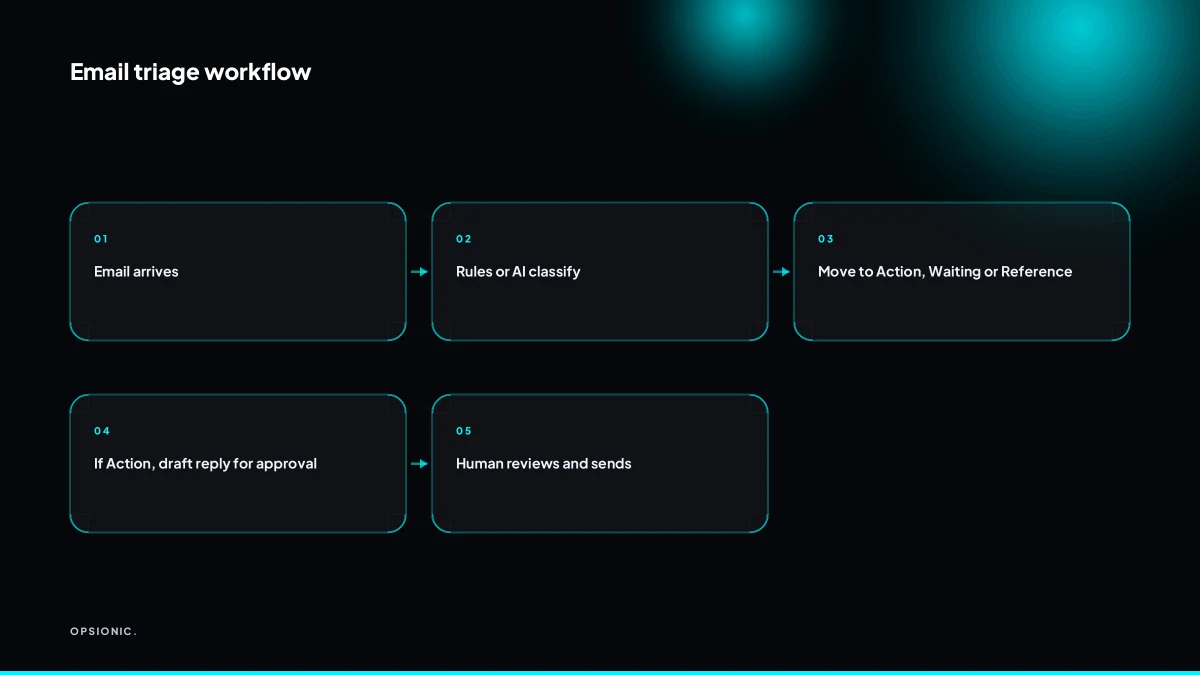
AI can classify emails accurately if you give it clear instructions and examples. Use a tool like n8n or Zapier to send email text to an AI model with a prompt that says: return only the folder name from Action, Waiting or Reference. Always include a fallback rule for uncertain cases, such as routing to Action for human review.
In n8n, you add an email trigger node, then an AI model node that receives the subject and body. Zapier and Make follow the same shape: a trigger, a step that calls the AI, and a step that moves or labels the message. The model does not see your whole inbox. It sees one email at a time, which keeps the prompt simple and the output predictable.
Prompt design matters more than the model you pick. Give the AI three folders and say what belongs in each. For example: Action means a reply or task is needed within two working days. Waiting means someone else owes you something. Reference means no action now, but keep it. Then add two short examples per folder, using real sentences from your own mail. This is the difference between a classifier that files ninety emails correctly and one that guesses.
Uncertainty is normal. If the AI cannot decide, or if the email covers two folders at once, route it to Action for a human look. A Review folder works too, but Action is better because it forces a decision the same day. Never let the AI silently file something it is unsure about.
Before you send customer email to any AI model, check where the model runs and what the provider does with the text. For EU businesses, sending personal data to a US-based model without the right safeguards can be a problem. The rules are not impossible to meet, but they are easy to ignore. We covered the practical side in our piece on whether AI is safe for customer data under GDPR for small businesses.
How do I auto-draft replies without auto-sending them?
Set up an automation that takes an email from the Action folder, sends its content to an AI model with your instructions, and saves the generated draft as a new email in your Drafts folder or a Google Doc. You review, edit if needed, and send manually. This keeps a human in control of every customer-facing reply.
- Move the email into a folder called Action, either by hand or with a filter rule.
- Trigger the automation on any new email arriving in that Action folder.
- Extract the sender name, subject line and body text from the email.
- Send that text to an AI model along with a short instruction block about tone, length and what to include.
- Create a new draft email in Gmail, addressed to the original sender, with the AI output in the body.
- Leave the draft unread in your Drafts folder for you to open, check and press send.
n8n, Zapier and Make all support this pattern, and the Gmail API lets you create drafts without sending them. A useful prompt is: “Write a polite reply in plain English. Confirm you received the message, answer the question if the information is present, and ask for anything missing. Keep it under 120 words.”
Full auto-send is dangerous because the model can misread a deadline, invent a policy or offer a refund you would never approve. The safer approach is exactly what we describe in AI-drafted replies with a human send, where the machine writes and a person decides.
What is this costing you now?
Based on removing half of that time.
What does a worked example of email sorting save in time?
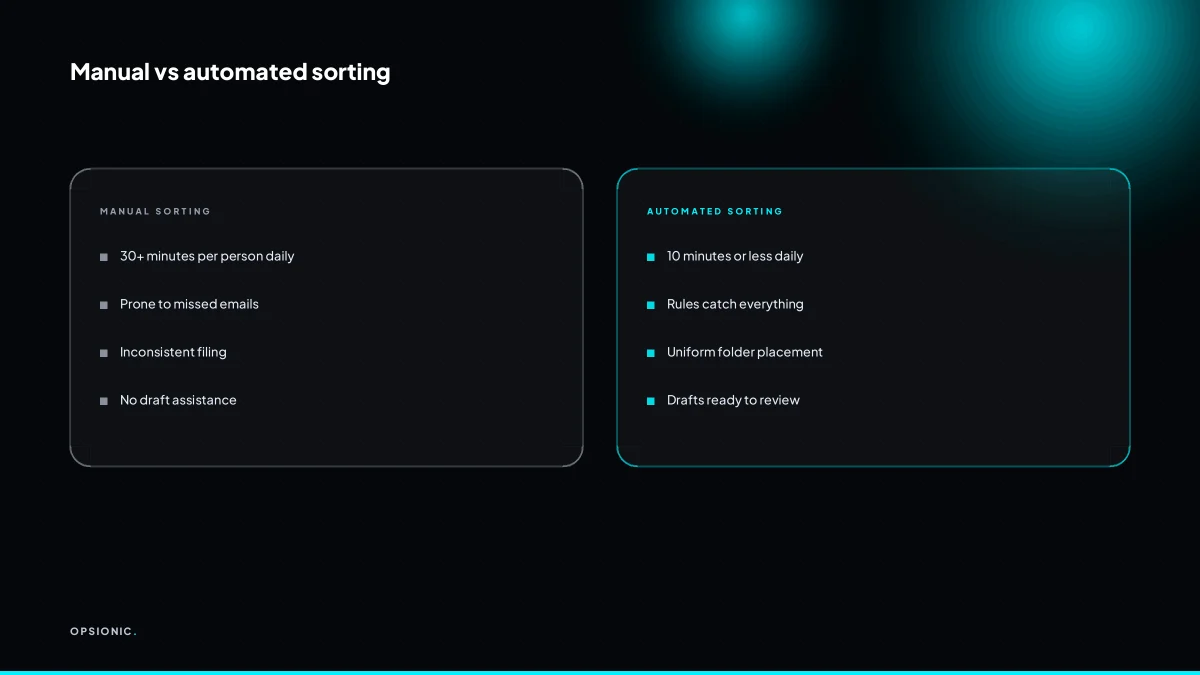
A five-person firm receiving 150 emails a day, with each person spending 30 minutes manually sorting, can cut that to 10 minutes using rules and AI drafts. That saves about 100 minutes per day across the team, or roughly 8 hours per week. The example assumes a 50% reduction in manual handling time.
Here is the arithmetic, using invented but realistic figures. Start with 150 emails arriving each day. Five people each spend 30 minutes sorting their share, so the firm spends 150 minutes a day just filing messages into folders, forwarding them to the right colleague and deciding what needs a reply. That is 12.5 hours a week on triage alone.
Now add two layers. First, rules sort the obvious mail: invoices go to Accounts, order confirmations go to Fulfilment, newsletters skip the inbox entirely. Second, AI drafts a suggested reply for anything that looks like a routine question. The person still reads the draft and clicks send, but they no longer write from a blank screen. Manual handling drops from 30 minutes per person to 10 minutes per person. That is 50 minutes a day across the team, or 4.2 hours a week.
Subtract one figure from the other and you get 100 minutes saved per day, roughly 8 hours a week. The saving depends on volume and on how well your rules match the mail you actually receive. A firm with 40 emails a day saves less. A firm with 400 saves more, provided the rules stay current. For a fuller sense of what that time is worth, see how many hours automation can save your small business.
What goes wrong when you automate email sorting?
Common failures include over-filtering, where important emails land in Reference or Spam; AI misclassification causing missed client messages; and privacy issues when sending sensitive data to an AI model without consent. Also, auto-replying to customers can damage trust if the response is wrong. Test rules thoroughly and keep a human review step.
Over-filtering is the first mistake. You write a rule that sends anything with the word “invoice” to Accounts. Then a client writes, “I never received the invoice for the work you did last month,” and your rule buries it. The symptom is a client chasing you twice. The fix is a quarantine step: anything matched by a broad rule sits in a “Review” folder for a human to glance at before it disappears.
AI errors are worse because they look confident. The model puts a supplier’s quote in the wrong client folder, or drafts a reply that invents a discount you never offered. You only notice when the customer replies, confused. The fix is to treat every AI label and draft as a suggestion, never a decision. If a draft contains a number, a date or a promise, a person checks it against the original email before sending.
Privacy failures happen when you connect your inbox to an AI model without thinking about what you are sending. A customer’s name, address or medical detail goes to a third-party model, and under GDPR you may need a lawful basis and transparency. The symptom is an uncomfortable silence when someone asks where the data went. The fix is to strip or mask personal data before it leaves your systems, or use a model you host yourself.
Auto-reply disasters are the most public failure. A bot answers a complaint with “Thanks for your order,” or tells a bereaved client “Great news.” The customer screenshots it. The fix is simple: never auto-send anything customer-facing. Draft the reply, let a human press send. These are not rare edge cases; they are the normal result of rules that run without a human in the loop. Many of them are avoidable, which is why why automation projects fail in small businesses is worth reading before you build anything.
Want this running in your business next week?
A relaxed 20-minute video chat. Camera on or off. You leave with a plan whether or not you hire us.
- No call unless you ask for one
- From EUR 399 a month, no setup fee
- Built and run for you, not handed over as homework
Sources we checked
Questions people ask
Is it safe to let AI read my business emails?
It can be safe if you choose a provider that meets your data protection obligations. Check where the model runs, what the provider does with the text, and whether you have a lawful basis for sending personal data. For EU businesses, sending customer data to a US-based model without safeguards can be a problem.
Can I automate email sorting without using AI?
Yes. Gmail filters and Outlook rules can sort mail by sender, subject, or keywords without any AI. Start with simple rules for obvious categories like invoices or newsletters, then add more as you see what works. AI is optional and mainly helps with ambiguous messages.
How much does email automation cost for a small business?
Costs vary by approach. Native Gmail and Outlook rules are free. Automation platforms like Zapier or Make start at around EUR 20 a month at the time of writing, and AI model usage adds a small per-message cost. Opsionic offers managed automation from EUR 399 per month for a single workflow.
Will Gmail filters work on emails already in my inbox?
By default, Gmail filters only apply to new mail. When creating a filter, you can tick the box to also apply it to matching conversations already in your inbox. Do this carefully, as it will retroactively label or move existing messages.
What if the AI puts a client email in the wrong folder?
Build a fallback rule. If the AI is uncertain or the email covers multiple categories, route it to Action for human review. Never let the AI silently file something it is unsure about. Review the first few weeks of sorting and adjust the prompt or rules as needed.
Can I use this with Microsoft 365 instead of Gmail?
Yes. Outlook rules can move messages to folders based on sender, subject, or keywords. For AI classification, use an automation platform that connects to Microsoft 365, such as Power Automate, Zapier, or Make, and follow the same pattern of trigger, classify, then route.
How do I handle emails that need a human decision every time?
Create a dedicated folder, such as Action, for messages that require your judgment. Use rules to route likely candidates there, but always review them yourself. Automation can draft a suggested reply, but you should read, edit, and send it manually.