WhatsApp Order Confirmations: What Is Actually Allowed
You can automate ecommerce order confirmation WhatsApp messages, but only within WhatsApp's strict rules. Order confirmations must be sent as pre-approved template messages, and outside the 24-hour customer service window you cannot freely message buyers. The real work is template approval, webhook setup, and testing. This guide shows the compliant pattern and the paywalls you will hit.
Is it actually allowed to send automatic order confirmations on WhatsApp?
Yes, but only as transactional messages. WhatsApp requires a pre-approved template message for order confirmations, and you may only send it within the 24-hour customer service window that opens after the customer’s last message or a qualifying action like a purchase. Sending unsolicited marketing on WhatsApp gets numbers banned.
WhatsApp draws a hard line between transactional and marketing messages. A transactional message completes a specific action the customer already took: an order confirmation, a shipping update, an invoice receipt. A marketing message tries to start a new conversation: a discount offer, a product announcement, a “we miss you” nudge. Only the first type is allowed as an automated message without prior opt-in. The second requires explicit consent, and even then the rules are stricter than email.
Template messages are the mechanism. You cannot type a free-form message through the API. You submit the exact wording to WhatsApp for approval, and once approved, you can send it repeatedly with different variables filled in. The 24-hour window matters because most templates are only valid inside it. The clock starts when the customer messages you or when a qualifying event happens, such as a completed purchase. After 24 hours, you generally cannot send that template unless you pay for a different message category or the customer writes again.
The consequences for ignoring this are not a warning. WhatsApp bans numbers that send unsolicited content. A banned number means no order updates, no customer service chat, no recovery. Some businesses lose the number permanently.
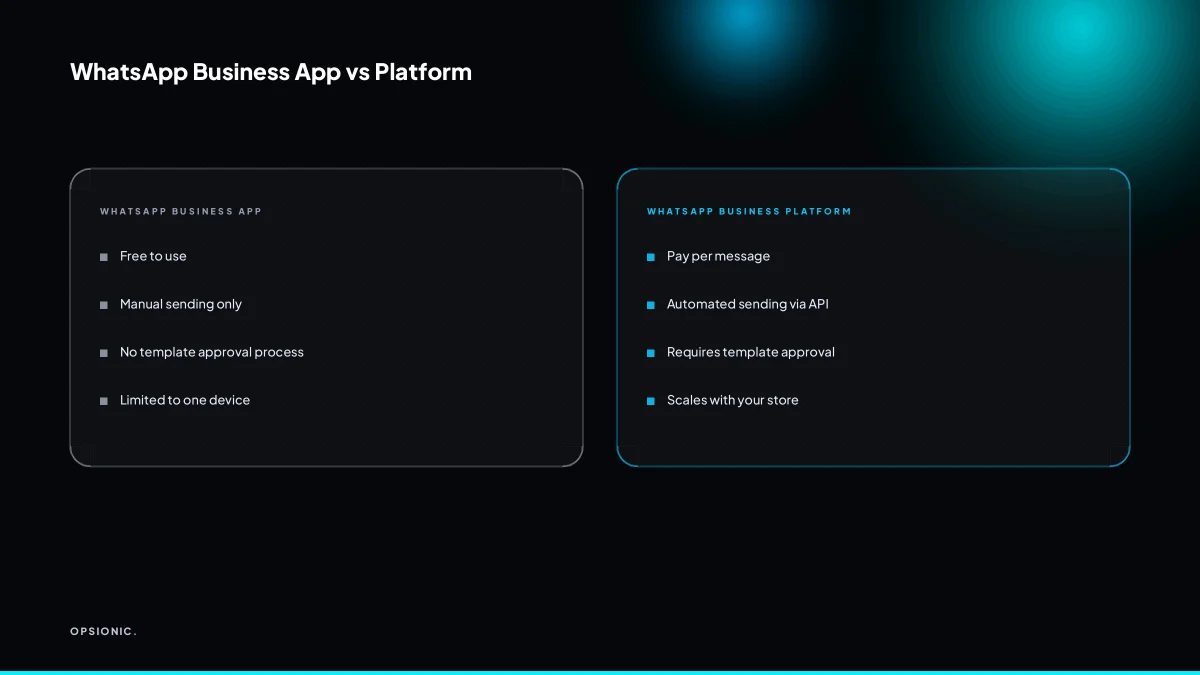
The free WhatsApp Business App is not enough here because it has no real API access for automation. You can set quick replies and a greeting, but you cannot trigger a message from your ecommerce platform when an order comes in. For that you need the WhatsApp Business Platform, usually through a provider like Twilio or Meta’s own cloud API. The setup described in our guide on connecting Google Forms to WhatsApp shows the same template and window rules in a different context.
What do I need before I can send automated order updates?
You need a WhatsApp Business Platform account, which you get through a provider like Twilio or Meta’s Cloud API. You also need a phone number dedicated to WhatsApp, a verified business, and an approved template message. Each side has its own pricing, but you can expect to pay per message.
The free WhatsApp Business App is meant for a person tapping replies on a phone. It has no reliable public API for triggering messages from your ecommerce platform, and bulk or scripted sending from it gets numbers flagged quickly. The WhatsApp Business Platform is the developer-facing product. It lets your order system send a template message through an API call, which is the only sanctioned way to automate order updates at volume.
You get Platform access either directly through Meta’s Cloud API or through a Business Solution Provider like Twilio, 360dialog or MessageBird. A BSP handles hosting, number registration and billing, which is usually the faster route for a small team. Meta’s direct Cloud API has no per-message markup from a middleman, but you do the setup and compliance work yourself.
You also need a phone number that is not already on WhatsApp, or one you can migrate. Meta verifies your business name, website and sometimes legal documents. Template messages for order updates must be submitted and approved before you can send them.
| Option | Best for | Setup effort | Rough cost per message |
|---|---|---|---|
| WhatsApp Business App | Manual replies, very low volume | Low | Free, but no automation API |
| Meta Cloud API direct | Teams with developer time | High | Varies by country, often under EUR 0.05 |
| BSP like Twilio | Small business, faster start | Medium | Varies by country and volume, plus platform fee |
Per-message pricing changes by destination country and provider. Treat any exact figure as a starting point and check the vendor’s current pricing page. The bigger decision is whether you want to manage the integration yourself or pay a provider to absorb the setup and maintenance. That choice affects the total cost more than the per-message fee, which is why understanding automation agency pricing models helps before you commit.
Not sure which of these applies to you?
Answer six questions and see what we would automate first in your business, and what it is worth.
How do I connect Shopify or WooCommerce to WhatsApp step by step?
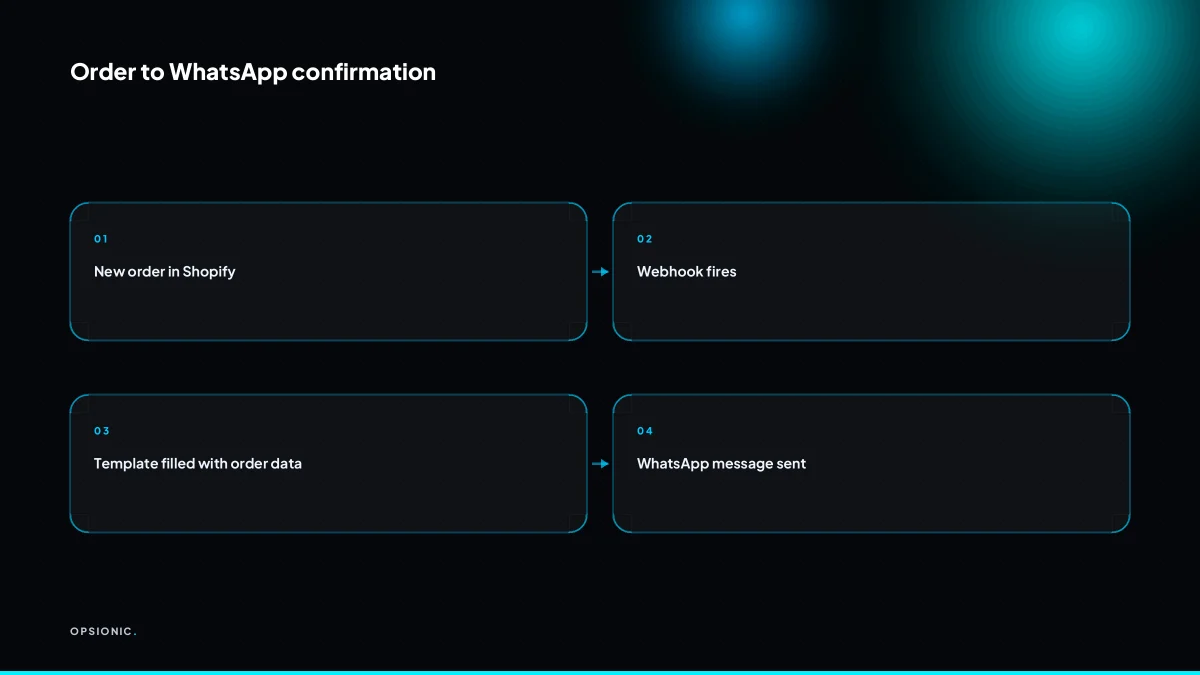
You connect your ecommerce platform to WhatsApp using a webhook and a messaging provider. The sequence is: get a WhatsApp Business Platform account, create and submit an order confirmation template for approval, set up a webhook in Shopify or WooCommerce to trigger on new orders, and map the order data to your template’s placeholders. Then test with a real order.
- Create a WhatsApp Business Platform account. Sign up through Meta’s business portal, verify your business, and add a phone number that can receive a verification code. This number becomes the sender for your order updates.
- Create an order confirmation template. In the messaging provider’s template section, write a message with placeholders like {{1}} for the customer’s name and {{2}} for the order number. Submit it for Meta’s approval. Transactional templates are approved quickly, but marketing language gets rejected, so keep it factual.
- Connect a messaging provider. Pick a provider that supports WhatsApp Business API, such as Twilio, MessageBird, or 360dialog. The provider gives you an API key and a webhook URL. Most providers charge per message, and the WhatsApp Business Platform itself is free to set up.
- Create a webhook in Shopify or WooCommerce. In Shopify, go to Settings, then Notifications, and add a webhook for the “Order created” event. In WooCommerce, use a plugin like WP Webhooks or a service like Zapier or Make to trigger on the “New order” action. Point the webhook at your messaging provider’s API endpoint.
- Map order data to template placeholders. In your automation tool, take the order payload from Shopify or WooCommerce and map fields like customer first name, order number, and order total to the template’s placeholders. A typical payload includes nested objects, so you may need to extract fields like billing.first_name or line_items[0].name.
- Send a test message. Place a real order on your store, ideally using a test payment method, and confirm the WhatsApp message arrives with the correct values. If it fails, check the webhook logs in your automation tool and the delivery status in your messaging provider’s dashboard.
If you are already routing other form submissions into a spreadsheet or CRM, the same mapping logic applies here. The article on connecting a website form to Google Sheets and email shows the pattern for extracting fields from a payload, which you will reuse for the WhatsApp template placeholders.
What actually breaks when you automate this?
Common failures include template rejection, duplicate messages when a webhook retries, and silent disconnections that stop messages for weeks. Refunds and partial updates often send the original confirmation again, confusing customers. Timezone drift can push messages outside the 24-hour window. Monitor your message logs and test after every platform update.
Template rejection. The symptom is an error in your automation log and no message delivered. Meta rejects templates that contain promotional wording, spelling mistakes, or variables that do not match the sample you submitted. The fix is to edit the template in the WhatsApp Manager, remove anything that reads like marketing, and resubmit. Keep templates to order status, tracking, and payment facts. If a template is rejected twice, read the rejection reason line by line rather than guessing.
Duplicate messages. A webhook that times out gets retried by the ecommerce platform. If your automation does not record the message ID before responding, the same order confirmation goes out twice. The symptom is a customer replying “stop spamming me” or two identical bubbles in the chat. The fix is idempotency: store the order ID and check for a previous send before calling the WhatsApp API. Most automation tools let you add a “lookup record” step before the send action.
Silent disconnections. The connection between your ecommerce platform and WhatsApp expires, or a token rotates, or a webhook URL changes. Nothing errors visibly because the trigger simply stops firing. You notice three weeks later when a customer asks where their confirmation is. The fix is a daily heartbeat check: a scheduled task that pings the connection and alerts you if it fails. If you run automations without a monitoring routine, this failure is not a possibility but a schedule. The pattern behind why automation projects fail in small businesses often starts with exactly this quiet break.
Refunds and order changes. A partial refund triggers the same “order confirmed” template because the platform sends a generic order update event. The customer receives a confirmation for an order they just cancelled part of. The fix is to filter events by type and amount before sending. For refunds, send a separate “refund processed” template, or no message at all for small partial adjustments. Test this with a real refund, not a simulated one.
What is this costing you now?
Based on removing half of that time.
How much does this cost, and when is it cheaper to do it by hand?
Costs include a per-message fee from your provider, often around EUR 0.05 per message but it varies, plus any middleware like Zapier or Make. If you send fewer than 100 order confirmations a month, doing it by hand is usually cheaper and less risky. Automation pays off when volume grows or when you need to send updates at odd hours.
The per-message fee is the obvious cost. WhatsApp Business Platform charges per conversation, not per message, but for a simple order confirmation you are normally looking at one template message per order, billed at the provider’s published rate. Check your provider’s pricing page before you build anything. Middleware adds a second layer: Zapier and Make both charge based on the number of tasks or operations your workflow runs, so one order confirmation can consume two or three tasks if you also read the order, look up the phone number, and write a log entry.
Worked example: a small shop sends 80 order confirmations a month. At EUR 0.05 per message, that is EUR 4.00 in WhatsApp fees. A middleware plan that covers 80 orders with three tasks each is 240 tasks, which sits inside a low-tier plan at around EUR 20 a month at the time of writing. Total: roughly EUR 24 a month. If each manual confirmation takes one minute to copy the order number, open WhatsApp, and send the message, 80 orders is about 80 minutes. Paying yourself EUR 25 an hour makes manual sending cost about EUR 33 of your time. The two figures are close, and the automated version still needs setup, testing, and occasional repair. At 80 orders, the honest answer is that neither option clearly wins.
Below that volume, manual sending is genuinely cheaper. The subscription fees do not shrink with your order count, and a quiet month still costs the same. Hidden costs push the break-even point higher: template approval can take days, every template change needs re-approval, and someone has to check that messages still send after WhatsApp updates its rules. If you would rather spend that energy on the work itself, how many hours can automation save your small business is the question to ask before you commit to a monthly fee.
How do I check that the automation actually worked?
After you set everything up, place a test order and check that the WhatsApp message arrives with the correct details. Then check your provider’s message logs for delivery status. Set up a weekly check or an alert that notifies you if no messages are sent for a day. Also test after any change to your ecommerce platform or webhook.
A test order in a staging environment is not enough. Use a real order with a real phone number, even if it is your own. Pay for it, refund it, or cancel it exactly as a customer would. Watch the message arrive on an actual phone, not just in a preview pane. Check the order number, the item name, the total, and the tracking link if you include one. A message that sends but shows the wrong total is worse than no message at all.
Delivery logs live in your WhatsApp Business provider’s dashboard, not in your ecommerce platform. Look for the message status: sent, delivered, read, failed. A message can leave your automation and still never reach the phone. If the status stays at sent and never moves to delivered, the number may be wrong, the customer may have blocked you, or the template may have been rejected after you last checked.
Silent failures are the real risk. The connection drops, a webhook changes, a template expires, and nothing sends for a week. You only find out when a customer asks where their confirmation is. Build a simple check: if no order confirmation messages were sent in the last 24 hours, something is wrong. Most automation tools can send you an email or a Slack message when that happens.
Re-test on a schedule. Ecommerce platforms update their webhooks. WhatsApp updates its template rules. A change on either side can break the connection without telling you. Run the checklist below once a month and after any update to your store, your automation tool, or your WhatsApp provider.
- Place a real order and confirm the message arrives on a real phone within a few minutes.
- Check the message content: order number, item, total, and any link are all correct.
- Open your WhatsApp provider’s logs and confirm the status is delivered, not just sent.
- Check that no messages failed in the last 24 hours.
- Confirm your alert for zero messages per day is still active and sending to the right person.
- After any store or webhook update, repeat the test order before you trust the automation again.
Want this running in your business next week?
A relaxed 20-minute video chat. Camera on or off. You leave with a plan whether or not you hire us.
- No call unless you ask for one
- From EUR 399 a month, no setup fee
- Built and run for you, not handed over as homework
Sources we checked
Questions people ask
Can I use the free WhatsApp Business App to send automatic order confirmations?
No, the free WhatsApp Business App does not provide an API for automation. You need the WhatsApp Business Platform, accessed through Meta's Cloud API or a provider like Twilio, to send automated messages triggered by your ecommerce system.
What is a WhatsApp template message and how do I get one approved?
A template message is a pre-approved message format with placeholders for variables. You submit it to WhatsApp for approval through your provider or Meta's Business Manager, ensuring it contains transactional content like order details, not marketing language.
What happens if I send a message outside the 24-hour window?
Outside the 24-hour window, you generally cannot send a template message unless you pay for a different message category or the customer messages you again. Attempting to send may result in delivery failure or number restrictions.
Do I need a separate phone number for WhatsApp Business API?
Yes, you need a phone number dedicated to WhatsApp that is not already used with a personal WhatsApp account. You can migrate an existing number or use a new one, and it must be able to receive verification codes.
Can I send order updates for refunds or partial shipments?
Yes, but you must use approved templates for each type of update. Refund and partial shipment notifications are transactional and allowed, but ensure your template wording is factual and does not include promotional content.
How long does template approval take?
Template approval typically takes from a few minutes to 24 hours. Transactional templates are often approved quickly, but times can vary. You can check the status in your provider's dashboard or Meta Business Manager.
Is there a way to automate WhatsApp messages without coding?
Yes, you can use automation platforms like Zapier or Make that offer pre-built integrations with WhatsApp Business API providers. These allow you to connect your ecommerce platform and send template messages without writing code.