Automate Expense Receipts: Photo to Filed, With a Human Check
To automate expense receipts, you photograph or forward each receipt, software extracts the date, vendor, amount and tax, a person approves the result, and the expense lands in your accounts with the image attached. You stop retyping data, your accountant gets a clean ledger, and month-end takes minutes instead of hours.
What actually happens when you automate expense receipts?
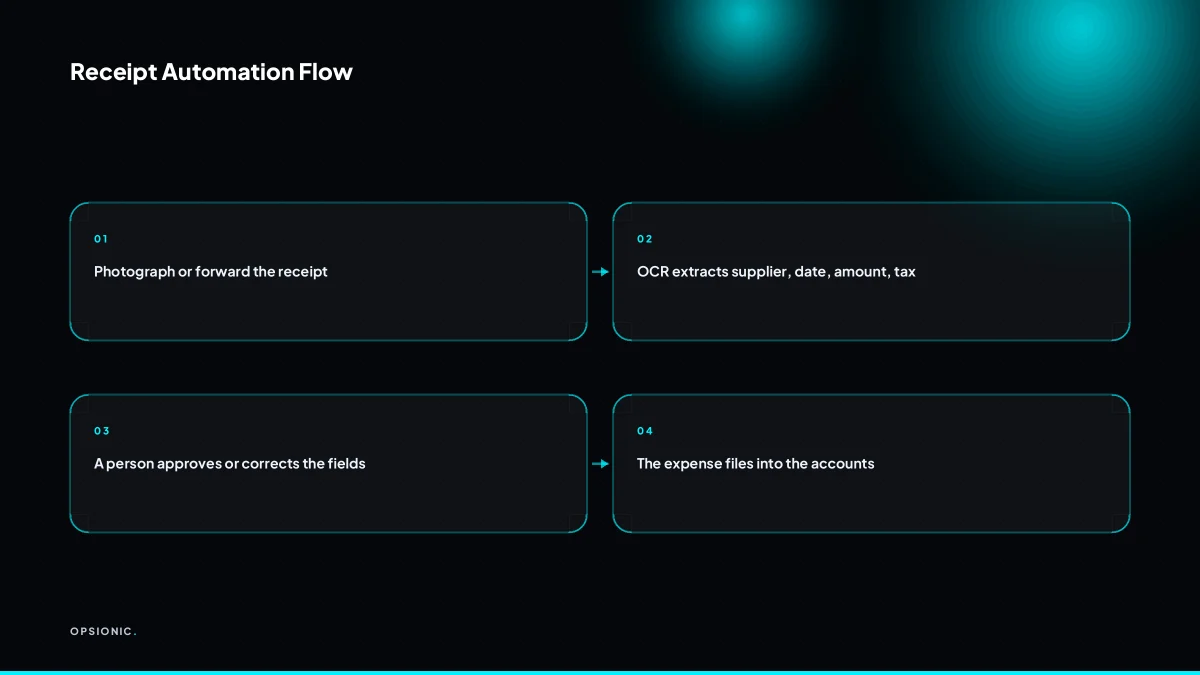
A receipt enters the system by phone photo, email forward, or drag-and-drop. OCR software reads the image and pulls out the supplier, date, total, and tax. A person checks the extracted fields against the image, approves or corrects them, and the expense is filed into your accounting software with the receipt attached. No retyping, no lost paper.
The same four steps run every time, whether the receipt is a crisp PDF from a supplier or a creased photo from a glovebox.
- Capture the receipt. Photograph it on your phone, forward an email receipt to a dedicated inbox address, or drop a scan into a shared drive folder. The automation watches all three entry points and picks up the file the moment it lands.
- Extract the fields. OCR software reads the image and pulls out the supplier name, invoice date, total amount, and tax split. It does not guess at currency or category; it works from what is printed.
- Approve the extraction. A human sees the original image side by side with the extracted fields. You confirm the total matches, correct the tax code if the OCR misread it, and add the expense category. This step is where mistakes die, not in the filing.
- File the expense. The approved record is pushed into your accounting software with the receipt attached as a source document. The entry appears in the right ledger account without you opening the bookkeeping tool.
The approval step is the part worth keeping human. OCR misreads handwritten totals and confuses VAT with service charges often enough that a blind file would create cleanup work later. How we build an automation matters here because the approval screen should show the image and the fields in one view, not make you switch between two tabs to check a number.
Which tools extract data from a receipt photo or PDF?
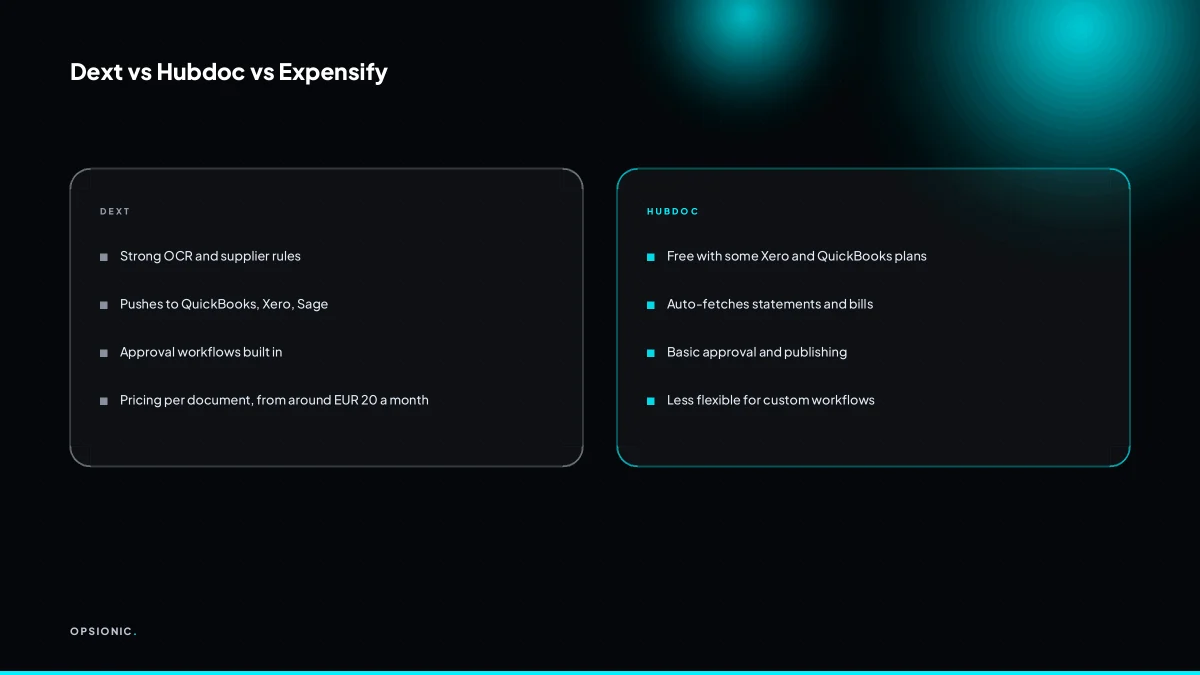
Dext, Hubdoc, and Expensify are dedicated receipt tools that many small businesses use. They connect directly to QuickBooks Online or Xero and push the extracted data into the purchase ledger. Generic OCR tools read the text but do not know where to put it, so the accounting integration is the part that saves the retyping.
Raw OCR is not the hard part. Any phone camera app can read a total off a till slip. The hard part is turning that text into a supplier, a net amount, a VAT amount, and a category in your ledger without you touching a keyboard. That is why the accounting integration matters more than the OCR engine. A tool that reads a receipt perfectly but leaves you copying four fields into Xero has saved you nothing.
Each tool has a different centre of gravity. Dext tends to be built for high volume and for bookkeepers who process receipts on behalf of several businesses. Hubdoc is often simpler and suits a solo owner who wants fetch-and-file with less setup. Expensify leans towards employee expense claims, approvals, and reimbursement rather than pure bookkeeping.
| Tool | Does well | Watch for |
|---|---|---|
| Dext | High volume, supplier rules, bookkeeper workflows | More setup than a solo owner needs |
| Hubdoc | Simple fetch from supplier portals, clean Xero and QBO push | Fewer approval and claim features |
| Expensify | Employee claims, approvals, reimbursement | Weaker as a pure purchase ledger tool |
Whichever you pick, the receipt still has to land somewhere useful. That is the same data entry step you can remove across the rest of your admin, from automating data entry between your apps to the month-end file.
Not sure which of these applies to you?
Answer six questions and see what we would automate first in your business, and what it is worth.
How accurate is receipt OCR, and what does it get wrong?
Receipt OCR is accurate enough for clean, flat, well-lit photos, but it still fails on faded thermal paper, crumpled receipts, foreign currencies, and handwritten tips. It confuses 1 and 7, reads dates in the wrong format, and sometimes grabs the VAT number as the total. That is why an approval step exists: a person catches what the machine misread before it hits the accounts.
Faded thermal paper
The symptom: a receipt from six months ago has turned pale grey, and the OCR returns a blank total or a string of question marks. The fix is a photo taken the day of purchase, before heat and sunlight finish the job. If the paper is already unreadable, the supplier invoice is the fallback, not the OCR output.
Handwritten tips and adjustments
The symptom: the OCR reads the printed subtotal and ignores the tip scrawled beneath it, so the expense is filed short by the exact amount you paid the server. The fix is a mandatory human glance at any receipt flagged as containing handwriting, before the figure reaches Xero or QuickBooks.
Foreign currency symbols
The symptom: a receipt in CHF gets read as EUR, or the decimal point lands one place to the right, turning a EUR 42.50 lunch into EUR 425.00. The fix is a currency field set at capture time, not guessed by the OCR, and a rule that blocks any amount more than, say, double the expected range for that vendor.
Confused digits and dates
The symptom: a 7 becomes a 1, a 3 becomes an 8, and 04/05 becomes 5 April when your books use 4 May. The fix is not a better OCR model. It is a one-second human check against the photo, which is why the approval step belongs in the middle of the flow rather than at the end of the month.
This is not a reason to skip automation. It is the reason to design the workflow around a person who sees the original image and the extracted fields side by side, catches the misread, and approves once. The same logic applies when you are deciding when to hire an automation agency: the goal is fewer manual steps, not zero human judgement.
Why should a human approve an expense before it reaches the accounts?
A human approval step is the difference between a clean purchase ledger and a mess your accountant has to unpick. The approver checks that the extracted amount matches the receipt, the category is right, and the VAT is recoverable. It often takes only a few seconds per receipt and stops a wrong amount from being posted and then chased weeks later.
Approval is not a rubber stamp. The person looking at the screen is checking three specific things:
- Amount. Does the number extracted by OCR match the total printed on the receipt? A smudged digit or a folded corner can turn EUR 46.80 into EUR 468.00.
- Category. Is this a train ticket or a client lunch? Software guesses from the merchant name, but a coffee shop near a client’s office is not automatically travel.
- VAT. Is the tax shown on the receipt recoverable? A receipt without a VAT number, or a meal with alcohol, often needs a different treatment than the default rule suggests.
In practice, approval often takes only a few seconds per receipt when the image and the extracted fields sit side by side. The approver glances, corrects one field if needed, and clicks once. That is the whole job.
Without that step, wrong data posts straight to the ledger. A miscategorised expense lands in the wrong account. An overstated amount inflates the month’s costs. A VAT error sits quietly until the next return, when someone has to find the original image, reopen the entry, and fix it. That correction takes minutes, not seconds, and it usually happens at the worst possible time. This is the same reason automation for accountants works best when the firm still sees each record before it posts: the machine does the typing, a person keeps the judgement.
What is this costing you now?
Based on removing half of that time.
What does your accountant need from a receipt to satisfy VAT or tax rules?
For VAT, a receipt must show the supplier’s name and address, the date, a description of the goods or services, the total including VAT, and the VAT rate or amount. For tax, the same fields matter plus proof the expense was for the business. A good receipt automation keeps the original image attached to the transaction, so the accountant can check any line in seconds.
Print this checklist and run it against your last ten receipts:
- Supplier name and address are legible, not just a logo.
- Date of supply is visible, not just the date you photographed it.
- Description states what you bought, not a vague code like “Misc”.
- Total including VAT is shown, with the VAT rate or amount broken out.
- Your business purpose is noted somewhere on the record, even as a one-line memo.
- The original image file is attached to the transaction, not stored in a separate folder.
- The entry can be traced from bank payment to receipt to ledger without opening three different tools.
The original image matters because a typed summary is not evidence. If a tax authority asks about a EUR 142 meal, the accountant needs to see the supplier’s address and the VAT line on the actual document. Automation helps by storing the image with the extracted fields and the payment reference, so the audit trail reads in one direction. Where EU e-invoicing rules demand structured data, that stored link between image and record becomes the difference between a quick answer and a weekend of searching.
What does it cost to set up a receipt workflow, and how long does it take?
A receipt automation workflow starts at EUR 399 per month for a single workflow through an agency like Opsionic, with no setup fee and a six-month initial term. Setup takes a few days because the workflow includes OCR, approval rules, and the connection to your accounting software. DIY tools cost less per month but your time is the hidden cost.
Setup takes days, not minutes, because three separate pieces must work together. The OCR model needs testing against your real receipts, which come in dozens of layouts. The approval rules need to reflect who can approve what, and for which amounts. And the connection to your accounting software must map the right fields to the right places without creating duplicate entries. Each piece is quick on its own. Getting them to run in sequence without silent failures is where the days go.
Here is a worked example with invented but realistic figures. A freelance designer handles 40 receipts a month. Each receipt takes six minutes to photograph, rename, log in a spreadsheet, and attach to the bookkeeping software. That is four hours a month. At an internal charge-out rate of EUR 50 per hour, the manual work costs EUR 200 a month. The agency workflow at EUR 399 per month replaces those four hours and adds the approval step the accountant wants. The difference is EUR 199 a month, or about EUR 2,388 over a year. If the designer’s time is worth more than EUR 50 an hour, the gap narrows further.
The monthly fee buys the running, the fixing, and the adjusting. That is where automation agency pricing models matter: you are not paying for software alone. You are paying for someone who notices when a supplier changes their receipt format and the extraction starts failing, and who fixes it before the accountant asks why March is incomplete.
Want this running in your business next week?
A relaxed 20-minute video chat. Camera on or off. You leave with a plan whether or not you hire us.
- No call unless you ask for one
- From EUR 399 a month, no setup fee
- Built and run for you, not handed over as homework
Sources we checked
Questions people ask
Can I just use my phone camera and email receipts to myself?
You can, but you still retype every field into your accounting software later. A dedicated inbox address plus OCR extraction removes that retyping. The photo is only the capture step. The value comes from the fields landing in the right ledger account with the image attached.
What happens if the OCR reads the wrong total?
Nothing should post until a person approves it. The approval screen shows the original image beside the extracted fields, so a misread total or VAT line is caught in seconds. Without that step, the wrong figure posts to the ledger and gets corrected weeks later at month end.
Do I still need to keep paper receipts after digitising them?
Check the rule where you are registered, because retention periods and accepted formats differ. As a working habit, keep the original until the period closes and the accountant confirms the digital copy is sufficient. A clear photo taken on the day of purchase is the best insurance against faded thermal paper.
Can receipt automation handle foreign currency expenses?
Yes, if the currency is set at capture time rather than guessed by the OCR. A CHF receipt misread as EUR, or a decimal point shifted one place, produces a wildly wrong figure. Set the currency when the receipt enters, and add a rule that flags amounts far outside the usual range for that supplier.
Will this replace my bookkeeper or accountant?
No. It removes the retyping and the filing, not the judgement. Your accountant still needs the original image, the VAT breakdown and a note of the business purpose. Automation makes those available in one place, which usually makes their review faster and their questions fewer.
How do recurring subscriptions get handled without a paper receipt?
Most subscription suppliers email a receipt or invoice each period. Forward those to the same capture inbox, or let the tool fetch them from the supplier portal. The extraction and approval steps are identical, so a monthly software charge files the same way a taxi receipt does.