Sync Calendar with CRM Automatically Without Double Entry
To sync calendar with CRM automatically, you connect the two through a middleware like Zapier, Make or n8n, or use native integrations if they exist. The safe pattern is one-way write plus a reference link, not two-way sync, which often creates duplicate and update loops. Check each tool's paid tier for webhook or API access first.
Which tools can sync calendar and CRM automatically?
Google Calendar, Outlook Calendar and scheduling tools like Calendly can connect to HubSpot, Pipedrive, Salesforce or Zoho CRM through middleware such as Zapier, Make or n8n. Native integrations exist only between certain pairs, often with limited field mapping. Check each tool’s API or webhook access before assuming the connection is possible.
Native integrations are the tempting shortcut. Google Calendar and HubSpot have a built-in link, but it typically syncs meetings one way and ignores custom fields. Outlook and Salesforce behave similarly. The moment you need a specific pipeline stage, a custom property or a second calendar, the native option stops being enough. Pipedrive and Zoho CRM offer their own calendar sync features, but again the field mapping is fixed.
Middleware changes the calculation. Zapier and Make work on a trigger-action model: a new or updated calendar event fires a webhook, which creates or updates a CRM record. n8n does the same but can be self-hosted, which matters if you want the data to stay on your own server. All three require the calendar side to send webhooks and the CRM side to accept API calls, so check both before you commit.
| Tool | What it needs on the calendar side | What it needs on the CRM side |
|---|---|---|
| Google Calendar | Webhook access via Google Workspace API | API access, usually a paid CRM tier |
| Outlook Calendar | Microsoft Graph API or Power Automate | API access, usually a paid CRM tier |
| Calendly | Webhooks on a paid Calendly plan | API access or a native integration |
| Zapier | Trigger from calendar or scheduler | Action into CRM, often a paid Zapier plan |
| Make | Watch events module | CRM module, paid Make plan for volume |
| n8n | Calendar trigger node | CRM node, self-hosted or cloud plan |
How do you set up a one-way sync from calendar to CRM?
A one-way sync creates a CRM record when a calendar event is created or updated, without writing back to the calendar. You set up a trigger on the calendar, such as a new event, and an action on the CRM, such as create or update contact. Field mapping decides which details land where, and you add a reference link to avoid duplicates.
- Pick the trigger that matches how you actually book. If meetings are booked through a scheduling tool like Calendly, use the “new event” trigger. If you move or edit events often, add an “updated event” trigger as well. If your calendar is the master and the CRM only needs a daily digest, a scheduled poll at 6am works better than instant triggers.
- Map the fields you will actually use. Event start and end times go to the CRM’s date fields. Attendee names and email addresses go to contact or participant fields. Event title becomes the meeting subject. Location goes to a location or address field. Notes from the event description go to a plain text field. Skip fields you never search on.
- Add a reference ID or link back to the calendar event. Store the calendar’s event ID in a dedicated CRM field. If the sync runs twice or you update the event, the automation matches on that ID instead of creating a second record. A link back to the calendar event also helps when a colleague opens the CRM record and wants the original context. This is the same pattern covered in Calendly to CRM automatically, where the reference field stops retyping and duplicate contacts.
Test with one real event before you enable the trigger for everything. Create an event, wait for the sync, then open the CRM record and check that every mapped field contains what you expect.
Not sure which of these applies to you?
Answer six questions and see what we would automate first in your business, and what it is worth.
What is the one-way-plus-reference pattern and why does it avoid loops?
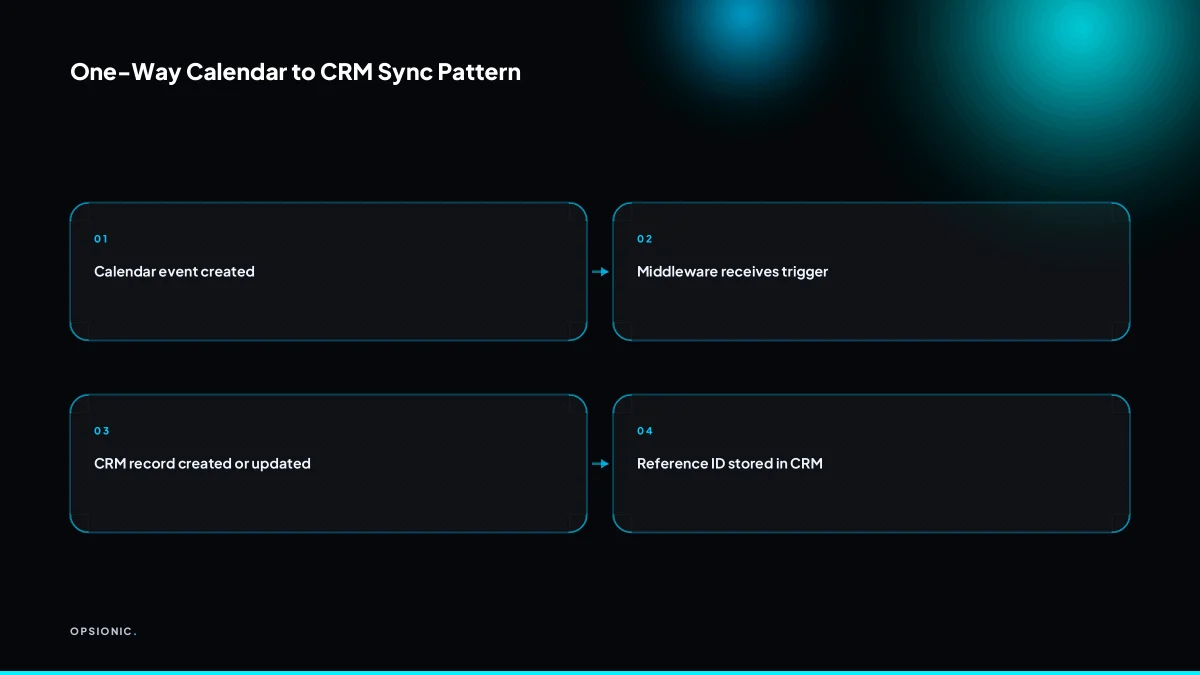
The one-way-plus-reference pattern writes data from calendar to CRM only, and stores a unique ID or link from the calendar event inside the CRM record. If the event is updated, the CRM record is updated, not duplicated. This avoids loops because the CRM never writes back to the calendar, so there is no circular trigger.
To store the event ID, create a text or hidden field in your CRM called something like “Calendar event ID”. Map that field to the event ID your calendar tool exposes in its sync payload. Most calendar APIs send this as a plain string of letters and numbers. The field does not need to be visible to your team, but it does need to be included in every sync.
Disable reverse sync in both tools. In the calendar, turn off any option that creates or edits CRM records from calendar changes. In the CRM, remove any workflow that pushes record edits back to the calendar. Leaving either side on is what creates the loop: a change in one tool triggers a change in the other, which triggers the first again.
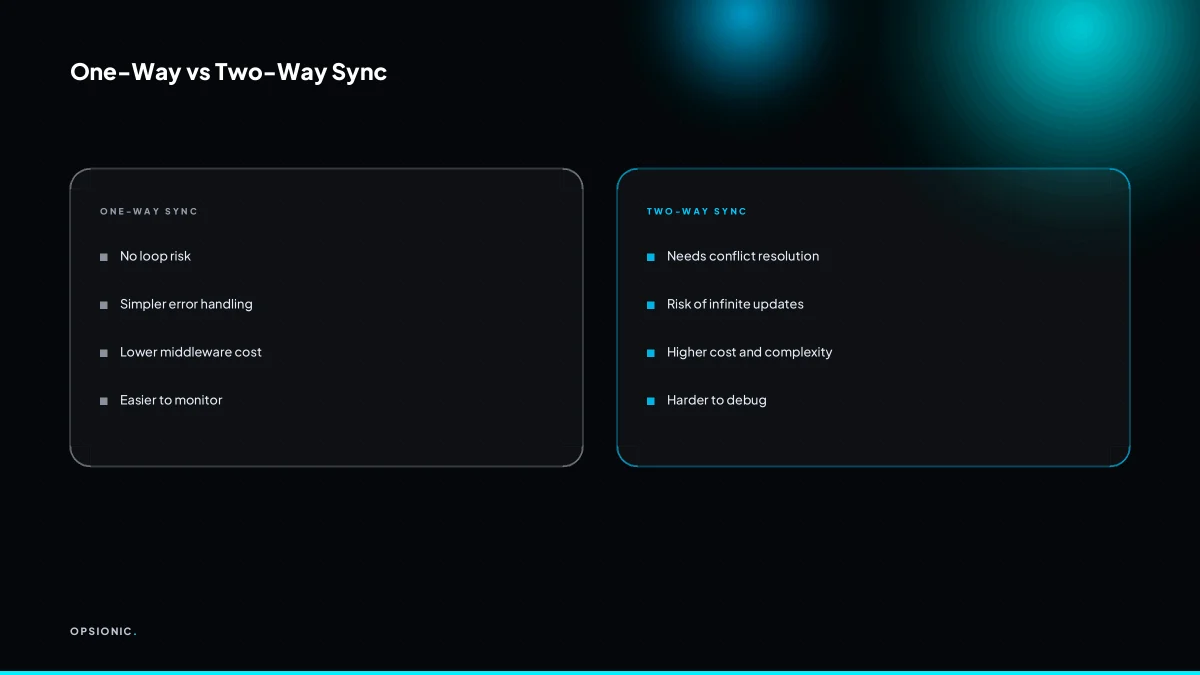
Two-way sync is genuinely required only when both sides create events. A booking tool that lets clients pick a slot and a sales team that blocks time in the CRM is one example. In that case, use a single field for the event ID on both sides and let the sync tool compare timestamps before writing, the same principle as Jotform to Google Sheets properly where one source of truth prevents overwrites.
When is two-way sync actually necessary?
Two-way sync is necessary when both sides must be able to create or change events and the other must reflect that immediately. Examples include a shared team calendar where sales reps log calls in the CRM and those appear on a manager’s calendar, or when customers book through a portal that updates both systems. For most one-person or small-team workflows, one-way is enough.
Think of a field service business. A dispatcher moves a job in the CRM, and the technician’s calendar should update on their phone before they drive to the wrong address. Or a law firm where a paralegal reschedules a client meeting in the calendar, and the CRM matter record must show the new time so the fee earner’s report is correct.
The cost is real. Every two-way sync needs conflict rules: what happens when the same event is edited on both sides within the same minute? Which system wins? You also need error handling for deleted events, merged contacts and duplicate records created when a retry fires twice.
Middleware like Make, n8n or Zapier can support this, but only if you design it. Use a shared event ID field on both records. Compare a “last modified” timestamp before writing. Log every write attempt so a silent failure is visible later.
What is this costing you now?
Based on removing half of that time.
What breaks in the real world with calendar CRM sync?
Common failures include duplicate records when a retry fires twice, timezone drift when the calendar and CRM are set to different zones, deleted events leaving orphan CRM records, merged contacts breaking the reference link, rate limits pausing the sync, and the connection silently stopping so nobody notices for a month. Each needs a specific guard.
Duplicate records. You look at a contact in the CRM and see the same meeting listed three times. The cause is a retry: the calendar API timed out, your automation retried, and both attempts created a record. The fix is to send an idempotency key with each write, or use an upsert that matches on the shared event ID before creating anything new. If your middleware does not support idempotency keys, the upsert is non-negotiable.
Timezone drift. A meeting booked for 14:00 appears in the CRM at 15:00, or the wrong day entirely. This happens when the calendar stores local time and the CRM stores UTC, or when one side respects daylight saving and the other does not. Store every timestamp in UTC in the CRM and convert only at display time. Never pass a bare local time between systems.
Silent stoppage. The sync stops working and nobody notices for a month. A contact updates their email, the calendar refuses the write, and the automation logs the error into a dashboard nobody opens. You need an alert, not a log. Add a step that checks the last successful run and sends you a message if it is older than, say, 24 hours. The hidden costs of automation include exactly this kind of quiet failure, and a monitoring alert is the cheapest insurance you can add.
How do you test that the sync actually worked?
After saving the automation, create a test calendar event with a unique attendee email and a note like “test 12:34”. Then check the CRM for the new record, verify every mapped field, update the event and confirm the CRM record updates without duplicating, delete the event and decide what should happen to the CRM record, and finally check logs for errors.
Run this script once before you trust the sync with real bookings. It takes about ten minutes and catches the failures that only show up on a Tuesday afternoon.
- Create: make a test event for tomorrow at a time you can recognise. Use an email address that does not belong to a real contact yet.
- Wait: give the automation two to five minutes to run, then search the CRM for that email address.
- Check fields: open the new record and compare name, email, event title, start time, end time and any custom field against the calendar event.
- Check the reference ID: confirm the CRM record stores the calendar event ID somewhere you can find it later. This is the join that makes updates possible.
- Update: change the event time in the calendar and save. Wait, then confirm the CRM record shows the new time and there is still only one record.
- Delete: remove the test event. Decide in advance whether the CRM record should be deleted, marked cancelled or left alone, then confirm the automation does what you decided.
- Logs: open the middleware run history for the test window. Look for any warning or retry, not just a green tick.
If any step fails, fix that step before testing the next one. A sync that creates records but cannot update them will quietly rot your data. When the script passes, you have a working baseline. From there, the pattern behind how we build an automation is the same one you just ran: prove each step with a real record before you let it loose on your diary.
When is manual entry cheaper than building this sync?
If you have fewer than about 10 calendar events per week that need to become CRM records, manual entry takes less than 15 minutes a week. Building and maintaining a sync costs either a monthly middleware fee or your own time, plus monitoring. Below that volume, the automation is not worth the overhead unless the data entry is error-prone or you need instant follow-up.
Here is a worked example, not a client. Say you log 10 events a week and each takes 2 minutes to copy from calendar to CRM. That is 20 minutes a week, or roughly 1.5 hours a month. If your time is worth EUR 50 an hour, manual entry costs you about EUR 75 a month in labour.
Now compare a middleware subscription. A tool like Zapier or Make that handles two-way calendar to CRM sync starts at around EUR 20 a month at the time of writing, but the tier that gives you enough task runs and polling speed often lands nearer EUR 40 to EUR 60. Add the hour or two of setup and the occasional check when a connection breaks, and you are at or above the cost of just typing the records yourself at this volume.
There are exceptions. If a missed event means a missed appointment with a real cost, like a no-show at a clinic or a double-booked viewing for an estate agent, the risk changes the maths. The question is not only how many hours can automation save your small business, but what a single lost booking costs you. When one missed follow-up is worth more than a year of middleware fees, the sync pays for itself even at five events a week.
Want this running in your business next week?
A relaxed 20-minute video chat. Camera on or off. You leave with a plan whether or not you hire us.
- No call unless you ask for one
- From EUR 399 a month, no setup fee
- Built and run for you, not handed over as homework
Sources we checked
Questions people ask
Can I sync Google Calendar with HubSpot for free?
Google Calendar and HubSpot offer a native integration, but it may require a paid HubSpot tier for full API access. Free plans often have limited sync capabilities. Check HubSpot's pricing page for current details on which features are included.
Does Outlook Calendar have a native CRM sync?
Outlook Calendar can sync with some CRMs like Salesforce through native integrations, but field mapping is often fixed. For custom fields or complex workflows, you may need middleware like Zapier or Make. Check your CRM's documentation for specific sync options.
How do I avoid duplicate contacts when a calendar event updates?
Store the calendar event ID in a dedicated CRM field and use an upsert (update or insert) operation that matches on that ID. This ensures updates modify the existing record instead of creating a new one. Idempotency keys can also help if your middleware supports them.
What happens if I delete an event in the calendar, does the CRM record get deleted?
By default, most syncs do not delete CRM records when a calendar event is deleted. You need to explicitly configure a delete action or a status change. Decide whether to archive, mark as cancelled, or delete the CRM record, and add that step to your automation.
Can I use Zapier to sync calendar events to Pipedrive without coding?
Yes, Zapier offers a no-code way to connect Google Calendar or Outlook Calendar to Pipedrive. You can set up a trigger for new or updated events and an action to create or update Pipedrive deals or contacts. A paid Zapier plan may be needed for higher volume.
How do I handle time zones when syncing across countries?
Store all timestamps in UTC in your CRM and convert to local time only for display. Ensure both the calendar and CRM are set to use UTC internally. This avoids drift when daylight saving changes or when teams are in different zones.
Is there a way to sync only my own calendar, not the whole team's?
Yes, most automation tools let you filter by calendar owner or event organizer. Set a condition in your trigger to only process events where the organizer or attendee matches your email. This prevents syncing the entire team's calendar.